Edit, approve, and publish posts
You are now logged in, connected to social media, and can start reviewing this month's posts. Here you have the opportunity to go over and edit your posts before they are sent for publication.
💡In this guide, you will get an introduction to suggestions and edits.
How to approve posts
How to edit your suggestions with the AI agent
How to change the caption
How to generate a new image
Now you are ready to go over the posts that have been generated for you this month! You will find the suggestions under "suggestions" at the top left of the platform.
Approve posts
At the bottom of the page, you will find all the posts that have been created for you; you can scroll through them and choose to approve or not approve.
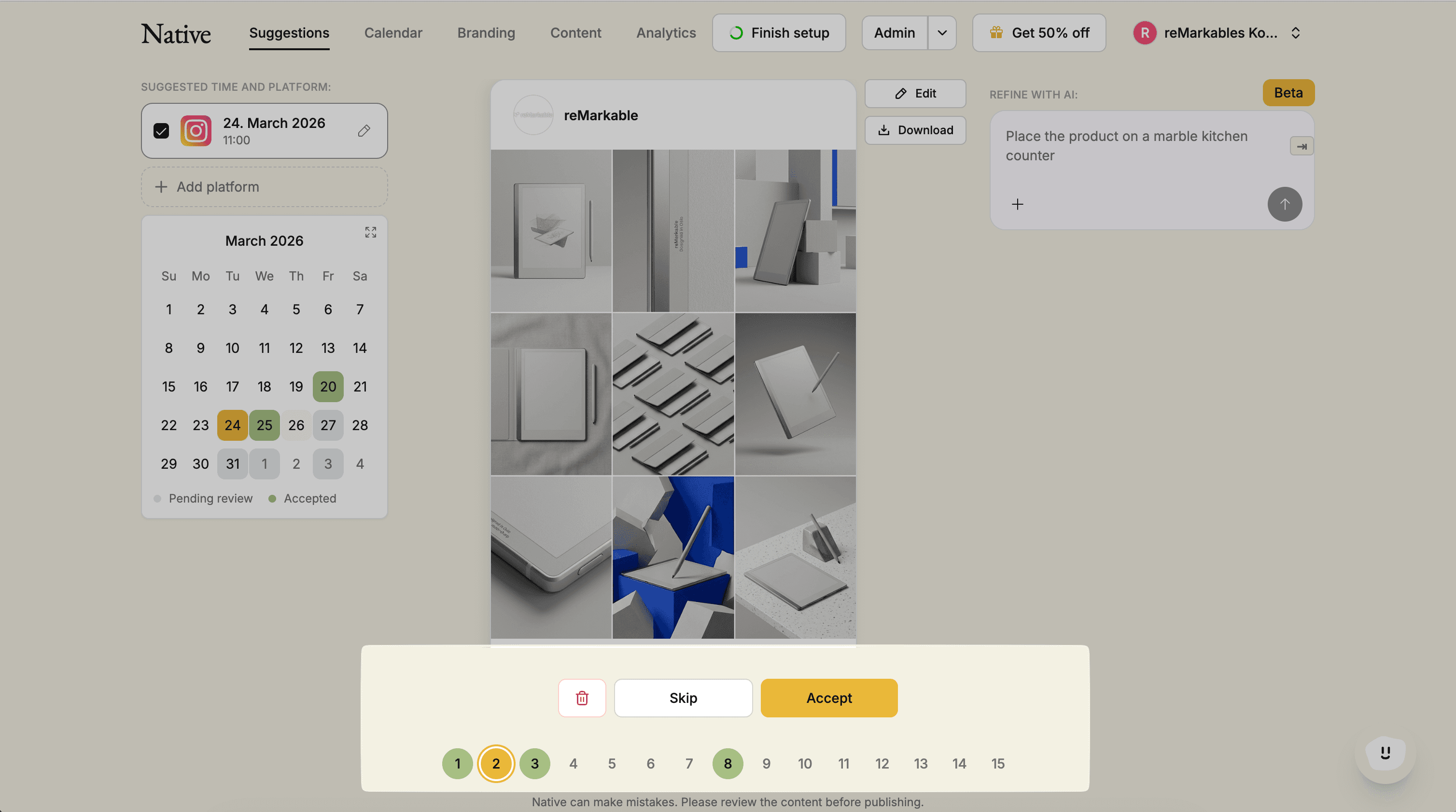
To the left of the posts, you can see which platform you are approving the post to, and thereby where it will be published. You also have the option to add more platforms.
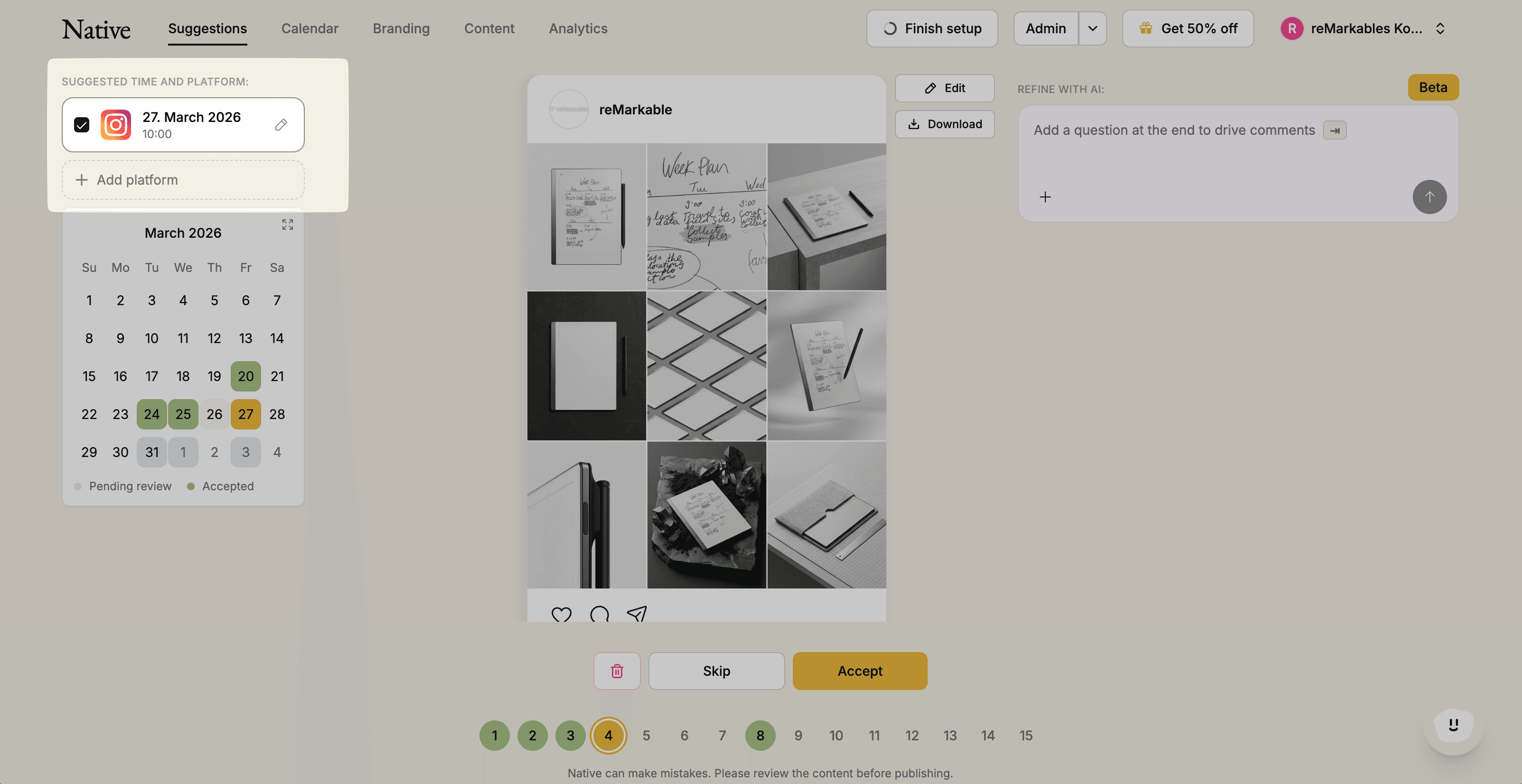
If you approve the post, it will be moved to Calendar, where you can see all the posts that are "scheduled" and in "draft" - those that you have NOT approved yet.
Editing posts in suggestions
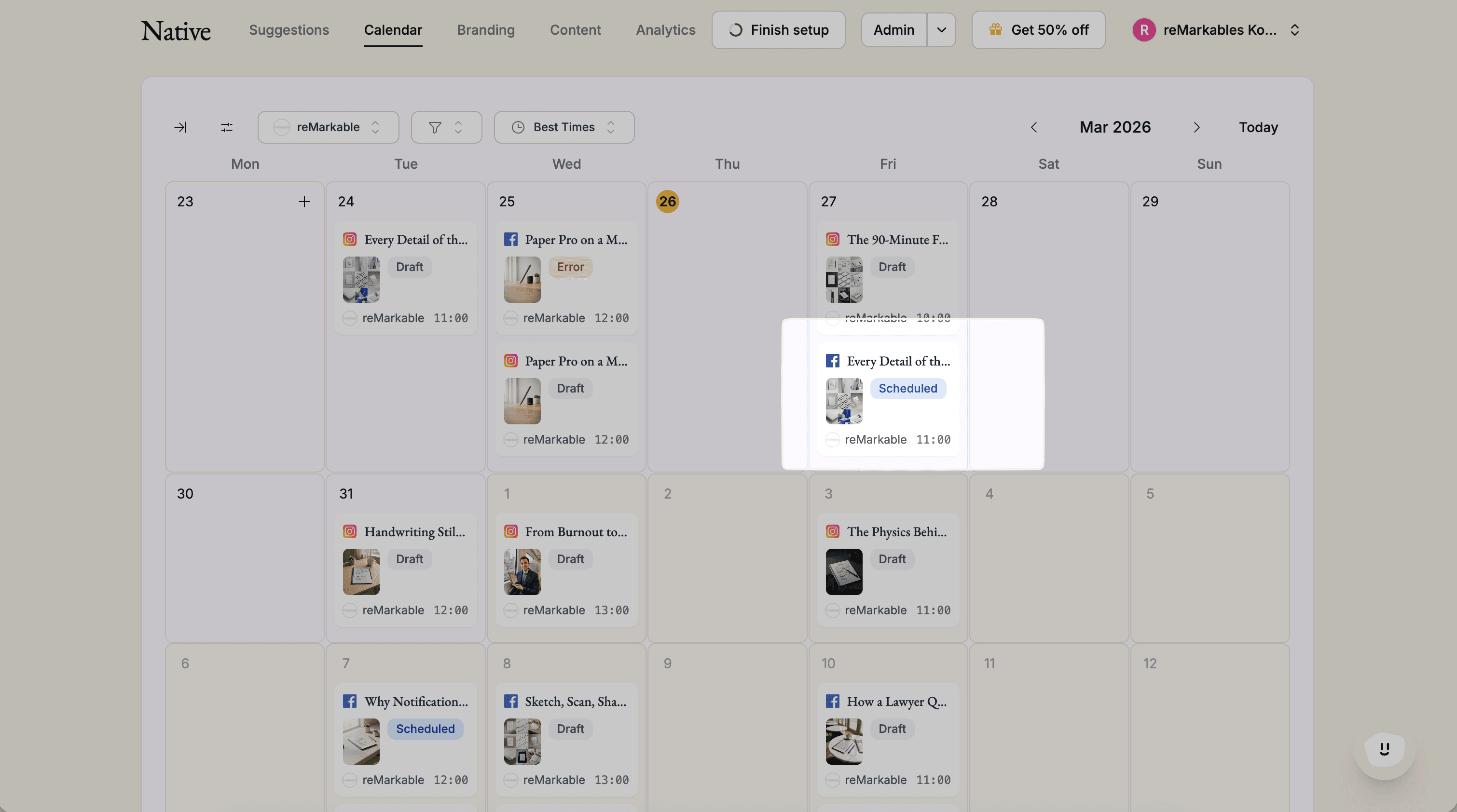
If there are any of the posts you want to change before you send them over to "scheduled," you can easily do this together with the AI agent in suggestions.
To the left, you will find edit with AI. Here you can submit comments on what you want to change, and the agent will then make these changes for you.
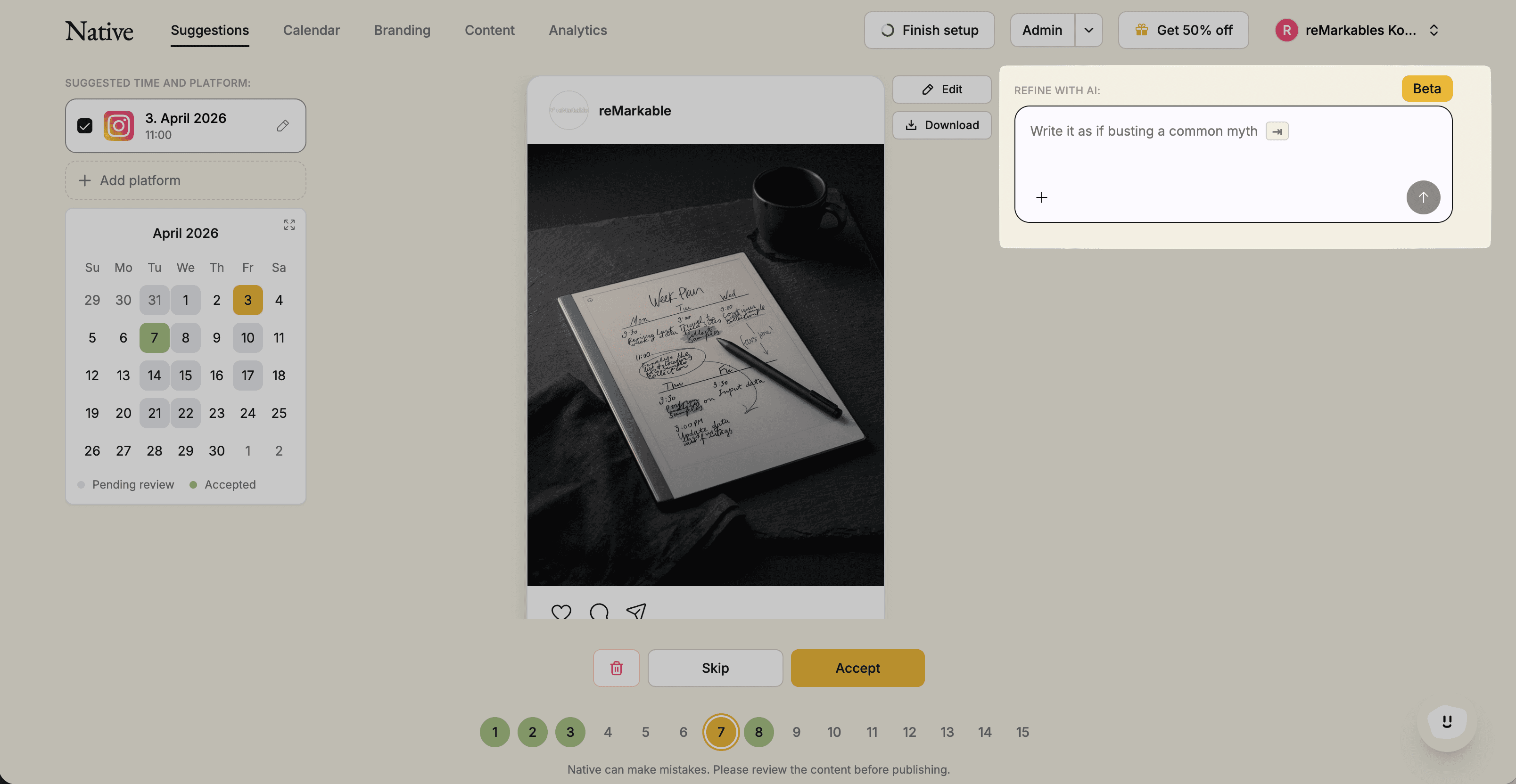
In this case, we want the background to be lighter.
☝🏼It's important to remember here to be precise in your "prompt" so that the agent understands the task correctly and executes it so that the result is what you desire.
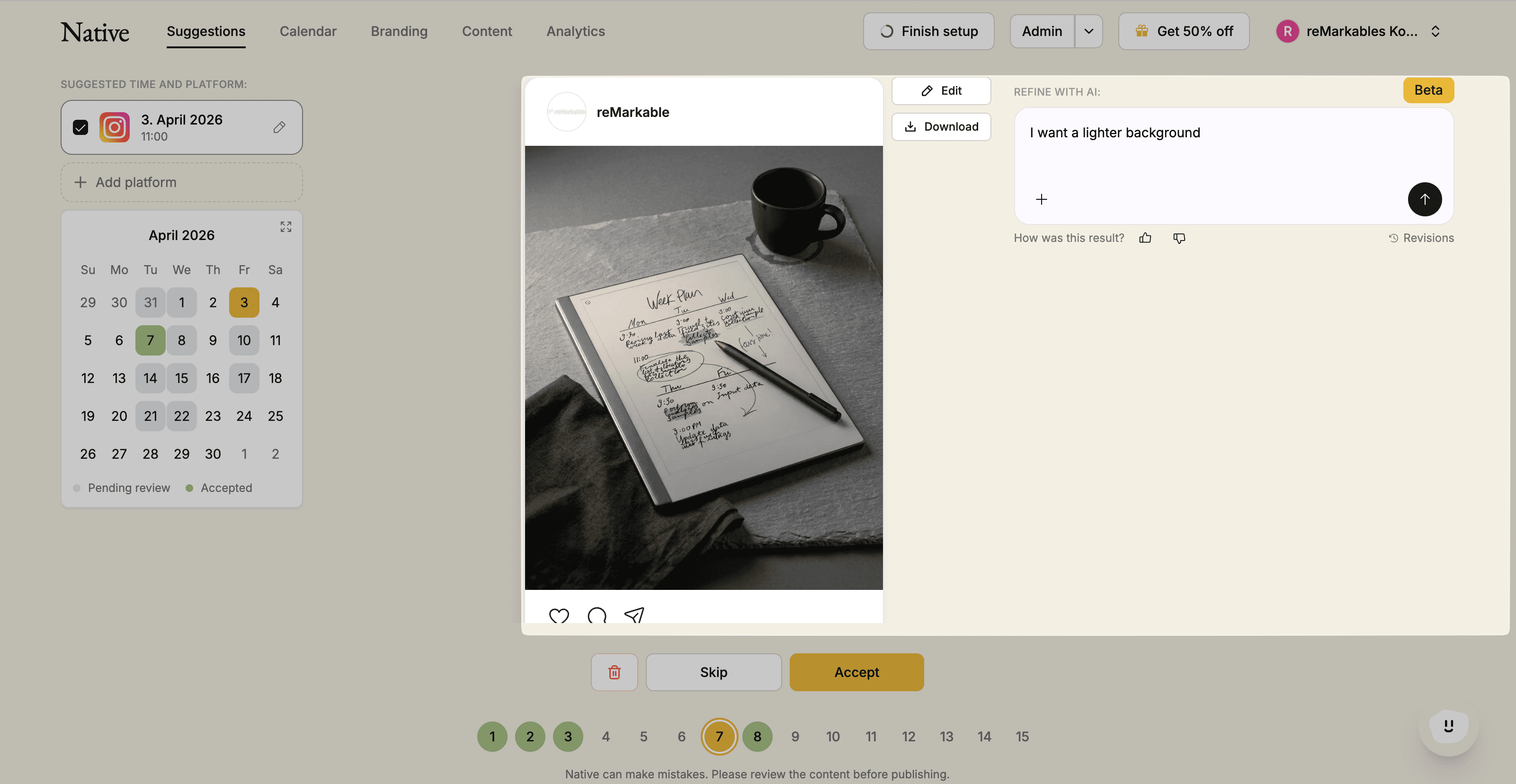
In addition to writing to the agent, you can attach reference images that the agent should base itself on. You can either upload new images or use the images that are in your media library.
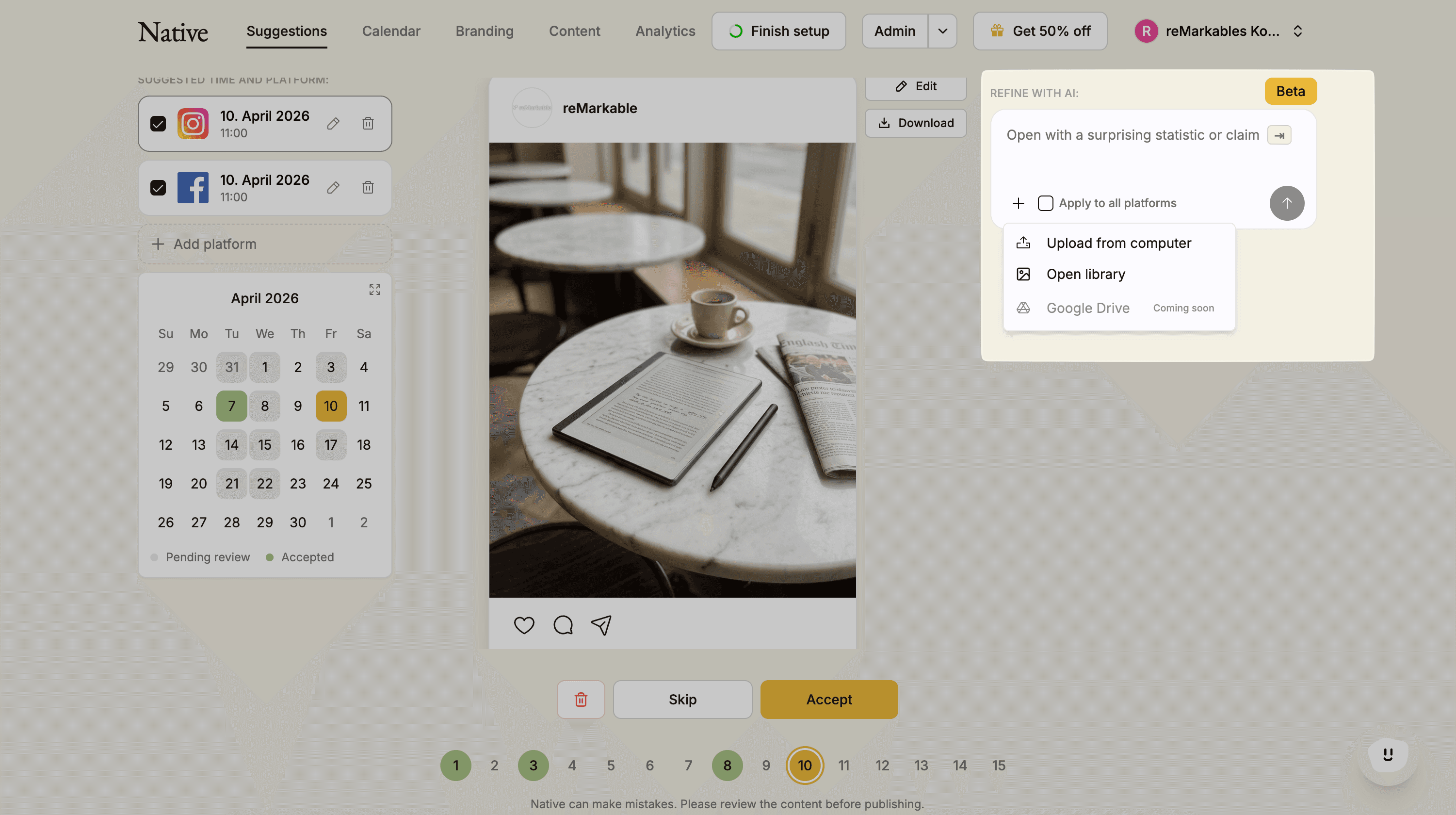
Change caption or generate a new image
You can easily change the caption of the image. Click on edit to the right of the image and change the text directly. If you are not satisfied with the image you received in your post, you can generate a new one. Go to "edit" and select "change media" then choose "generate new"; here you can also add new reference images so that it turns out how you want.
Then you can just sit back and let social media run on autopilot!