💡 In this guide, you will set the daily Meta budget, choose how many ads Native makes, and decide whether finished batches publish automatically.
Autopilot handles the ongoing rhythm. Native creates fresh ad variants from your brand, audience, products, assets, and saved ad defaults. You can still create batches manually whenever you want.
Before switching it on
Complete this checklist first:
- The correct Meta ad account is connected and has a payment method.
- Your audience, destination, language, goal, products, and assets are saved.
- You have decided whether finished batches should publish automatically or wait for your review.
- The destination page works on both phone and desktop.
- If you chose Sales or Website leads, the Pixel and conversion event have been tested.
1. Open Autopilot
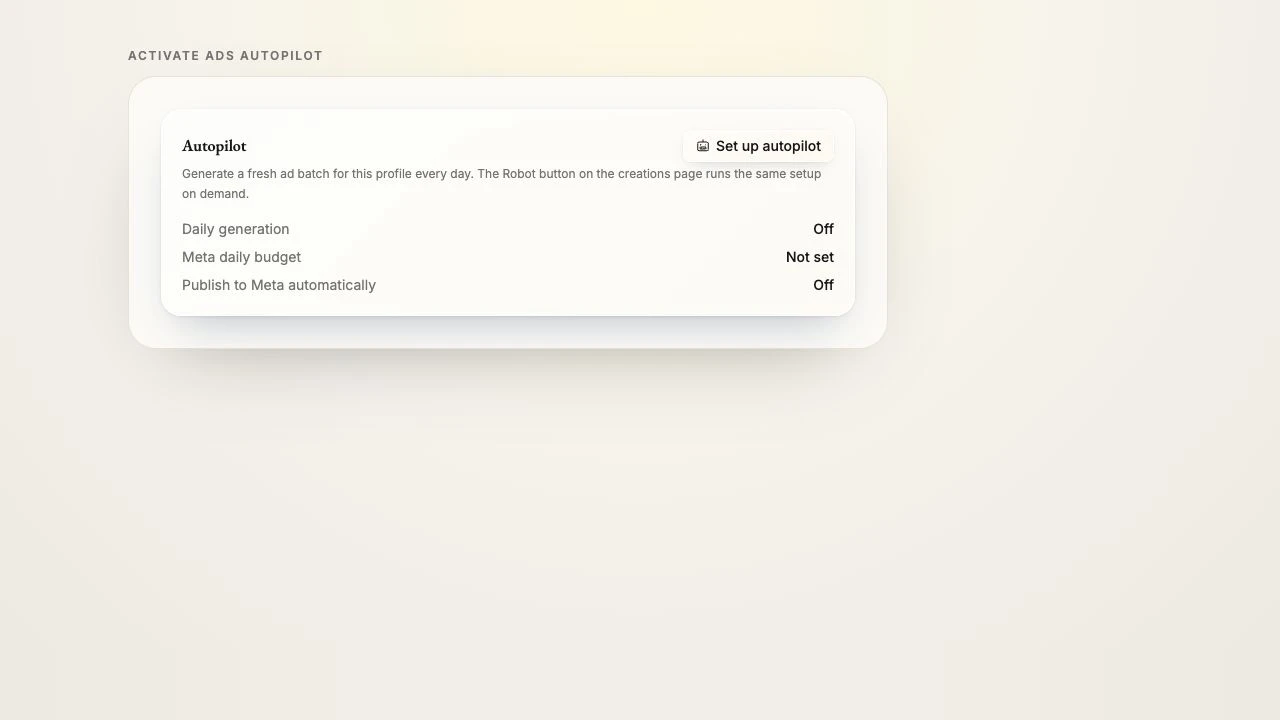
Go to Branding → Ads. Find the Autopilot card and choose Set up autopilot. You do not need to create a batch first.
2. Set the Meta budget
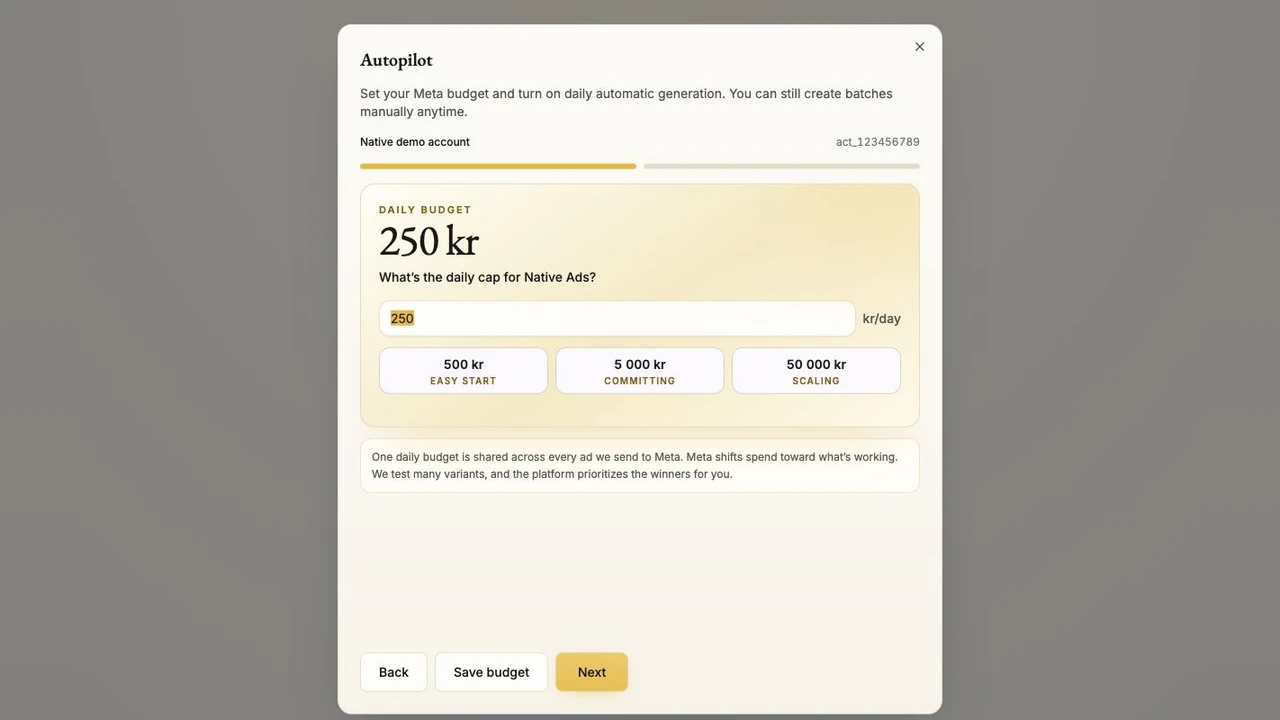
Enter the maximum daily budget for Native Ads, then choose Next. One daily budget is shared across every ad Native sends to Meta. Meta shifts delivery toward what is working.
Choose a cap you are comfortable leaving on every day. Native shows the Meta spend details again before saving.
3. Choose the daily run
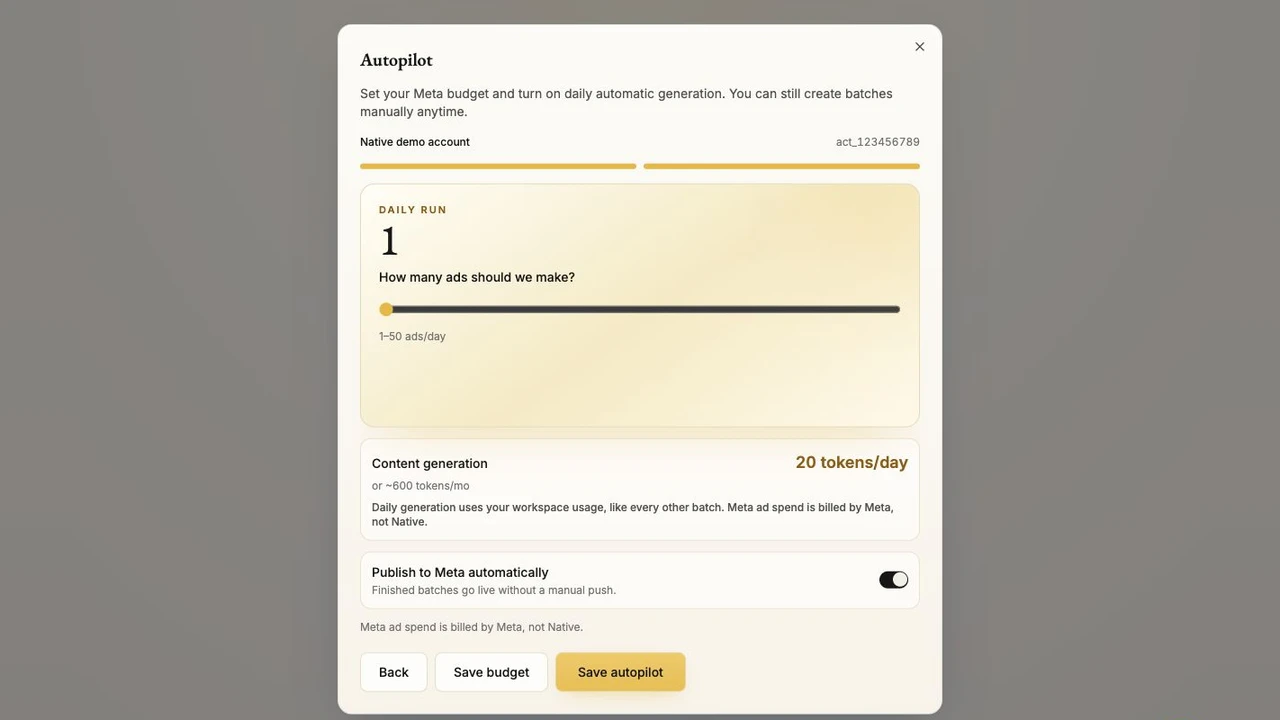
Choose how many ads Native should create each day. The screen shows both daily generation and the approximate monthly Native token usage.
Daily generation uses your Workspace usage, just like a manual batch. If the Workspace does not have enough usage available, Native will not continue generating unseen costs.
4. Choose your control level
The most important switch is Publish to Meta automatically.
- Off: Native creates finished batches, but you review and push each batch to Meta yourself.
- On: finished batches go live without a manual push.
New to paid ads?
Leave automatic publishing off for the first batch. Once you have checked the message, visual, destination, and conversion tracking, turn it on for the full Autopilot experience.
5. Save and monitor
Choose Save autopilot. Follow delivery under Branding → Ads → Campaigns. The campaign and ads can show as Paused, In review, or Live.
You can change the budget, pause ads, switch automatic publishing off, or create a manual batch at any time.
Know what each cost means
| Cost | Where it comes from |
|---|---|
| Ad creation | Uses Native Workspace tokens. The Autopilot screen shows the daily and approximate monthly amount. |
| Ad delivery | Meta bills your Meta ad account directly, up to the daily cap you set for Native Ads. |
Your first-week check
- Open Campaigns each day and confirm the status is what you expect.
- Check that every destination still works.
- For Sales or Website leads, confirm conversion events continue to arrive once each.
- Edit or disable messages you do not want repeated. Native can learn useful patterns from your edits.
- Pause delivery if the account, budget, destination, or tracking looks wrong.
Two systems, one Autopilot: Native creates the ads using Workspace usage. Meta delivers the ads and bills the media spend. The Campaigns view tells you whether delivery is Paused, In review, or Live.
Native Ads setup complete