
Calendar
Plan your week on the calendar
 Elin Kristina AnderssonFounding GTM0:34Recorded 18 de noviembre de 2026

Your calendar shows the posts you've planned, each on its day and at its time. Tell your assistant when your drafts should go out, and it schedules them for you. Then check the week, and move anything you like by hand.
In this video
Step by step
Step 1: Your drafts
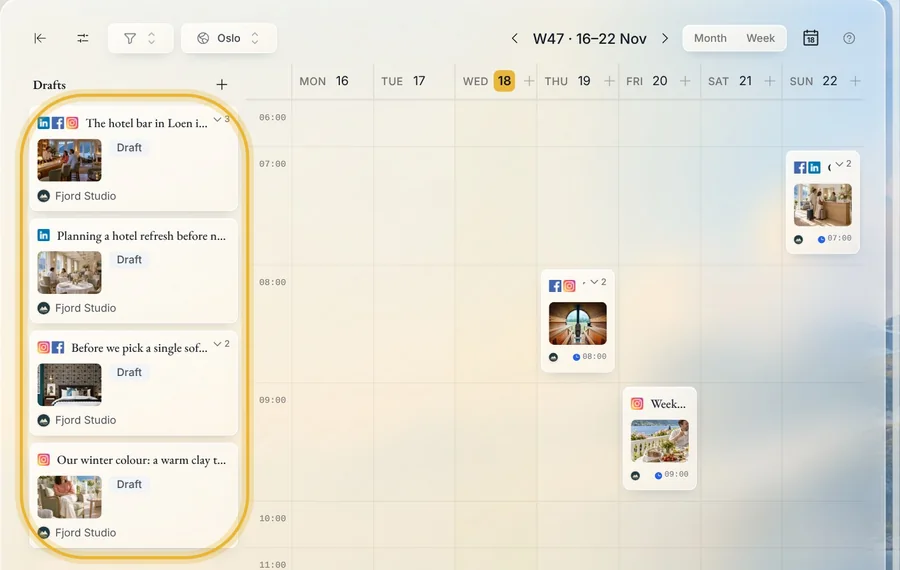
Your drafts wait in Drafts, beside the calendar. Drag one onto a day ahead, and Nativean asks if it should schedule it then. Press Schedule, and it's planned. Or let your assistant plan them all at once.
Step 2: Ask your assistant
On the calendar, say in the chat beside it when your drafts should go out, like “Schedule my drafts next week, one a day at nine.” Your assistant gives each draft its own day and time, and each goes out by itself.
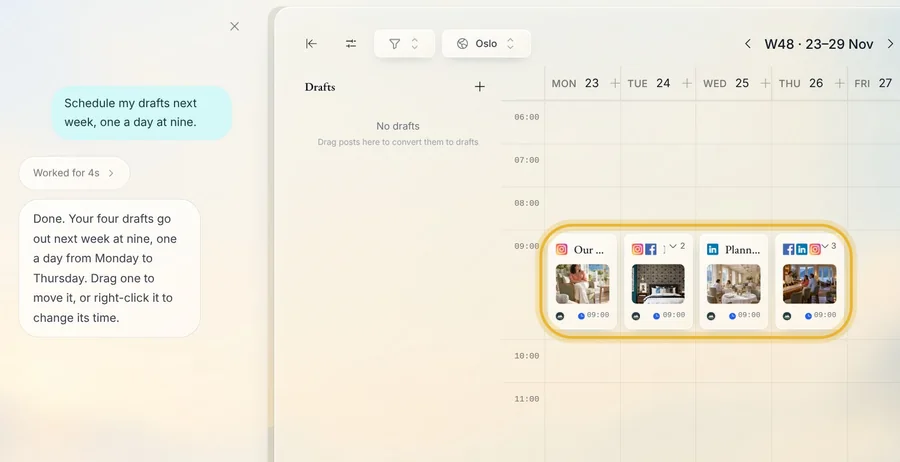
Tip: Under the chat box, Auto schedules them right away. Pick Manual, and your assistant shows you the plan first and schedules it when you say yes.
Step 3: Week and month
Switch between Week and Month at the top of the calendar. Each post sits on its day, at its time.
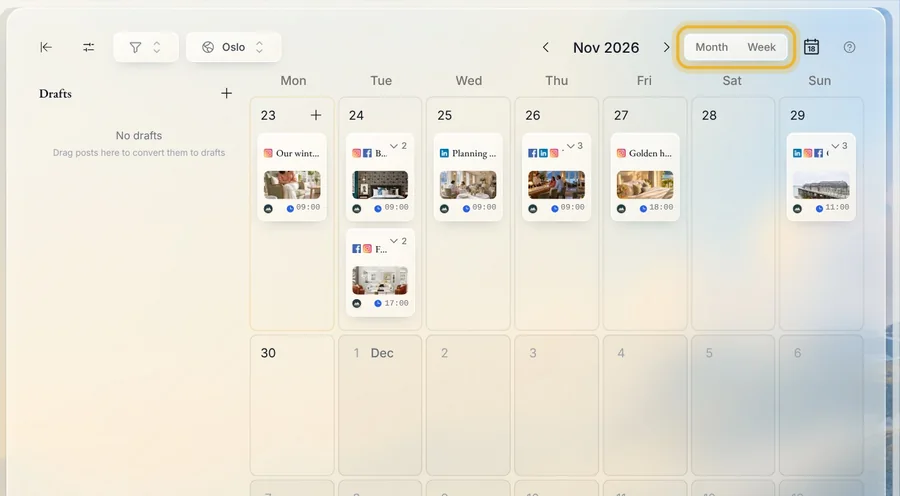
Tip: Times follow the time zone at the top of the calendar.
Step 4: Move a post
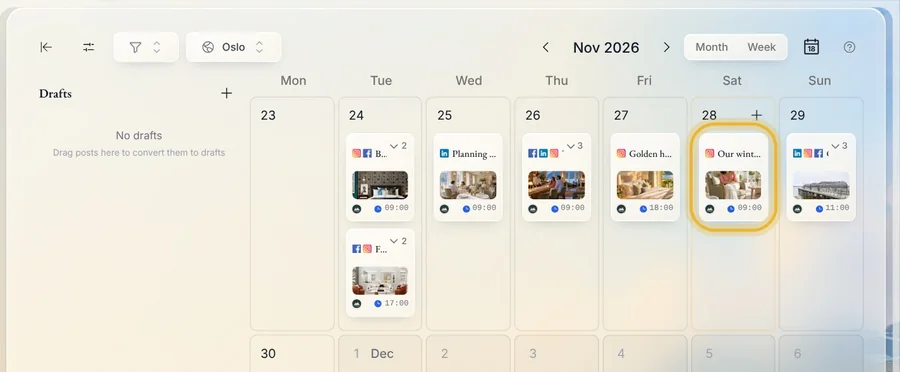
Drag a post to another day, and it moves there. In Week, drop it on another hour to change its time too.
Step 5: Change a time
Right-click a post and pick Change time. Choose the new date and time, then press Confirm reschedule.
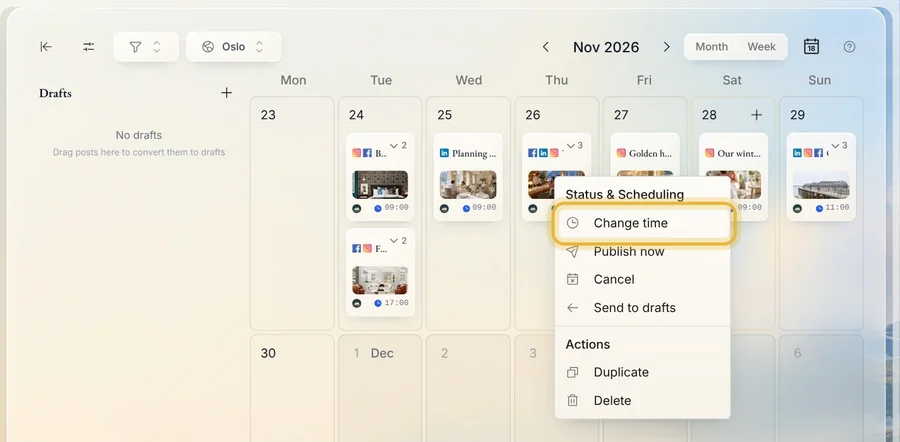
Tip: While Group platforms into one post is on, a post on several channels shows as one card. To send one channel back to your drafts, press the small arrow at the card's top right, then right-click that channel and pick Send to drafts.
Tips from Elin
- Plan the week in one go, and you won't have to think about it again until next week.
- If a draft can't go out as it is, like an Instagram post with no picture, your assistant says so before anything is scheduled.
- Keep a few drafts ready, so there's always something to plan.
Try it in Native
New to Native? Start with your website, and see your first posts today.