Start here
Connect your social channels
 Elin Kristina AnderssonFounding GTM0:35Recorded 28. Oktober 2026

Native posts on the channels you connect to your brand. It takes a minute, and you only do it once.
In this video
Step by step
Step 1: Open your brand's connections
Press your picture at the bottom of the bar on the left, or at the top on a phone, and choose Settings. Then open Connections. Each brand you can open has its own card there, with its channels.
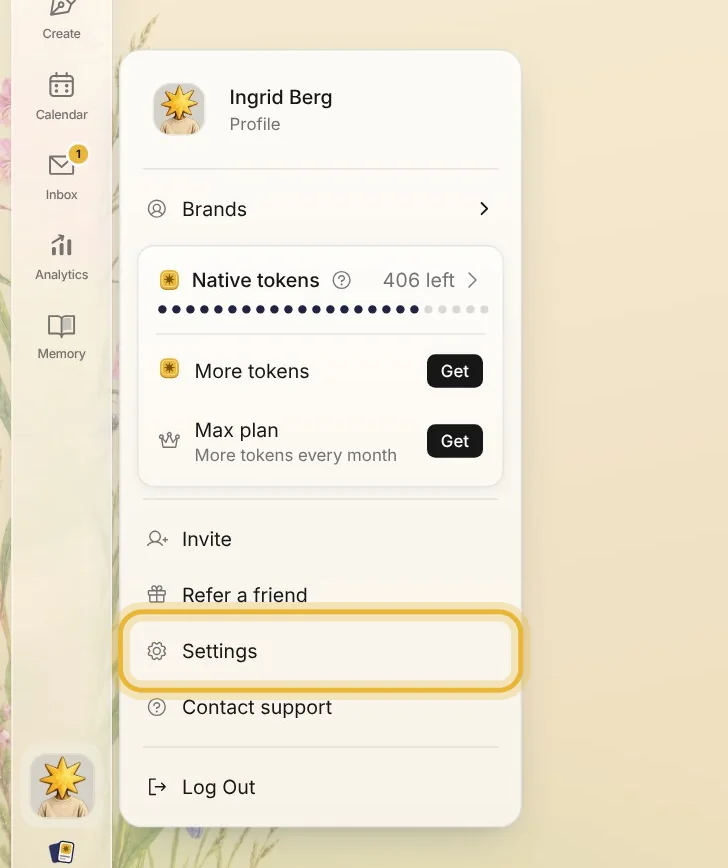
Tip: Don't see Connections in Settings? Open Brands, pick your brand, then Connections. There, a connected channel says Connected.
Step 2: See what is connected
Each channel has its own flower. A connected one says Manage under it, and Reconnect when it needs you to sign in again. Star your favorite channels, and Native writes posts for them.
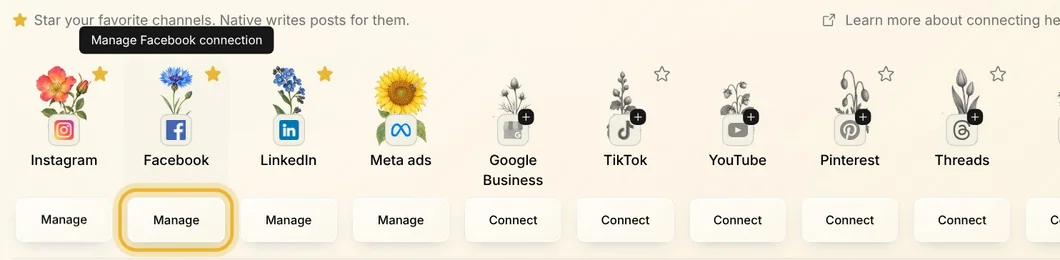
Step 3: Connect a channel
Press Connect under a channel, and sign in to that account in the window that opens. Once you are signed in, it says Manage.
Tip: Connecting here only changes this brand. Each brand has its own channels.
Step 4: Invite someone to connect
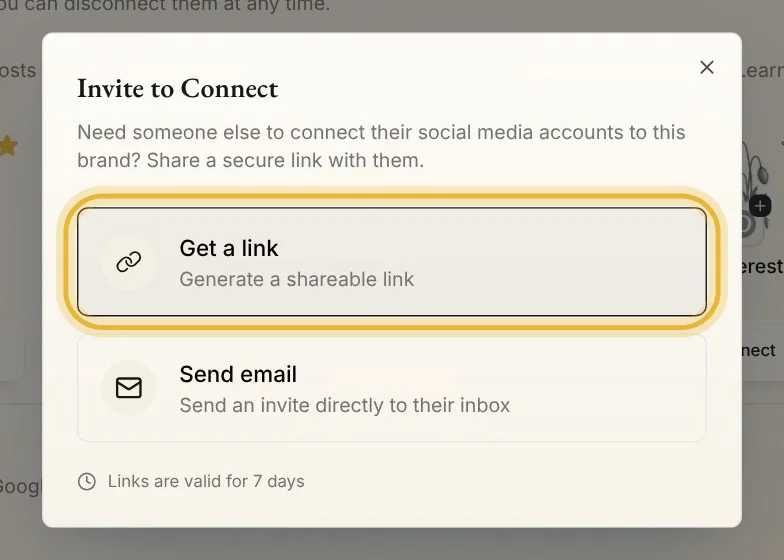
If someone else has the login, press Invite to connect. Get a link to send them, or send them an email from Native. The link works for 7 days.
Tips from Elin
- Connect your channels before you approve posts, so they go out on their own at the planned time.
- Meta ads in the same card is for running ads. Connect it when you are ready to advertise.
- Under Connectors in the same card, Canva and Google Drive bring your designs and files into Native.