
Create
Share a post for approval
 Elin Kristina AnderssonFounding GTM0:37Recorded 18 de noviembre de 2026

Want a colleague or a client to look at a post before it goes out? Your assistant opens the post for you. Press Share, copy the review link and send it. They see the post as each channel shows it, approve it or say what to change, and their answer waits in the post.
In this video
Step by step
Step 1: Ask your assistant
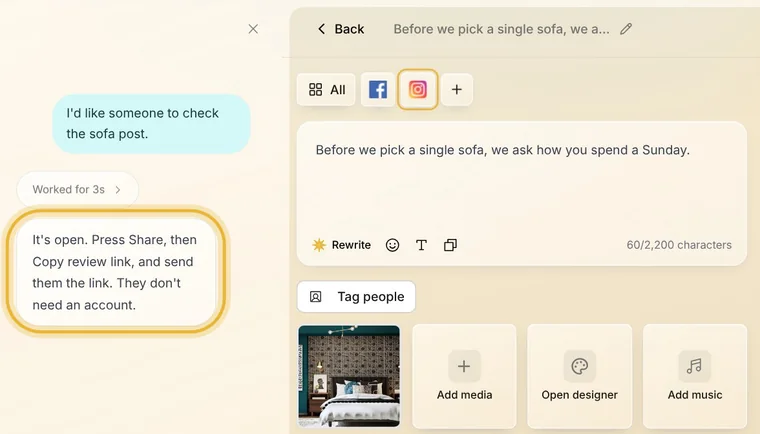
In the chat beside the page, say which post you want checked, like “I'd like someone to check the sofa post.” Your assistant finds the post and opens it beside the chat.
Step 2: Share
At the top of the post, press Share. Add a message if you like, then press Copy review link. The link is copied, and it shows below the button too.
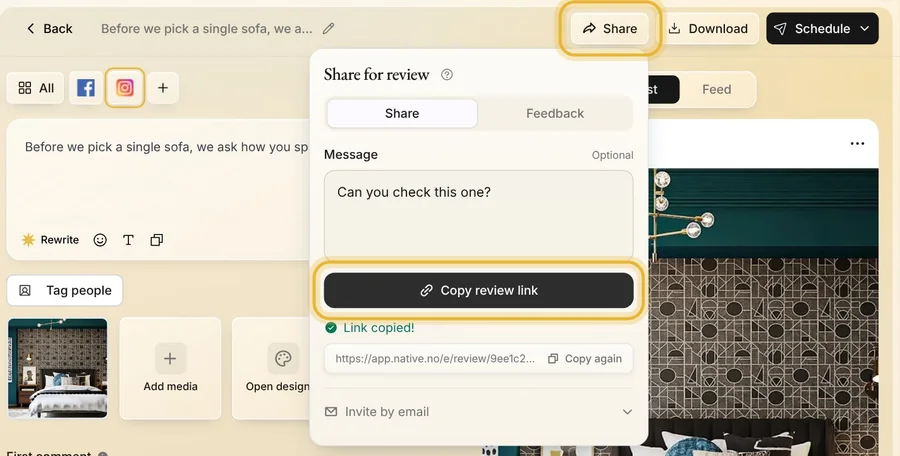
Tip: Rather send it by email? Under Invite by email, pick someone from Team members or add someone outside the team, then press Send.
Step 3: Send the link
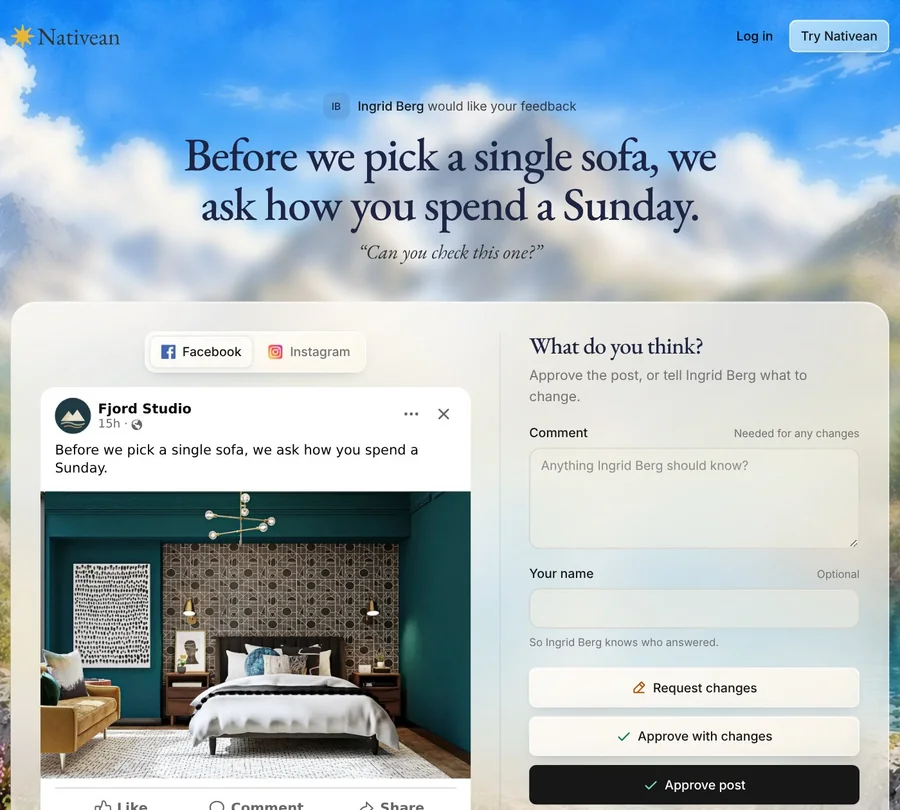
Send the link however you like, in an email, a chat or a text. They don't need an account or to sign in, so send it only to the people you want an answer from.
Step 4: They answer
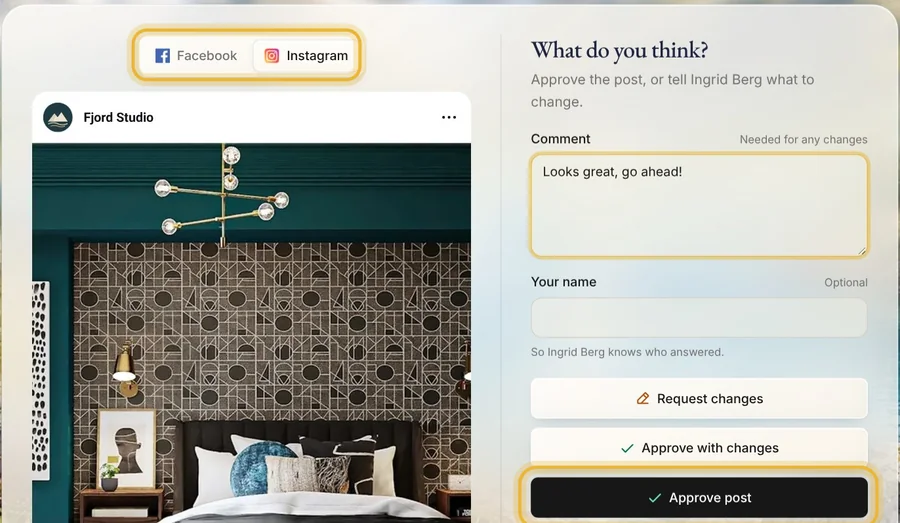
They see the post as each of its channels shows it, a tab for each. Then they press Approve post, or Approve with changes or Request changes and say in a comment what to change.
Step 5: Read their answer
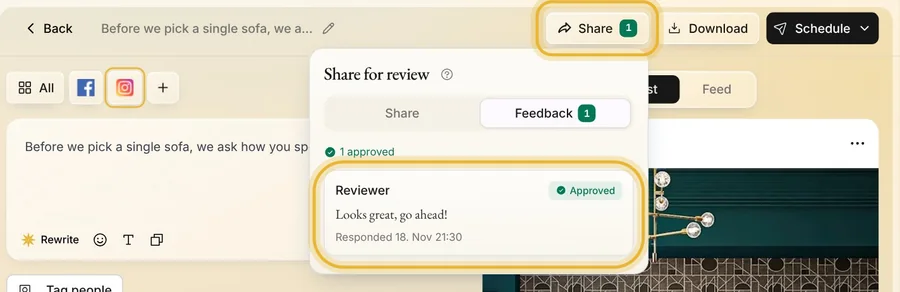
Back in the post, Share shows how many have answered. Open it, and it opens on Feedback, with each answer as Approved, Approved with changes or Rejected, and their comment.
Tip: An answer doesn't publish or schedule the post, and a scheduled post still goes out at its time. Share it before you schedule it.
Tips from Elin
- Each press of Copy review link makes a new link. Answers from every link land in the same Feedback tab.
- Say in your message what you'd like them to look at, like the picture or the price, for a sharper answer.
- Make the changes they ask for yourself, or ask your assistant in the chat beside the post.
Try it in Native
New to Native? Start with your website, and see your first posts today.