
Autopilot
Turn on Autopilot
 Elin Kristina AnderssonFounding GTM0:37Recorded 19 de novembro de 2026

Autopilot writes posts for you, on the days and channels you choose. Ask your assistant to turn it on: the first time, it shows you the plan first, and starts only when you say yes.
In this video
Step by step
Step 1: Ask your assistant
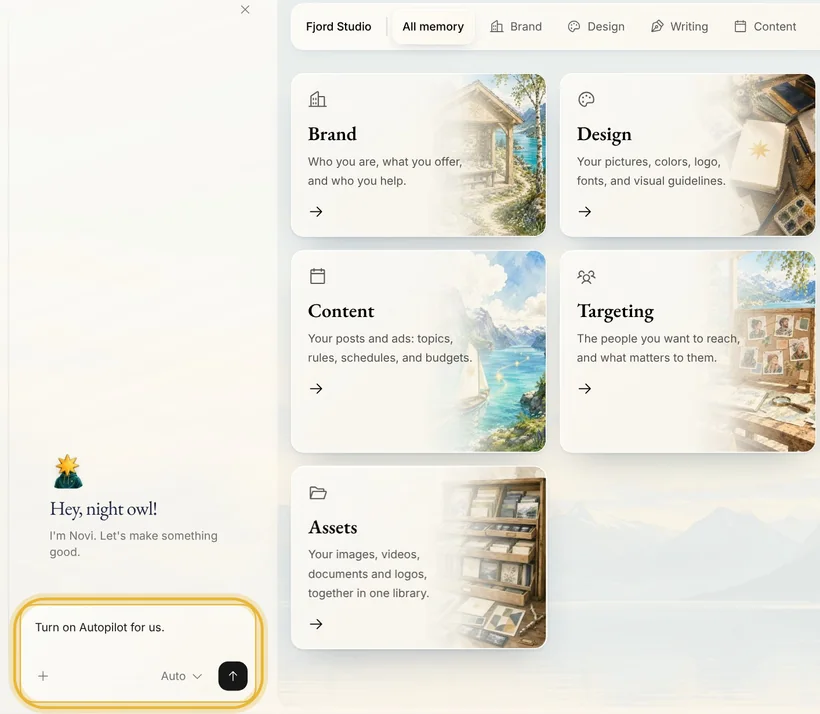
In the chat beside the page, ask your assistant to turn on Autopilot, like “Turn on Autopilot for us.” Only the brand's owners and admins can turn it on.
Step 2: Check its plan
The first time, before anything starts, your assistant shows Autopilot's plan: how many posts a week, for which channels, on which days, and what each post uses from your plan. It starts from your posting rhythm, if you've set one.
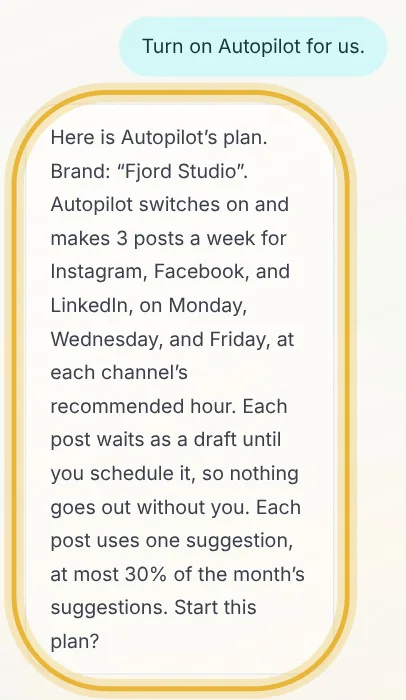
Tip: Want other days, fewer posts or other channels? Say so, and your assistant shows a new plan.
Step 3: Say yes
Say yes, and Autopilot is set up and on. Unless you asked it to post by itself, each post it writes waits as a draft on its date, in Creations and the Calendar, until you schedule it. Nothing is saved before your yes.
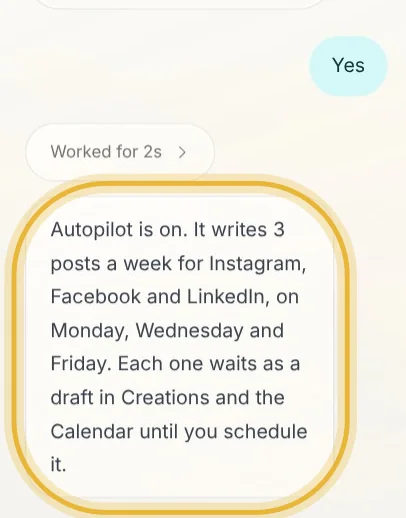
Tip: With Run by itself off, the plan comes as a card in the chat instead: press Approve.
Step 4: Check it on the Autopilot page
In Memory, open Content, then Autopilot. The Autopilot switch at the top is on.
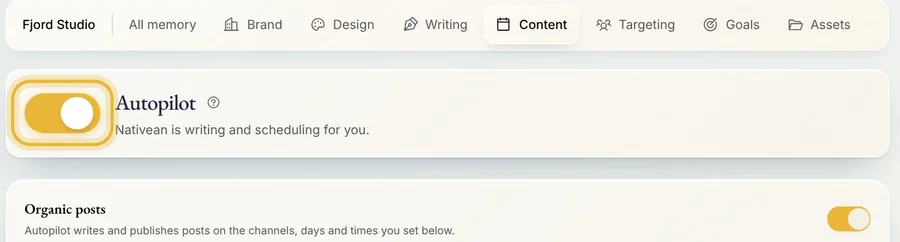
Tip: Changing Autopilot or turning it off takes an owner or admin of the brand too, in the chat or on the page.
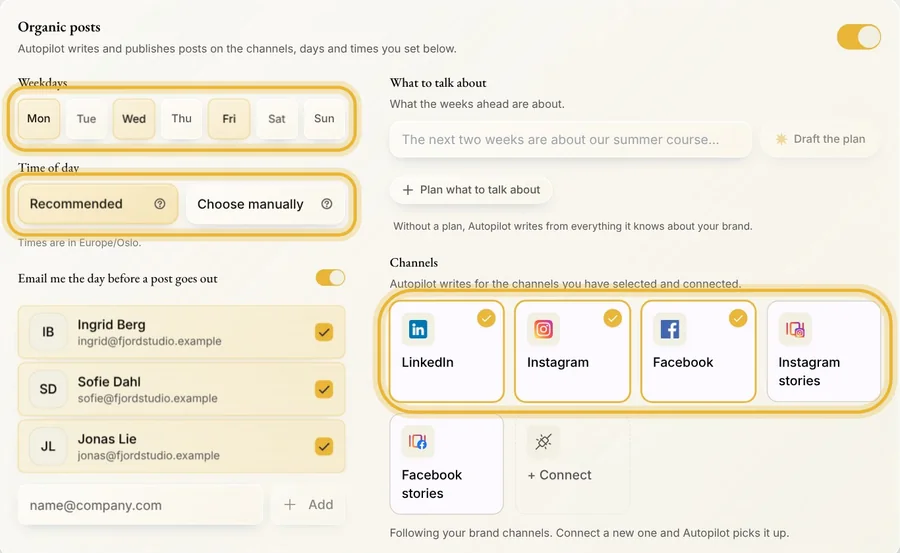
Step 5: Change the days, times and channels
Below the switch, change the days Autopilot posts on, the time of day and the channels it writes for.
Tips from Elin
- To stop, ask your assistant to turn Autopilot off, or turn off the switch on the Autopilot page. Posts Autopilot scheduled go back to drafts; posts you scheduled yourself stay as they are.
- Rather choose everything yourself? Turn on the switch on the Autopilot page. The first time, it asks a few questions.
- When your plan has a monthly limit, Autopilot's plan says the most of it Autopilot may use, and it pauses when it gets there. If Autopilot runs on your tokens, it never uses token packs. If it runs on your suggestions, it can use suggestion packs once the month's are used.
Try it in Native
New to Native? Start with your website, and see your first posts today.