Suggestions
Change a post before you approve it
 Elin Kristina AnderssonFounding GTM0:36Recorded 24 oktober 2026
A card that is almost right does not have to go. Change what you want first, then approve it.
In this video
Step by step
Step 1: Change the words
Click the card's words, and they open where they sit. Type what you want, then press Save. Nothing changes until you save, and Cancel puts the words back.
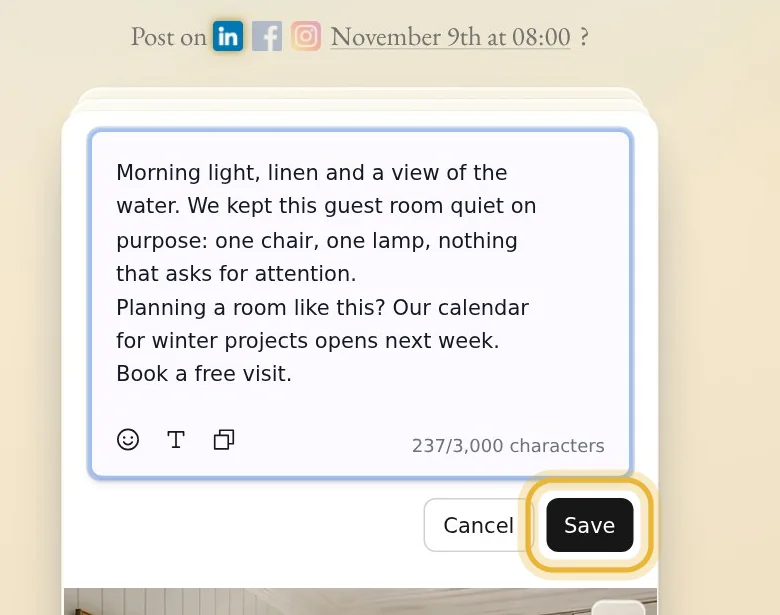
Step 2: Change when it goes out
Click the date above the card. Take Native's best time, or pick a day and a time yourself. The new time goes on the channel at the top of the window; tap the other channels next to Same time on to move them too, then press Save.
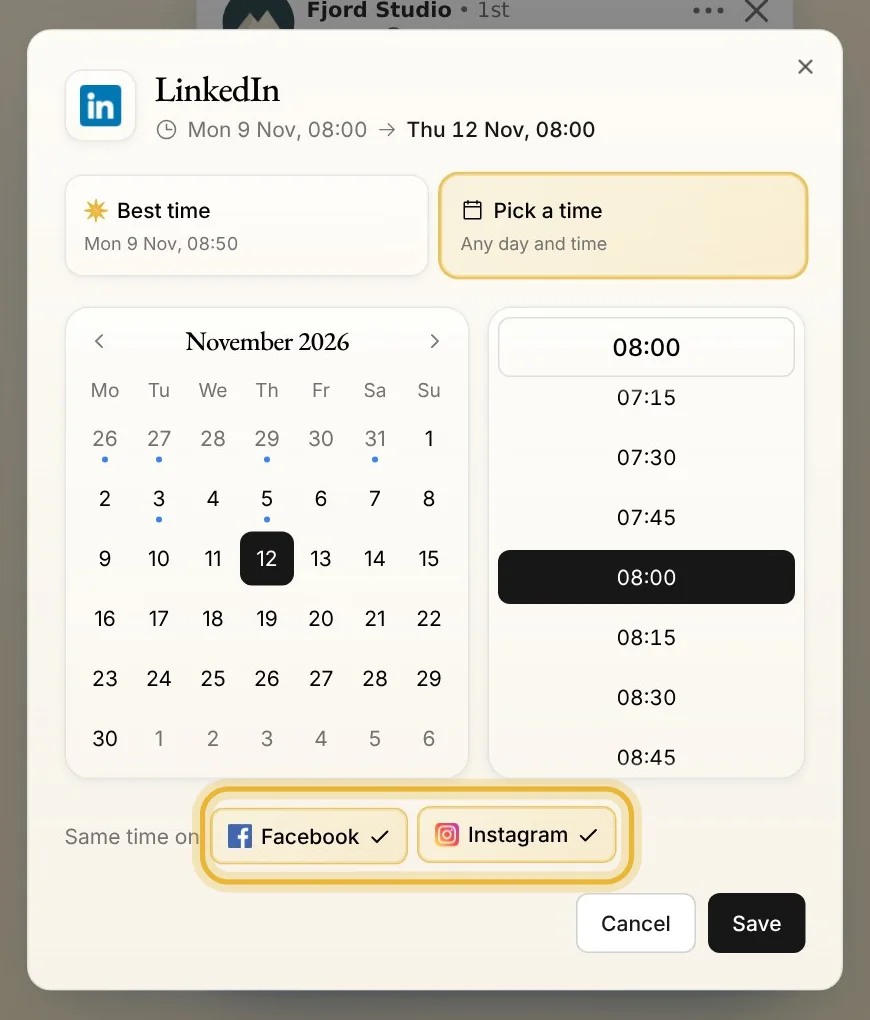
Tip: Each channel can have its own time. Leave the others untapped to post on one channel first.
Step 3: Add a photo
Point at the picture and press its pencil, then Open media. Pick one of your photos and press Add. It goes after the pictures the post already has.
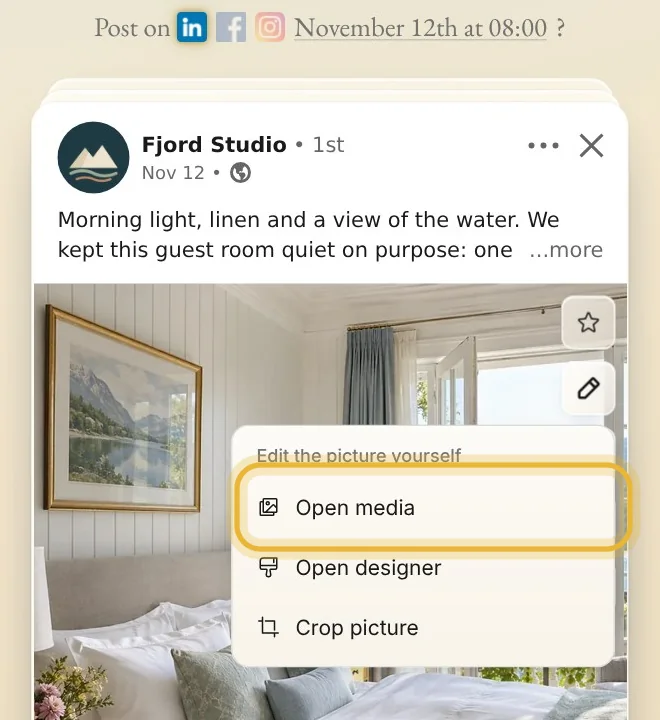
Tip: The same pencil crops the picture and opens it in Designer. With more than one picture, it also puts them in another order.
Step 4: Or ask Native
Press the pencil under the card and say what to change in your own words, like “make it shorter” or “end with a question”. Press the arrow, and Native changes the card for you. A card's first five changes from Native are free.
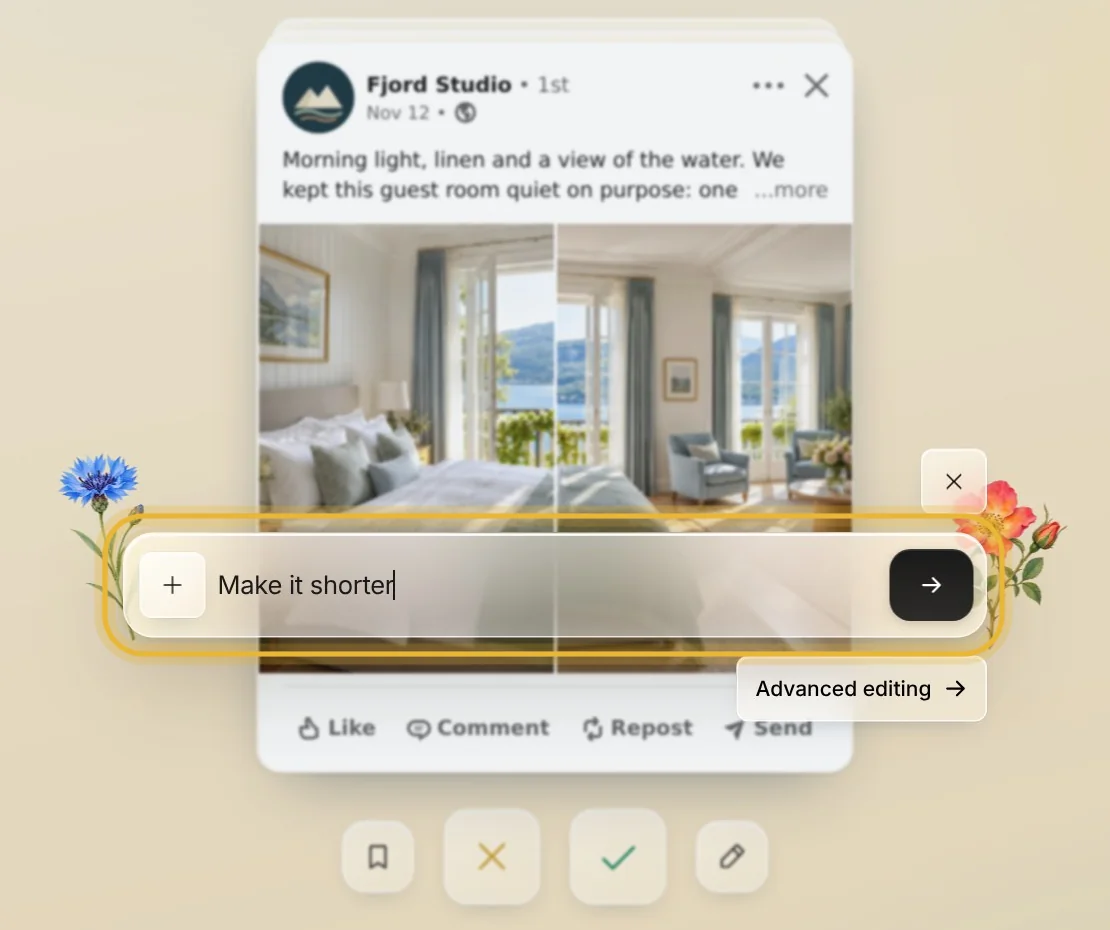
Tips from Elin
- Changes you make yourself are free, and none of them uses a suggestion.
- Approve the card when it is right. It goes out just as you left it.
- Need more room? Advanced editing, under Native's box, opens the full post editor.