Create
Make a post from your own idea
 Elin Kristina AnderssonFounding GTM0:47Recorded 25 oktober 2026
Have something to share? Tell Native in a sentence or two. It writes the caption in your voice and makes the picture in your look, and you get a draft to finish.
In this video
Step by step
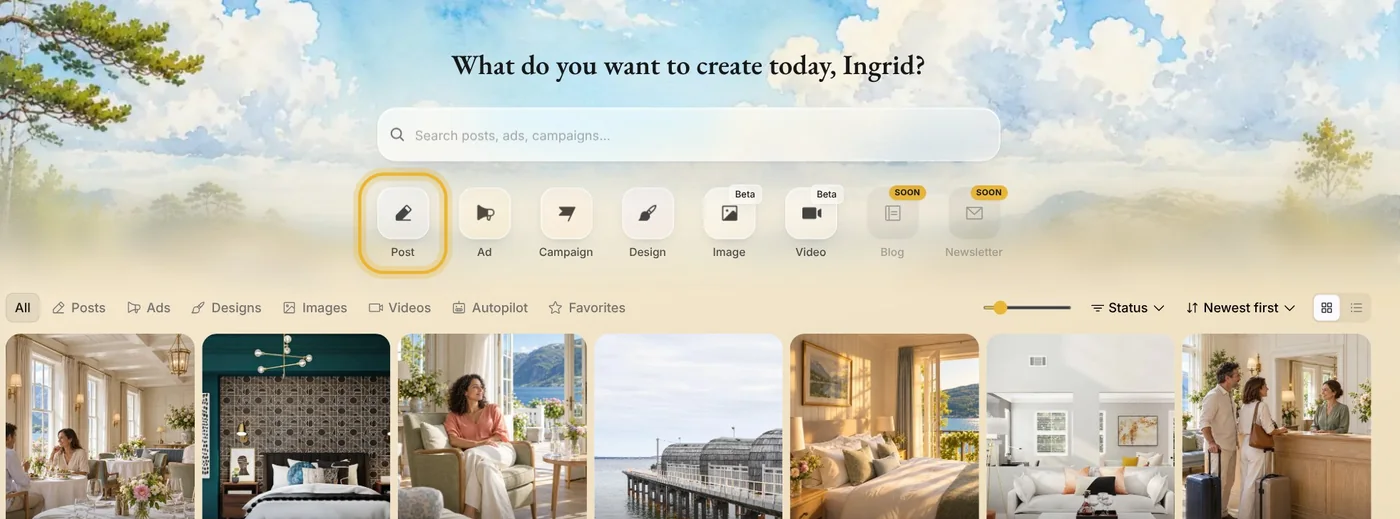
Step 1: Open Post in Create
In Create, press Post. A few short questions follow, one at a time.
Step 2: Let Native make the picture
Choose Let Native create it, and Native makes an on-brand picture from your idea. Want it to show your real product, shop or team? Pick your photos on the next question, or press Continue without photos.
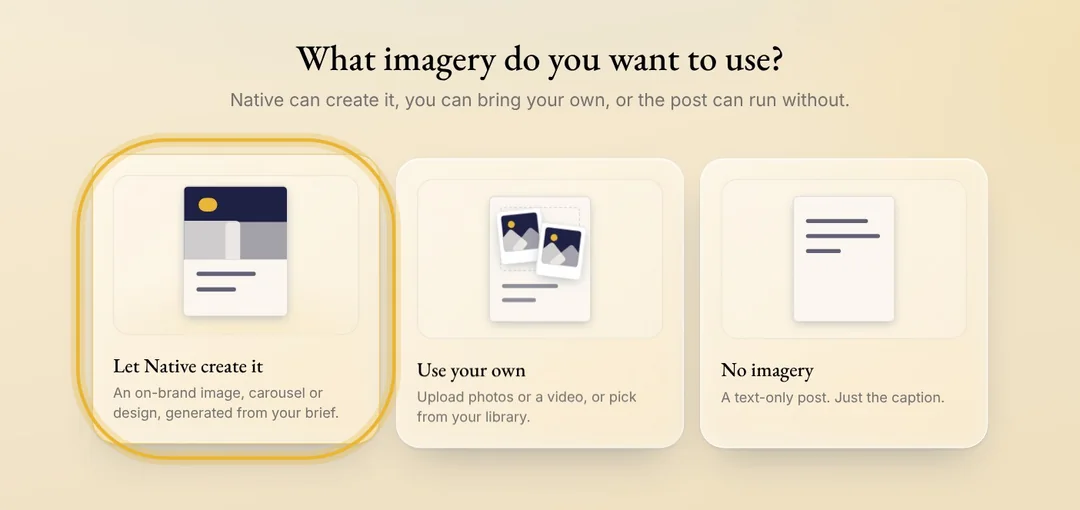
Tip: Use your own puts your photos or a video on the post as they are. No imagery makes a post with only the caption.
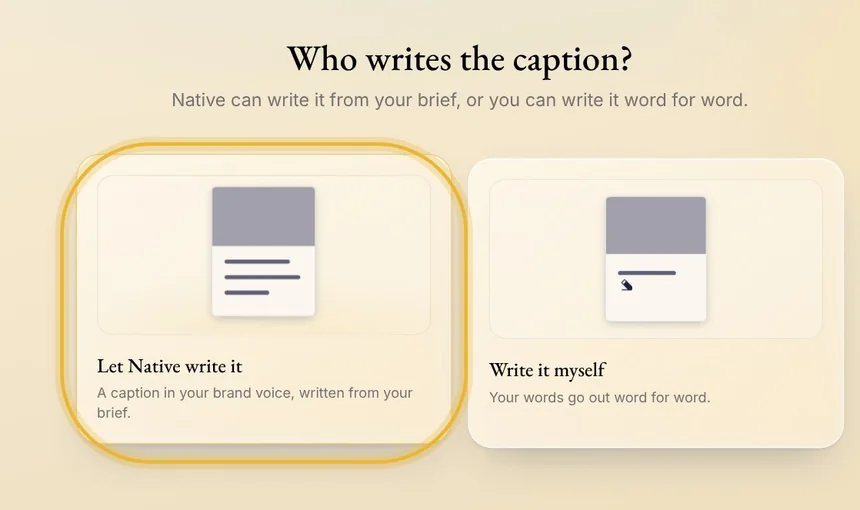
Step 3: Let Native write the caption
Choose Let Native write it, and the caption comes in your brand voice. With Write it myself, your words go out word for word.
Step 4: Say what the post is about
Write a sentence or two: what is new, who it is for, and what you want people to do. Native adds what it knows about you from Memory.
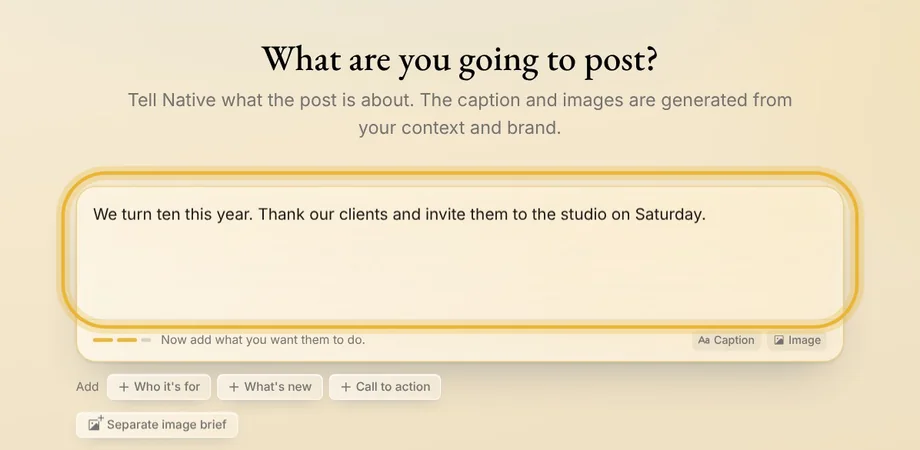
Tip: Stuck? Before you type, the starters under the box, like Offer or Hiring, give you a sentence to finish.
Step 5: Create the post
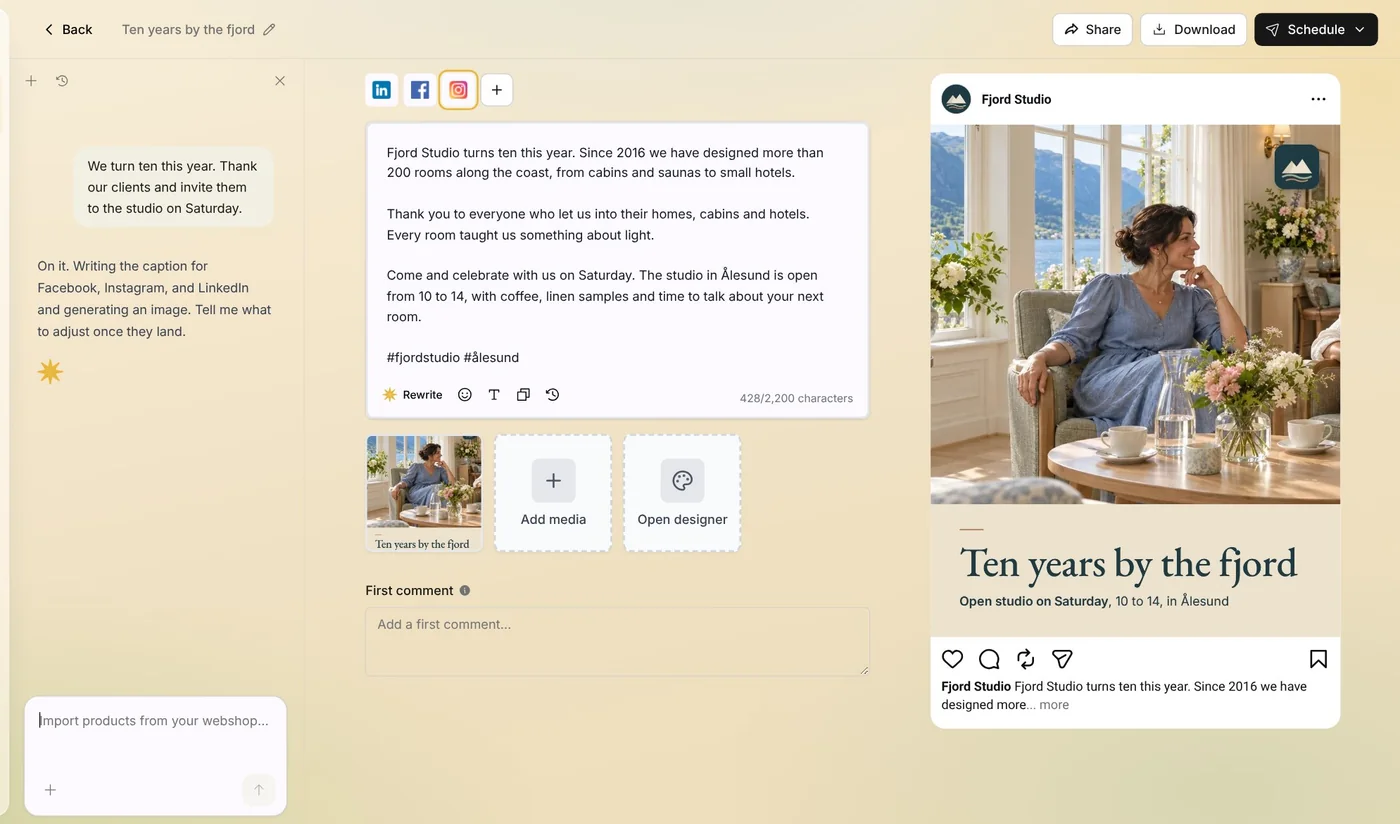
Native picks the channels chosen under Auto-generated platforms in Memory, or your connected channels if you have not chosen any. Check them, then press Create post. The post opens as a draft in the editor: the caption usually lands first, then the picture, and both are yours to change before you schedule it.
Tips from Elin
- Name the place, the day and the offer. The more concrete your idea, the more concrete the post.
- Native writes each channel its own way, so LinkedIn gets a longer caption than Instagram.
- Not quite right? Ask Native in the chat beside the post to change it, or edit it yourself.