Memory
Teach Native about your business
 Elin Kristina AnderssonFounding GTM0:45Recorded 25 oktober 2026
Native writes your posts from what it knows about your business: what you do, what you offer and who works with you. Keep that right, and your posts get it right too.
In this video
Step by step
Step 1: Open Memory
Press Memory in the menu on the left. To tell Native something new, write it in the box, in your own words. To see what it already knows, press Memory under the box, then Brand, then About you & your business.
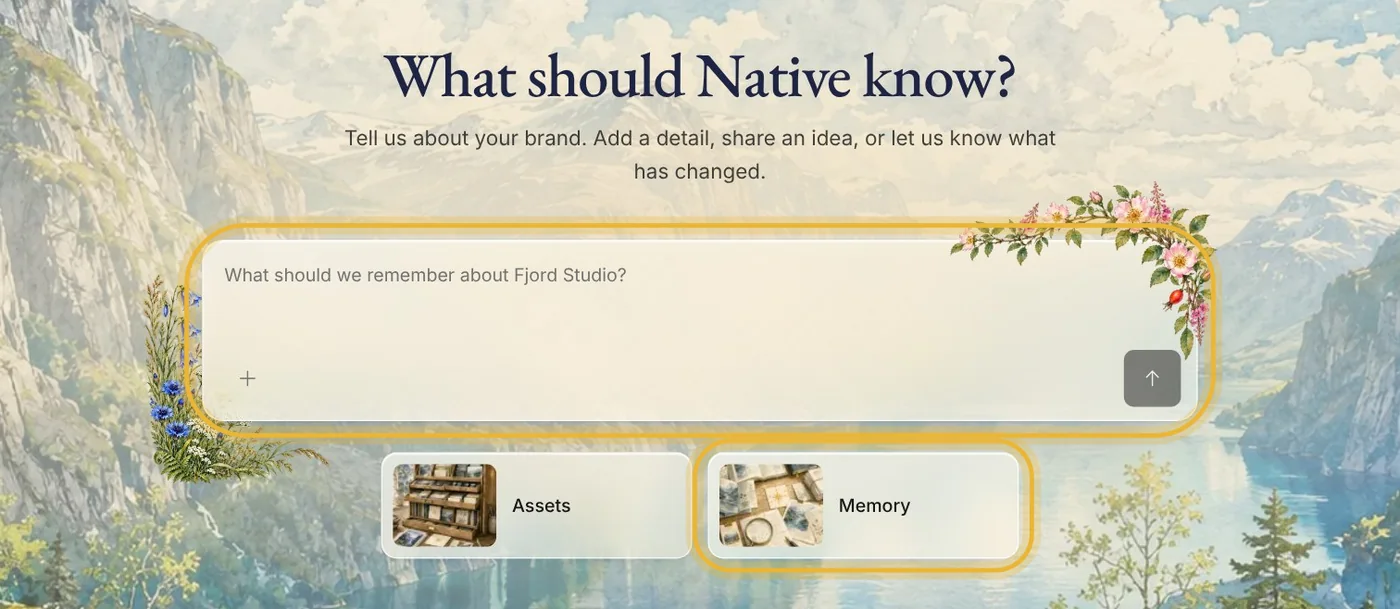
Tip: The box is the quickest way to tell Native what has changed, like a new service or your opening hours over the holidays.
Step 2: See what Native knows
Each card is one detail, sorted by kind: your company, your services, your team, your milestones and more. Open a card to read it in full or change it.
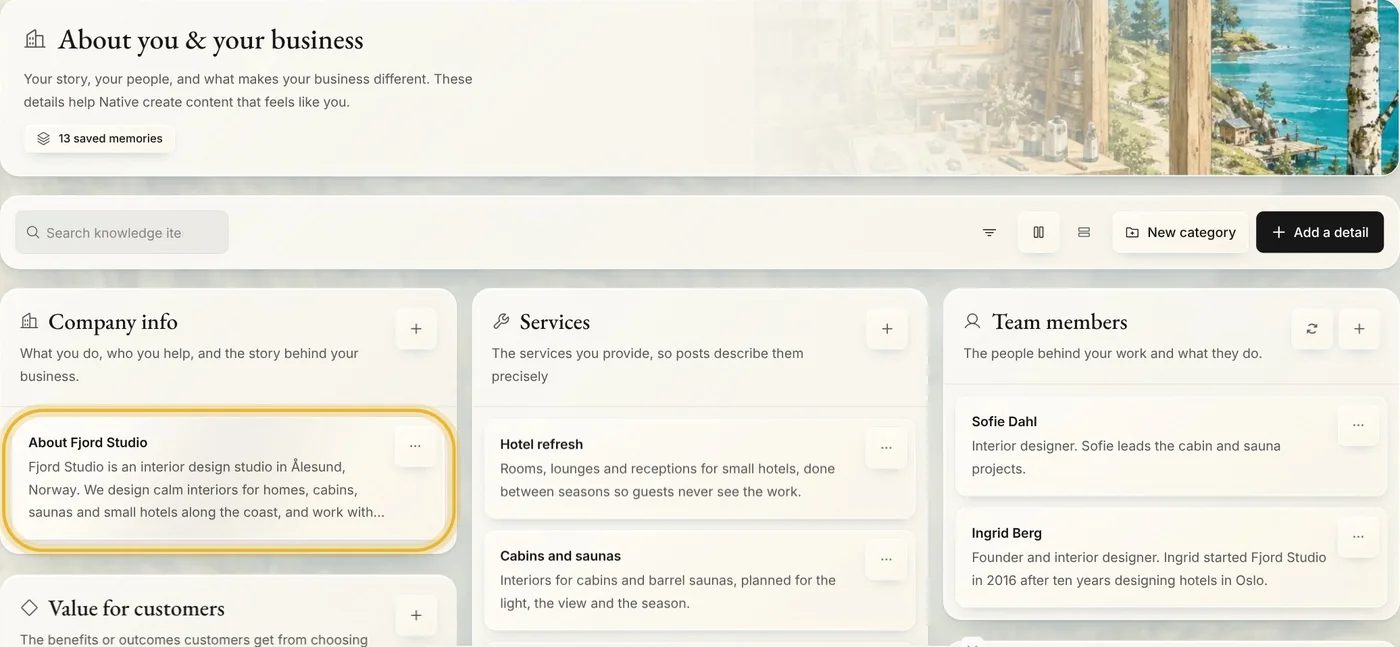
Step 3: Add a detail
Press Add a detail. Pick a type, give it a short title, write what Native should know, and press Create item. It shows up under its type straight away.
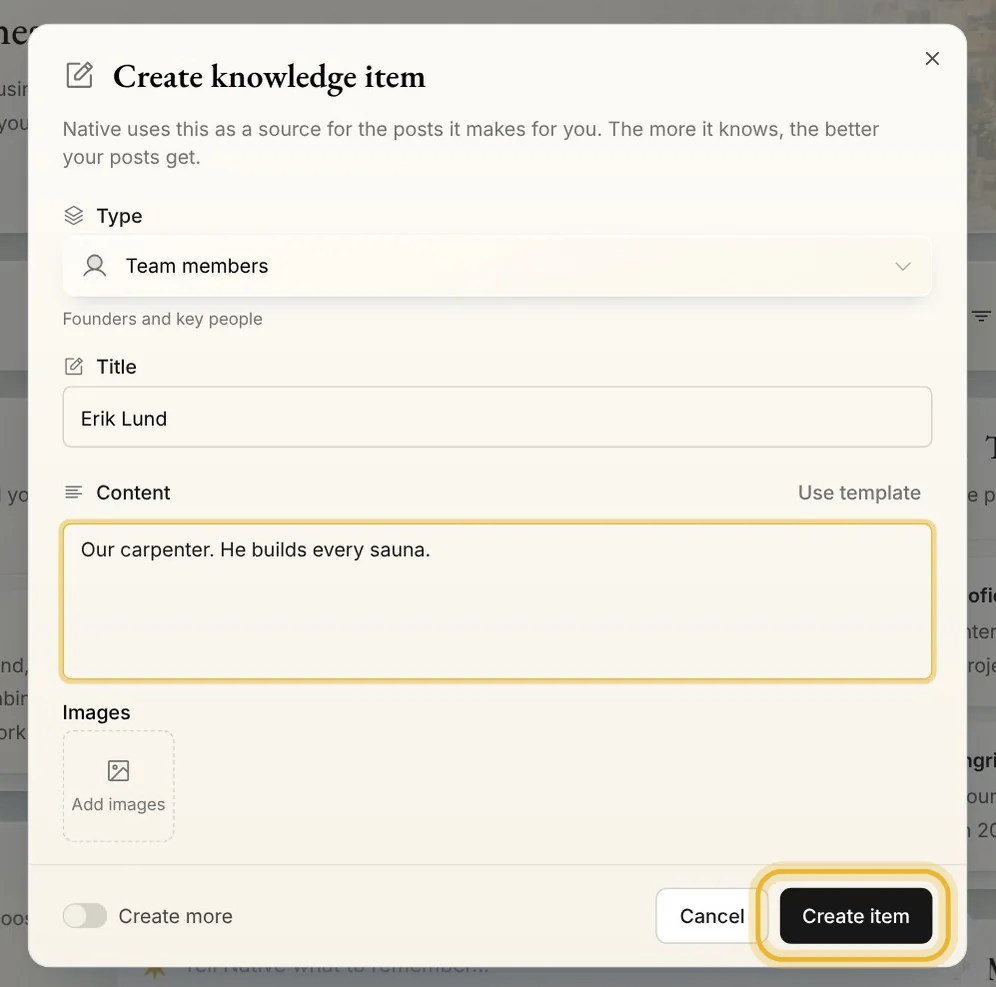
Tip: A few sentences are enough. Write it the way you would tell a new colleague.
Step 4: Disable a detail
Something out of date? Press the three dots on its card and choose Disable. Native stops using it until you enable it again.
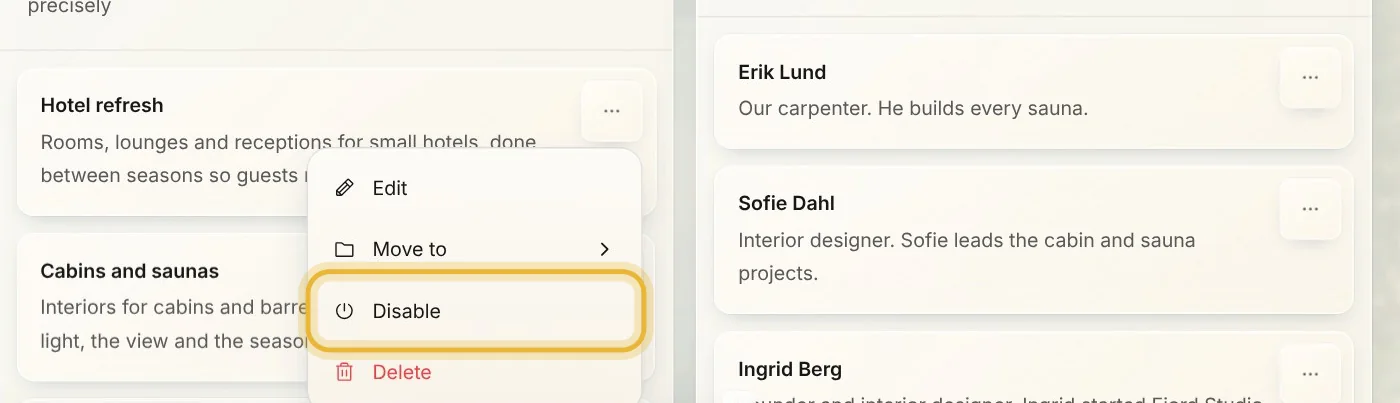
Tip: Disabled details are hidden. Open Filter and turn on Show disabled items to find them, then choose Enable in the card's menu.
Tips from Elin
- Disable what might come back, like a seasonal offer. Delete only what is wrong.
- Brand personality and Products & services sit next to About you & your business. They are worth a look too.
- How your posts sound has a page of its own: Writing, in Memory.