Start here
Native in one minute
 Elin Kristina AnderssonFounding GTM0:50Recorded 24. lokakuuta 2026
Native has six places in the menu on the left. Here is what each one is for, in the order you will use them.
In this video
Step by step
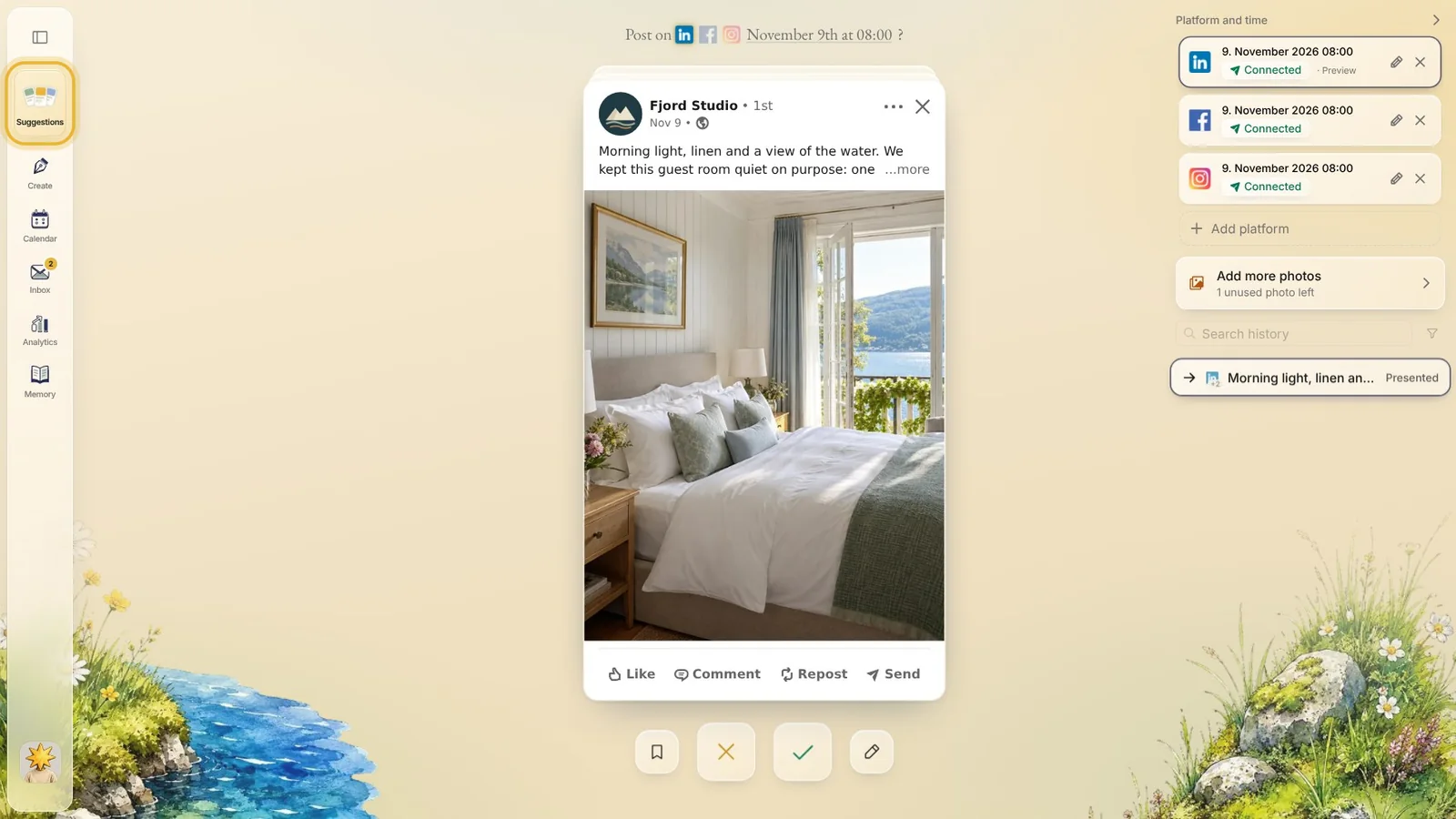
Step 1: Suggestions
Your new posts wait here, one card at a time. Native makes them for you: approve the ones you like, ask for a new one, or save one for later.
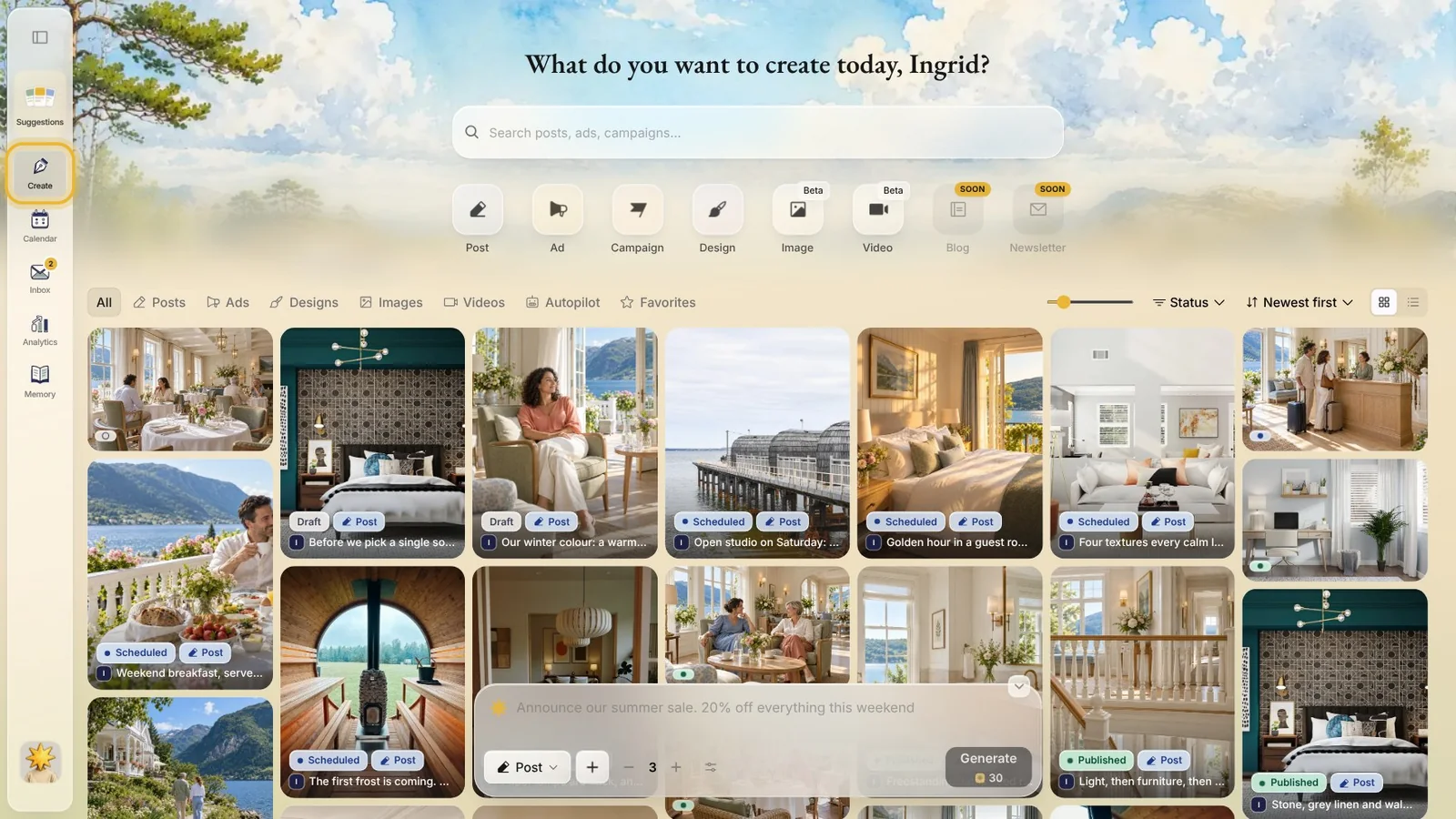
Step 2: Create
Make something of your own, like a post or a design, from an idea or from scratch. Everything you have made is kept here too, marked draft, scheduled or published.
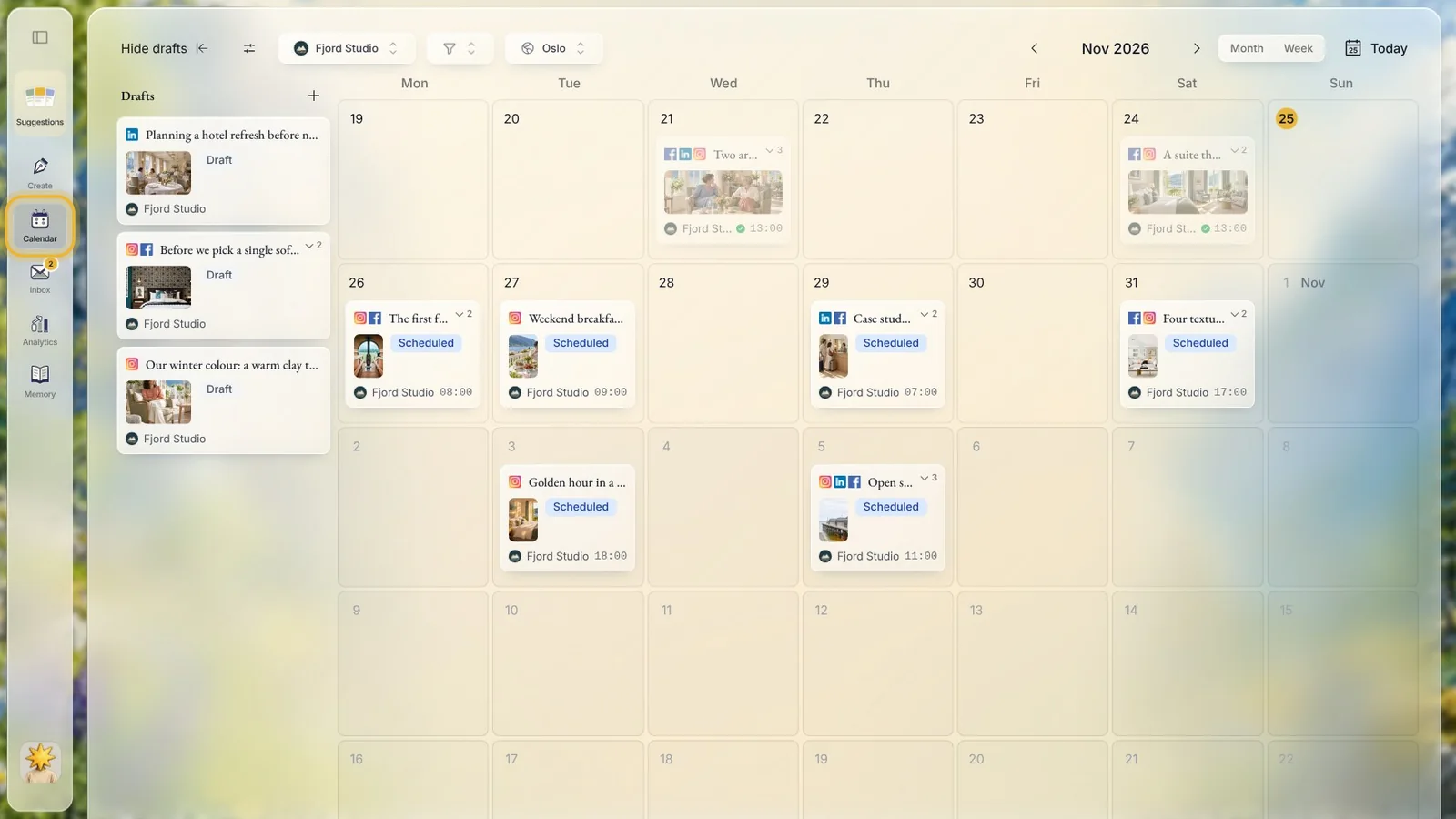
Step 3: Calendar
Every planned post sits on its day, with its time and its channels. Your drafts wait on the left: drag one onto a day to plan it.
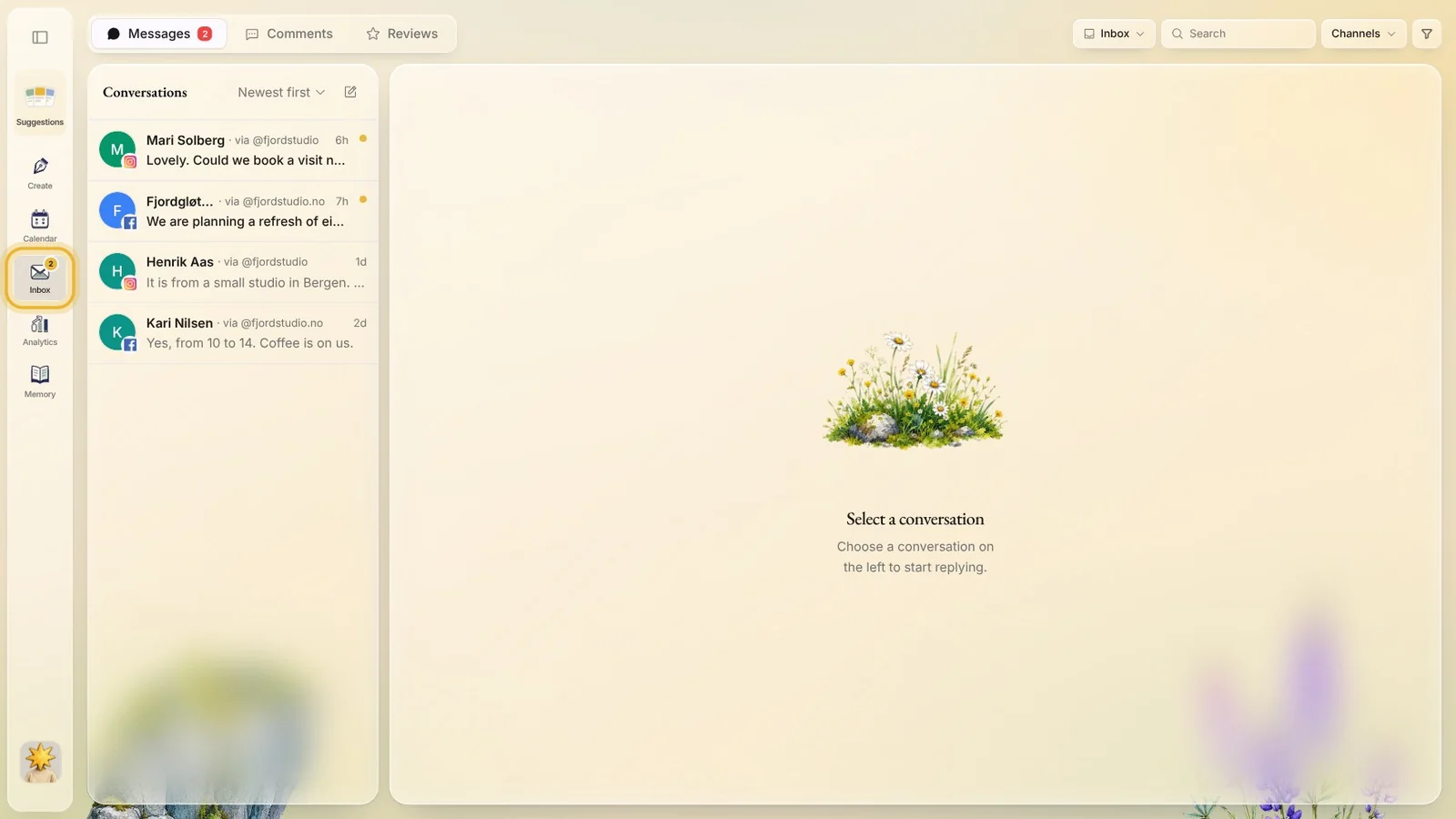
Step 4: Inbox
Messages, comments and reviews from your channels, in one place, so you can answer people without opening each app.
Step 5: Analytics
How your posts did on each channel, for the period you pick, post by post.
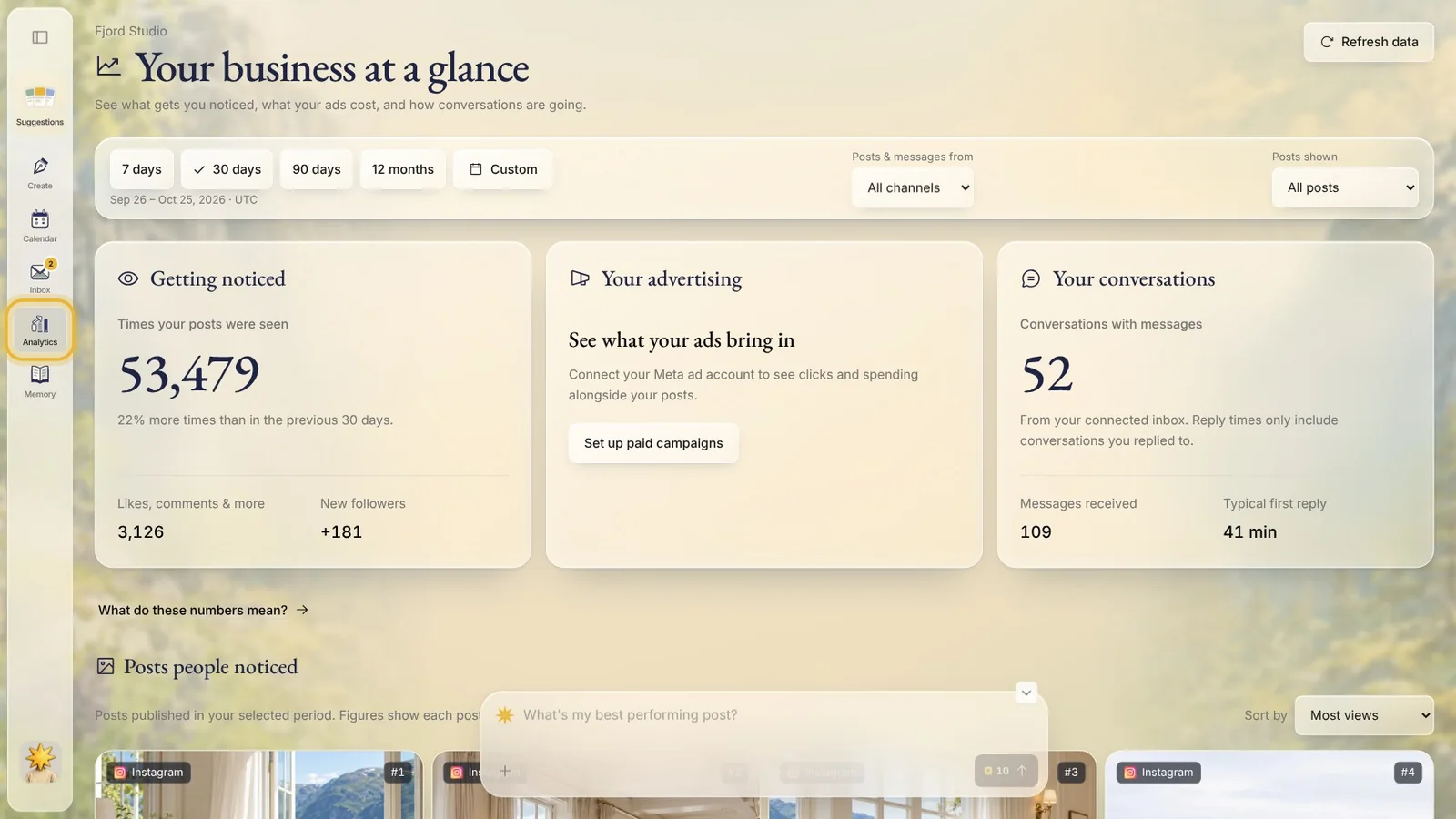
Step 6: Memory
What Native knows about your brand: how it looks, how it sounds and what you offer. The more you add, the more your posts sound like you.
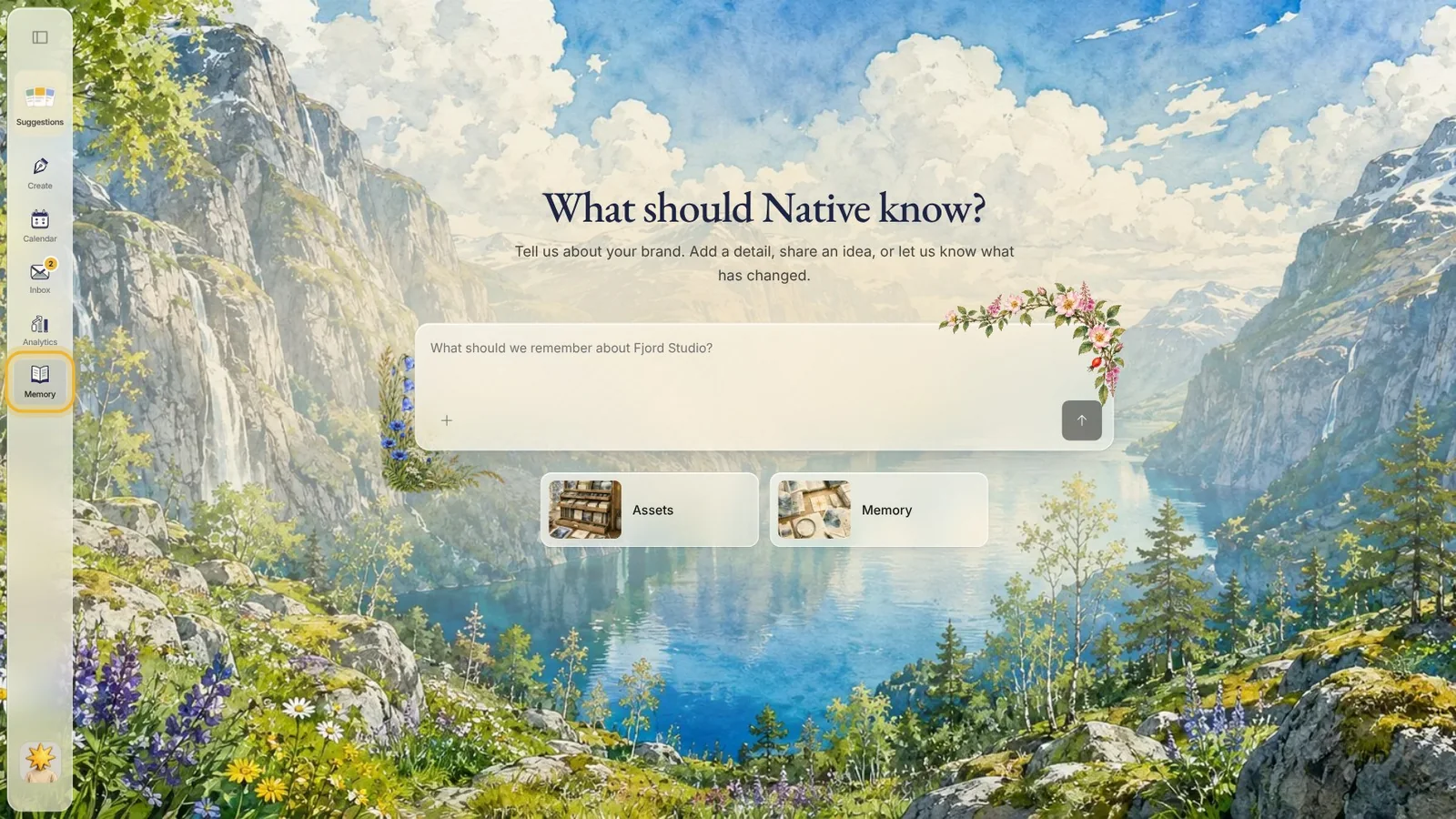
Tips from Elin
- Start in Suggestions: a few minutes there keeps your calendar going.
- Look through Memory once after you sign up. A wrong fact there shows up in your posts, so fix it early.
- Connect your channels before you approve posts, so they go out on their own at the planned time.