Memory
Set your colors, fonts and logo
 Elin Kristina AnderssonFounding GTM0:33Recorded 25. lokakuuta 2026
Native designs the pictures for your posts. Give it your colors, your fonts and your logo, and every picture looks like yours.
In this video
Step by step
Step 1: Open Design
In Memory, open Design. Colors, Fonts and Logo each have a page of their own, with an example post that changes as you do.
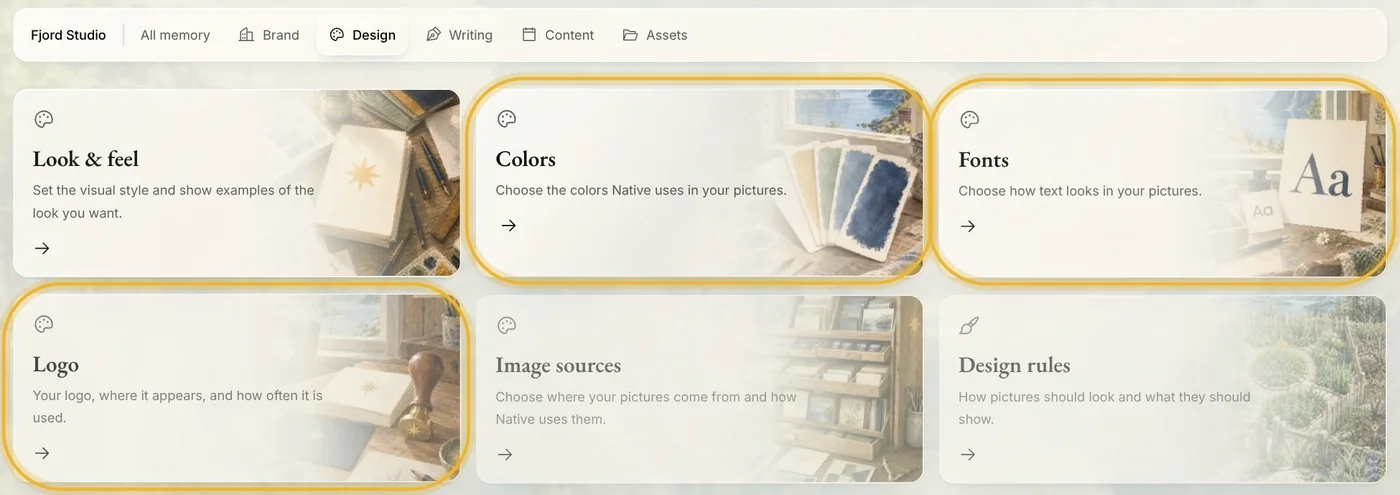
Tip: Some brands still have the earlier Design pages, without an example post: Colors is a list of your colors, Fonts a list of your fonts. Add colors there with Add color, pick or upload fonts with Choose fonts or Upload own fonts, and upload your logo under Logos. Native uses what you add.
Step 2: Change a color
Each color has a job: Background is the canvas behind a post, Accent is for highlights and buttons, and Text is for headlines and copy. Click a job and pick one of your colors for it. Leave Text on Auto, and Native picks black or white for the best contrast.
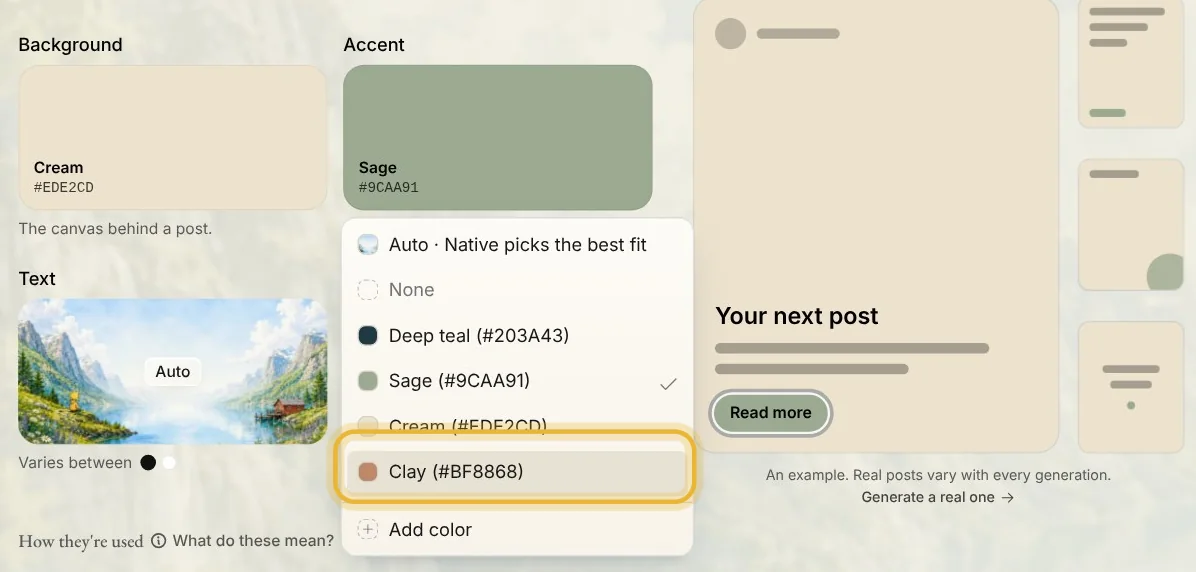
Tip: Your colors, under the example, are the ones Native can use. Press Add color to add another.
Step 3: Choose your fonts
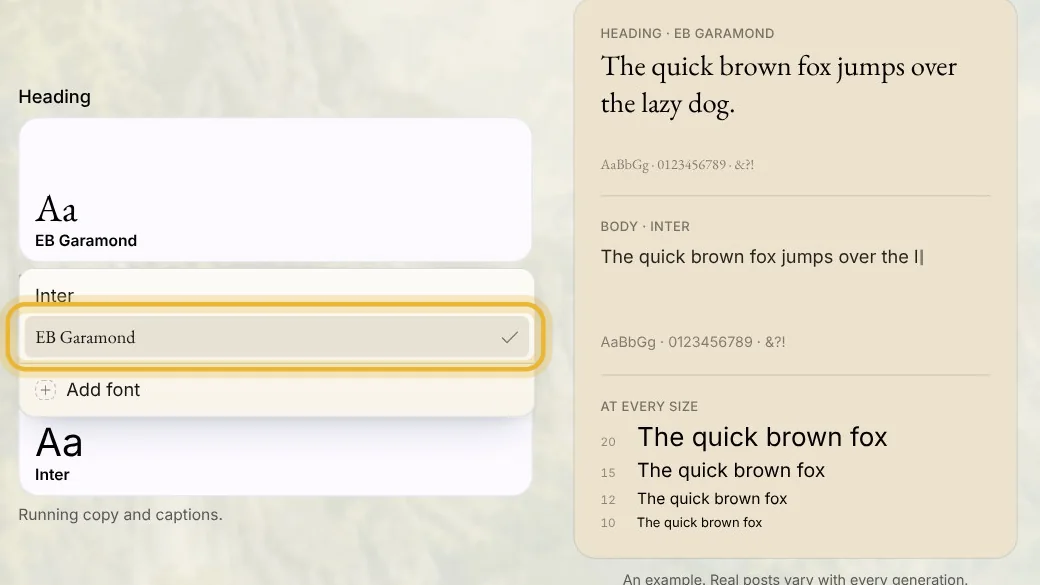
Heading is for headlines and titles, and Body is for everything else. Click either one to pick from your fonts, or choose or upload a new one under Your fonts.
Step 4: Place your logo
Under How often, choose Always, Once in a while or Never. Then pick a corner for it, or leave Placement on Auto and Native finds the best spot for each picture.
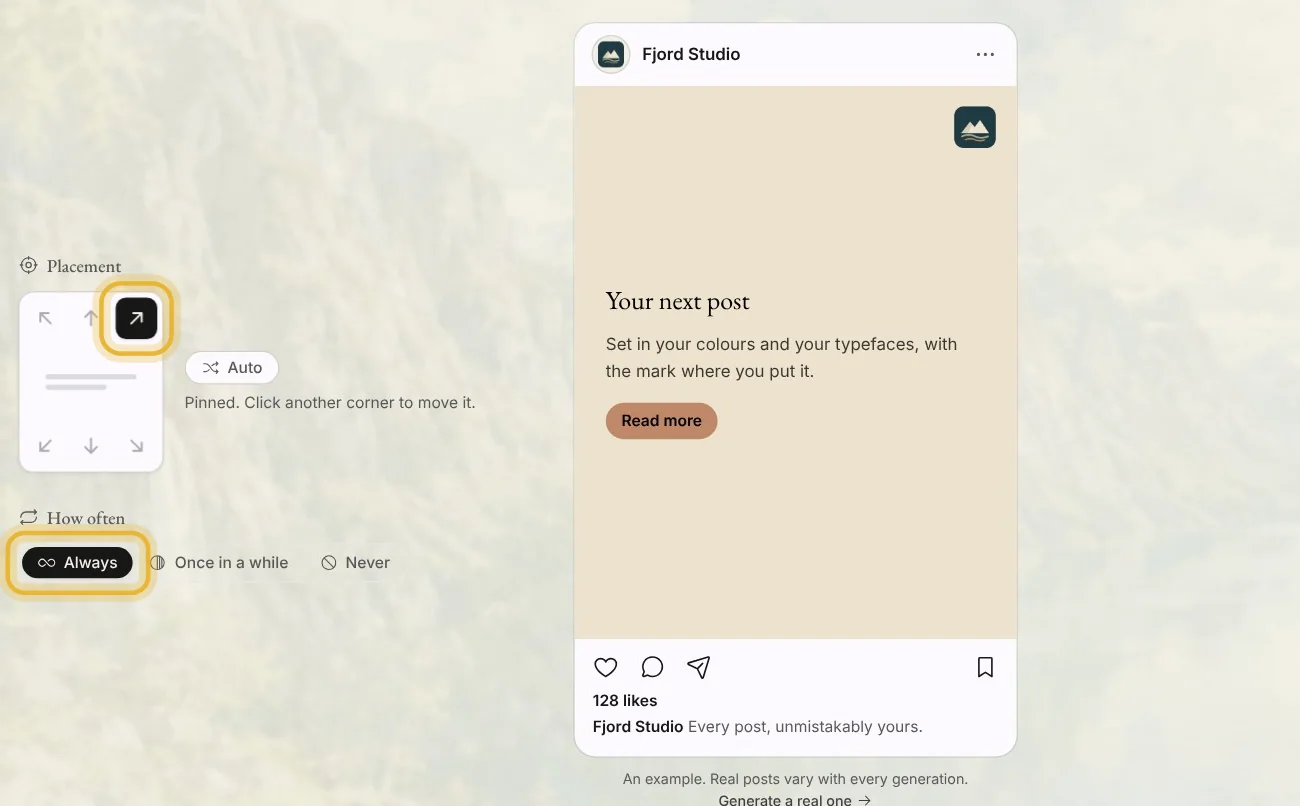
Tip: Your logo comes from Your logos, further down the page. Upload it there if it is missing.
Tips from Elin
- The example post shows each change at once, so you can see it before Native makes a real picture.
- Once in a while often looks more confident than a logo on every picture.
- Look & feel, the first card in Design, sets the mood of your pictures, like warm, bold or minimalist.