Memory
Set your writing style
 Elin Kristina AnderssonFounding GTM0:40Recorded 25. lokakuuta 2026
Native writes your captions, ads and the words on your pictures. Tell it once how you want them, and it keeps to it everywhere.
In this video
Step by step
Step 1: Open Voice & language
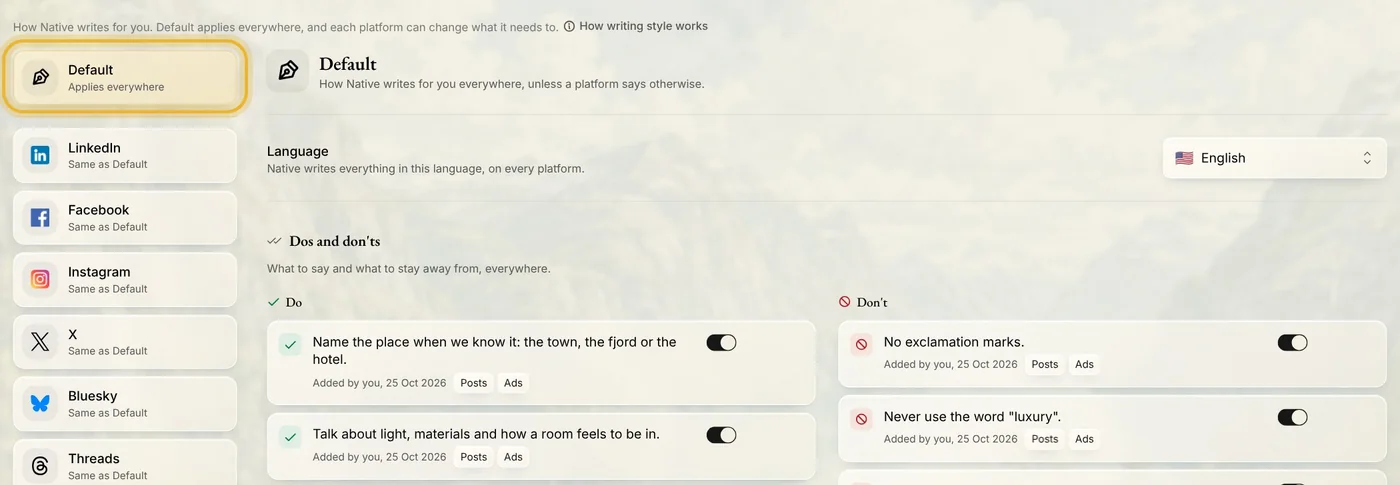
In Memory, open Writing, then Voice & language. Default, at the top of the list on the left, applies to every channel.
Step 2: Pick your language
Choose the language Native writes in. It uses it for everything, on every channel.

Step 3: Add a do or a don't
Press Add a do or Add a don't and say it in your own words. Press Write the rule, and Native turns your words into a rule. Change it if you like, then press Save rule. Each rule has a switch, so you can pause it without losing it.
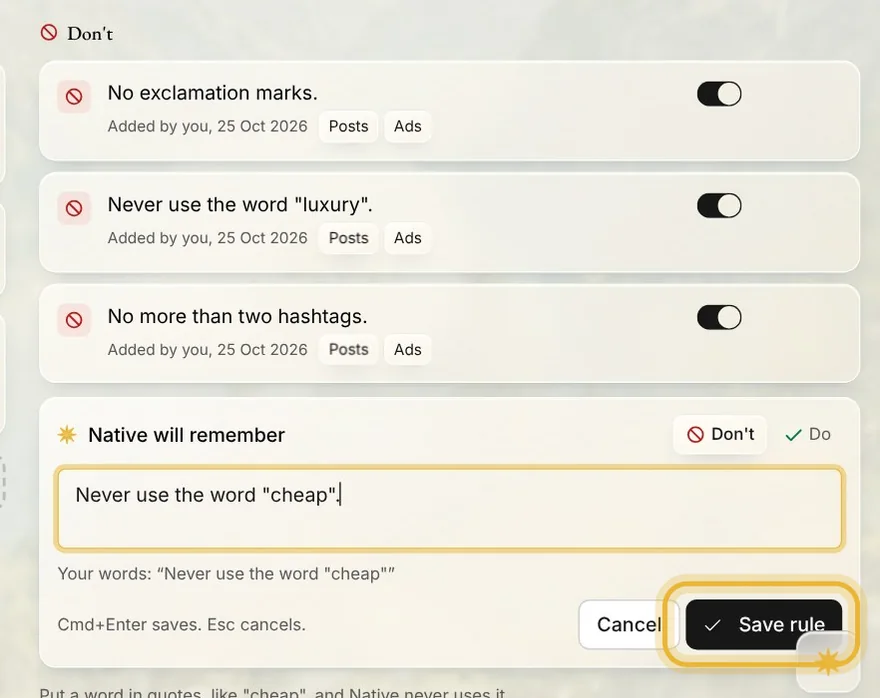
Tip: Put a word in quotes, like "cheap", and Native never uses it.
Step 4: Set one channel apart
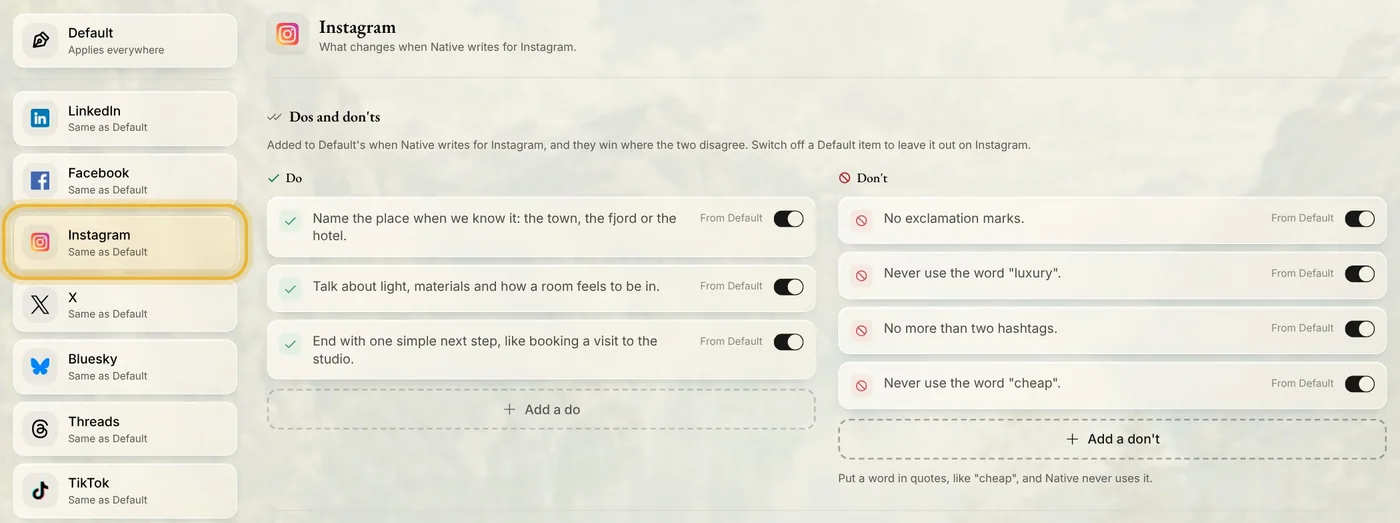
Pick a channel on the left to see what changes there. Its own dos and don'ts are added to Default's, and they win where the two disagree. Switch off a Default rule to leave it out on that channel only.
Tips from Elin
- A few clear rules work better than many. Start with the two or three that matter most to you.
- Write rules about words here. Rules for pictures live in Design.
- Voice, further down the page, describes how you sound. Write it yourself, or let Native draft it from your website and posts.