Calendar
Plan your week on the calendar
 Elin Kristina AnderssonFounding GTM0:29Recorded 24. lokakuuta 2026
The calendar shows every post that is planned, and lets you plan the rest with a drag.
In this video
Step by step
Step 1: Your calendar
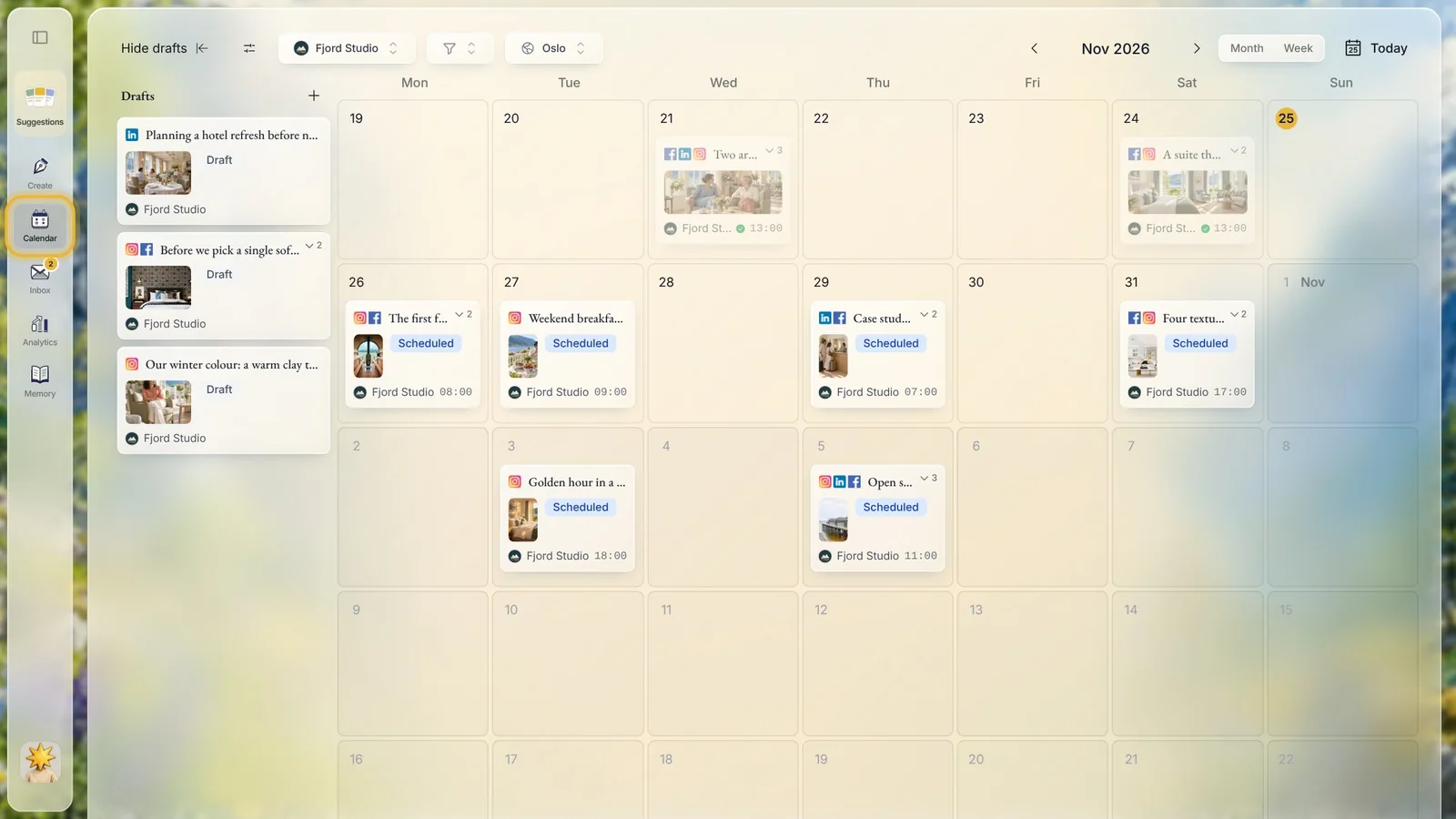
Open Calendar from the menu on the left. Each planned post sits on its day, with its time, its picture and the channels it goes to.
Step 2: Month and week
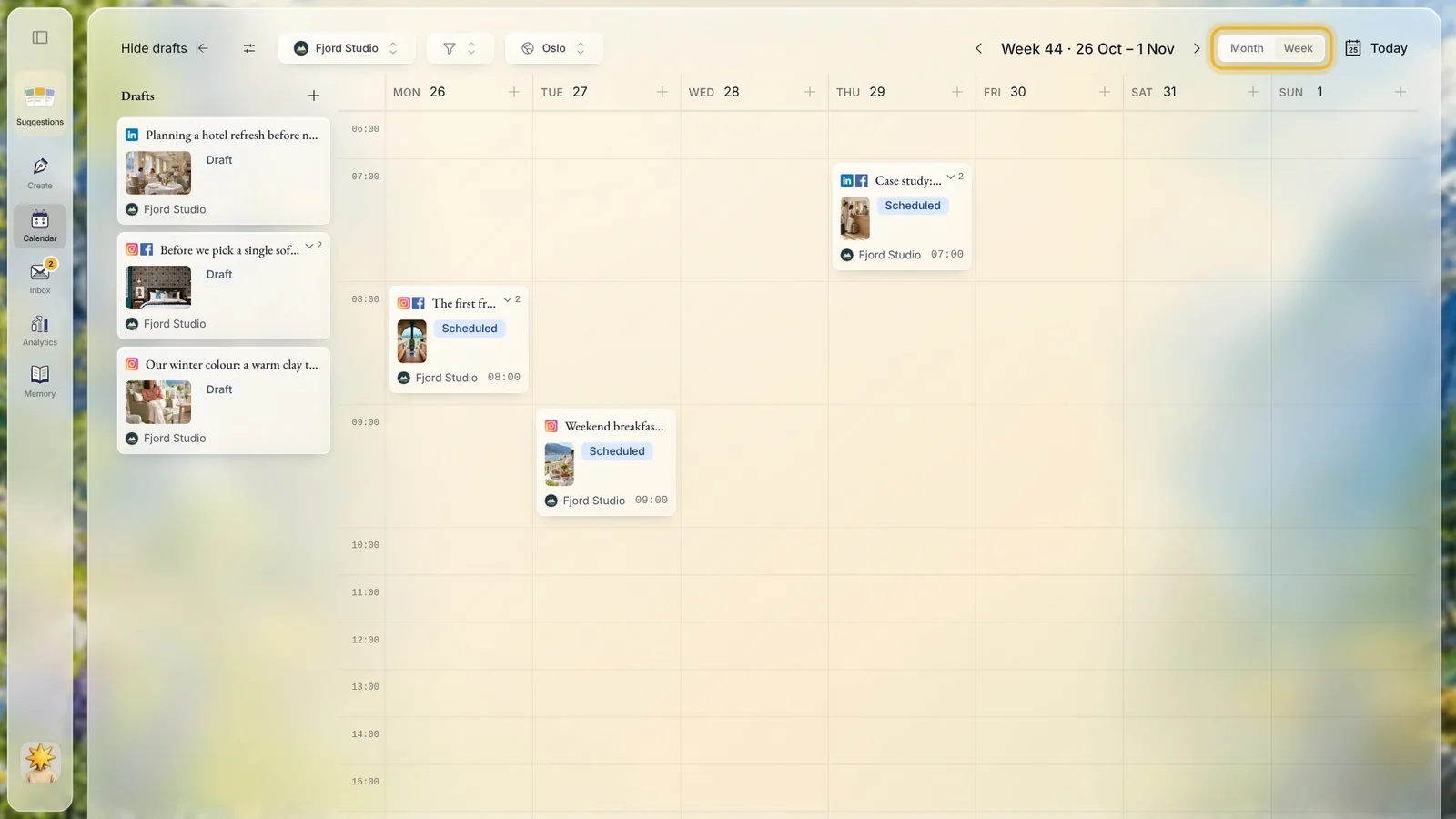
Switch between Month and Week at the top right. Today brings you back to this week, and the arrows move a month or a week at a time.
Step 3: Drag a draft onto a day
Your drafts wait in the list on the left. Drag one onto the day you want.
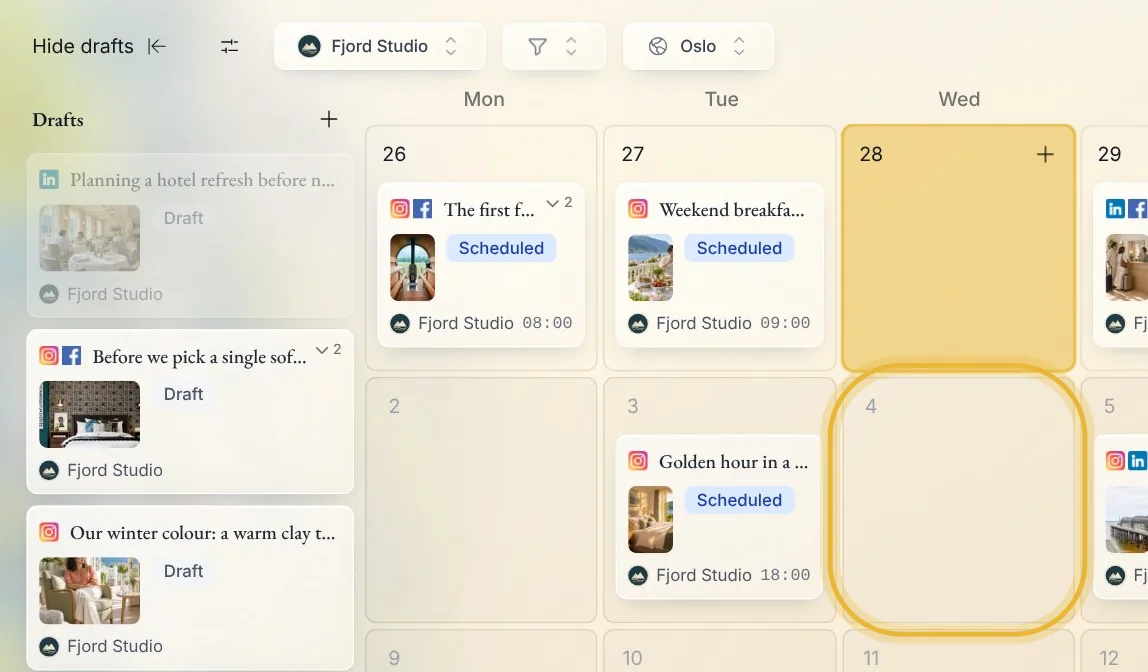
Tip: Changed your mind about a planned post? Drag it back onto the drafts list, and it is unscheduled.
Step 4: Press Schedule
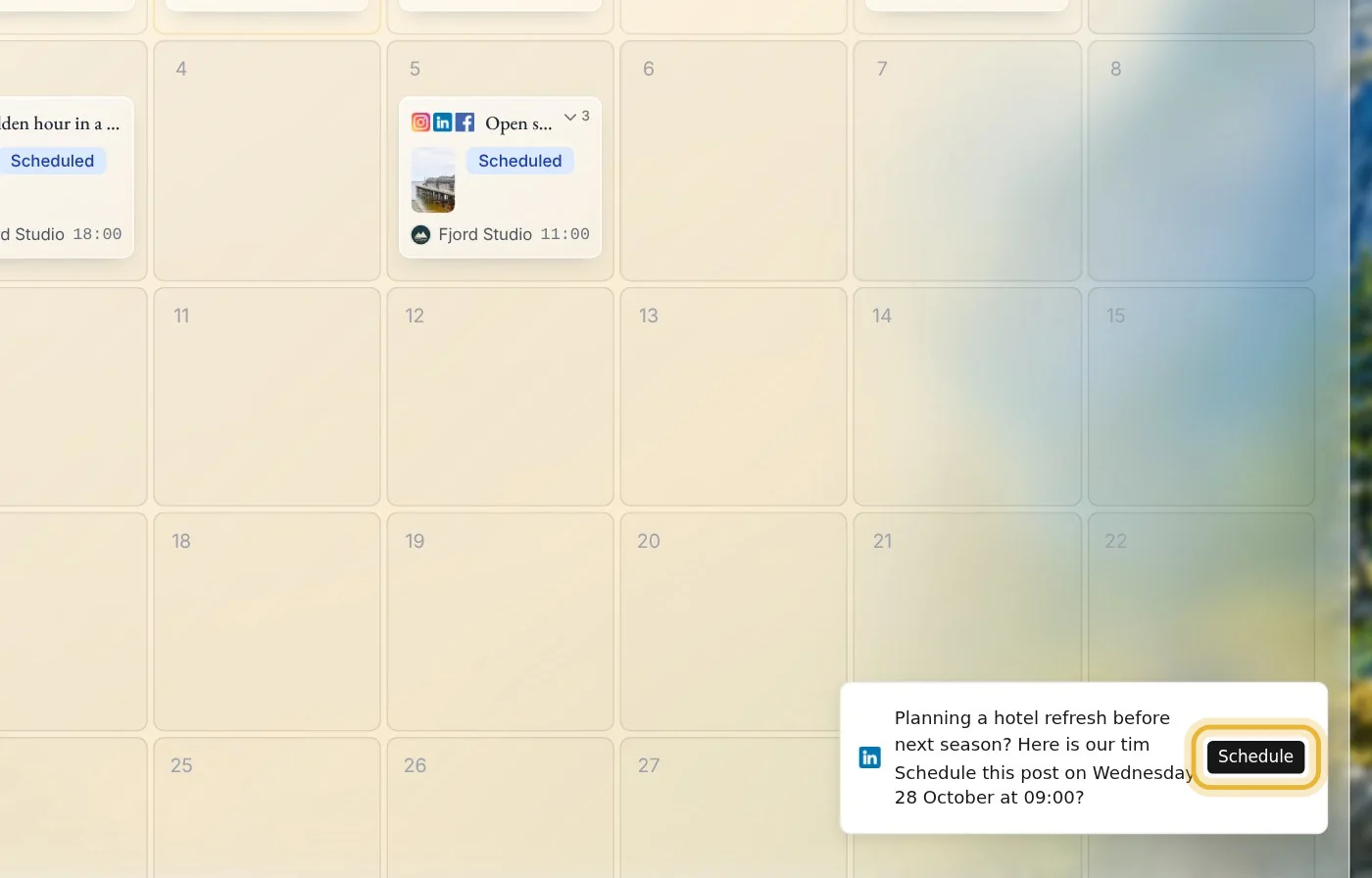
Native asks if it should schedule the post on that day, at that time. Press Schedule, and it is planned.
Step 5: Change a plan
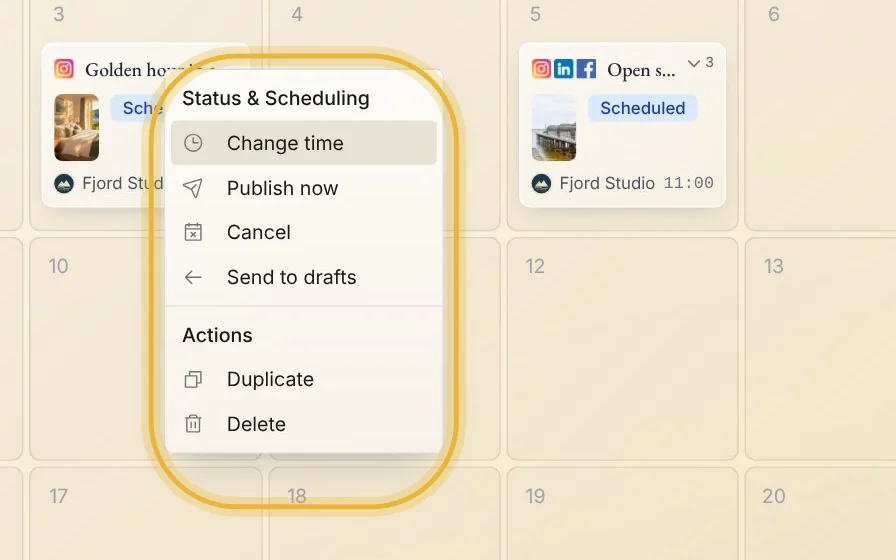
Right-click a post to change its time, publish it now, send it back to your drafts, duplicate it or delete it.
Tips from Elin
- Plan the week in one go: a few minutes on a Monday, and the posts go out on their own.
- Keep a few drafts ready, so a quiet day is one drag away.
- Times follow the time zone shown at the top of the calendar.