
Memory
Choose how often you post, and where
 Elin Kristina AnderssonFounding GTM0:41Recorded 19 de novembro de 2026

Nativean picks the days for your posts from a rhythm you choose, and makes them for the channels you pick. Tell your assistant how often you want to post, and it sets it for you.
In this video
Step by step
Step 1: Ask your assistant
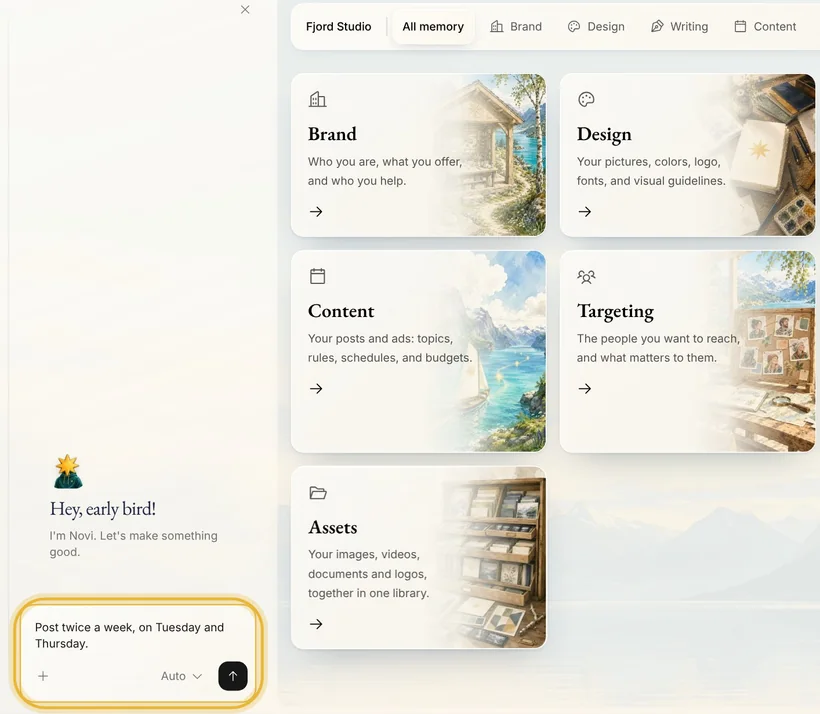
In the chat beside the page, say how often you want to post and on which days, like “Post twice a week, on Tuesday and Thursday.”
Step 2: It sets your rhythm
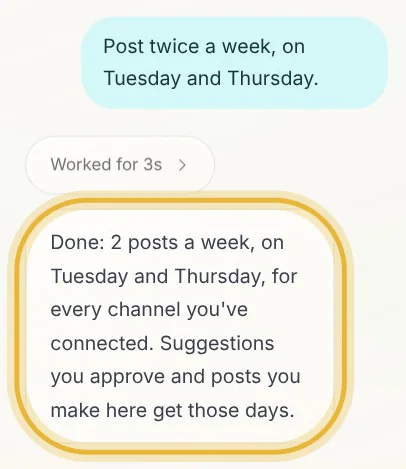
Your assistant saves it and says what's now planned. Suggestions you approve, and posts you make in Create, get those days. Each post goes to every channel you make posts for.
Tip: Autopilot starts from this rhythm when you set it up.
Step 3: Check it in What to post
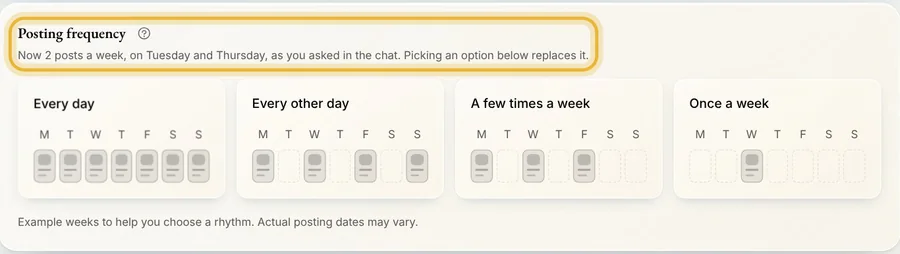
In Memory, open Content, then What to post. Posting frequency shows the rhythm you asked for in the chat. To change it, pick Every day, Every other day, A few times a week or Once a week. Your pick replaces it.
Tip: Posting frequency sets the days, not what goes out: it publishes nothing by itself.
Step 4: Choose where
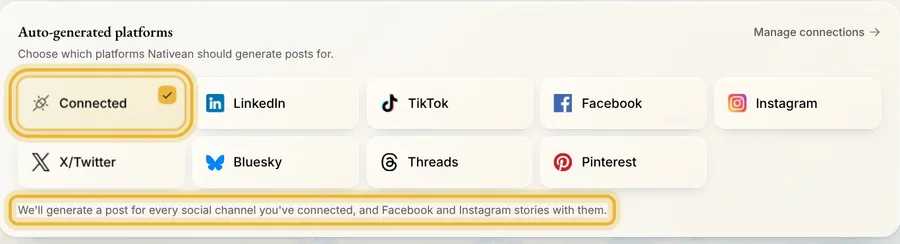
Under Auto-generated platforms, Connected means a post for every channel you've connected. Pick channels instead, and Nativean makes posts only for those, even if you have other channels connected.
Step 5: Add a first comment
Under Automatic first comment, choose Always the same comment and write it. Under Add it to, tick which posts get it. The comment saves when you click away from it.
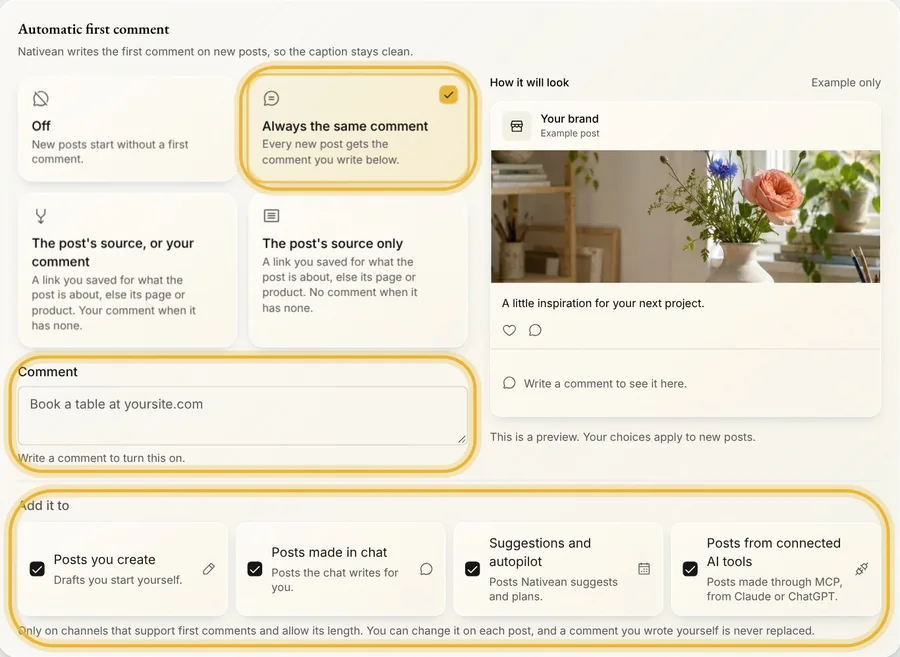
Tip: It's added only on channels that take a first comment, such as Facebook and LinkedIn, and a comment you wrote yourself is never replaced.
Tips from Elin
- Posting frequency, Auto-generated platforms and Automatic first comment save as you change them.
- A different number of posts or different days for one channel isn't possible yet: every post goes to every channel you make posts for.
- Once Autopilot is set up, ask your assistant for a number of posts on set days, and Autopilot's schedule changes too, as far as its posting hours allow. You need to be an owner or admin of the brand. A rough rhythm, like a few times a week, leaves Autopilot as it is.
Try it in Native
New to Native? Start with your website, and see your first posts today.