
Memory
Set your colors, fonts and logo
 Elin Kristina AnderssonFounding GTM0:37Recorded 19 de novembro de 2026

Nativean uses your colors, your fonts and your logo in your pictures. Tell your assistant what to change, and it sets it for you.
In this video
Step by step
Step 1: Ask your assistant
In the chat beside the page, say what to change, in your own words, like “Make Clay our accent color, and put our logo on every post.”
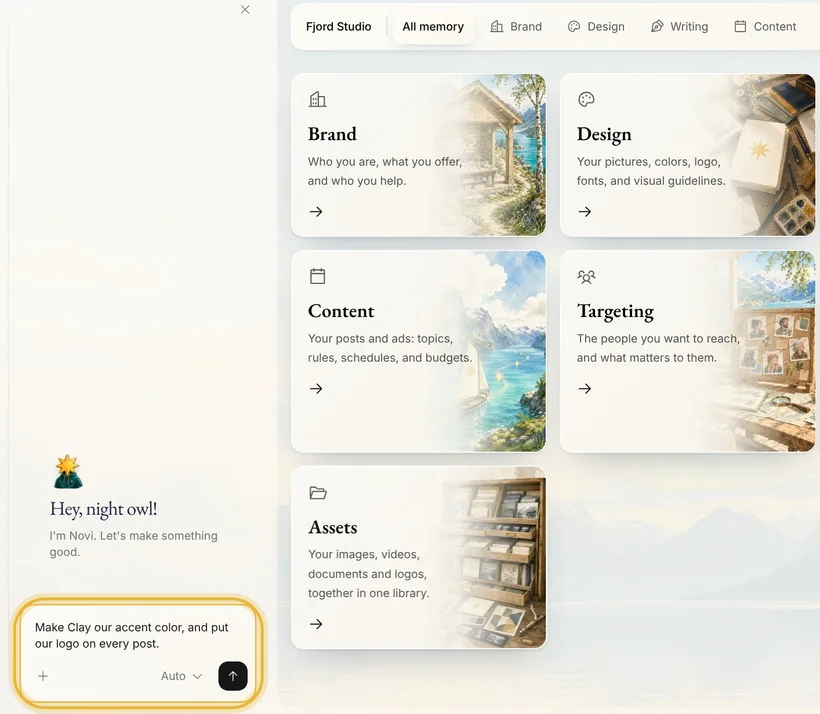
Step 2: It changes your look
Your assistant makes Clay your accent color and puts your logo on every post from now on. Its answer in the chat says what it changed. Pictures made from now on use your changes.
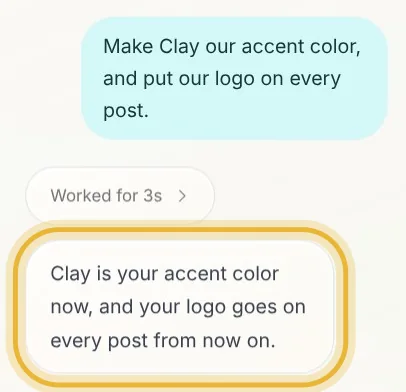
Tip: Changed your mind? Ask your assistant to undo it.
Step 3: Check your colors
In Memory, open Design, then Colors. Each color has a job: Background is the canvas behind a post, Accent is for highlights and buttons, Text is for headlines and copy, and Secondary is for supporting details. Click a job and pick one of your colors for it.
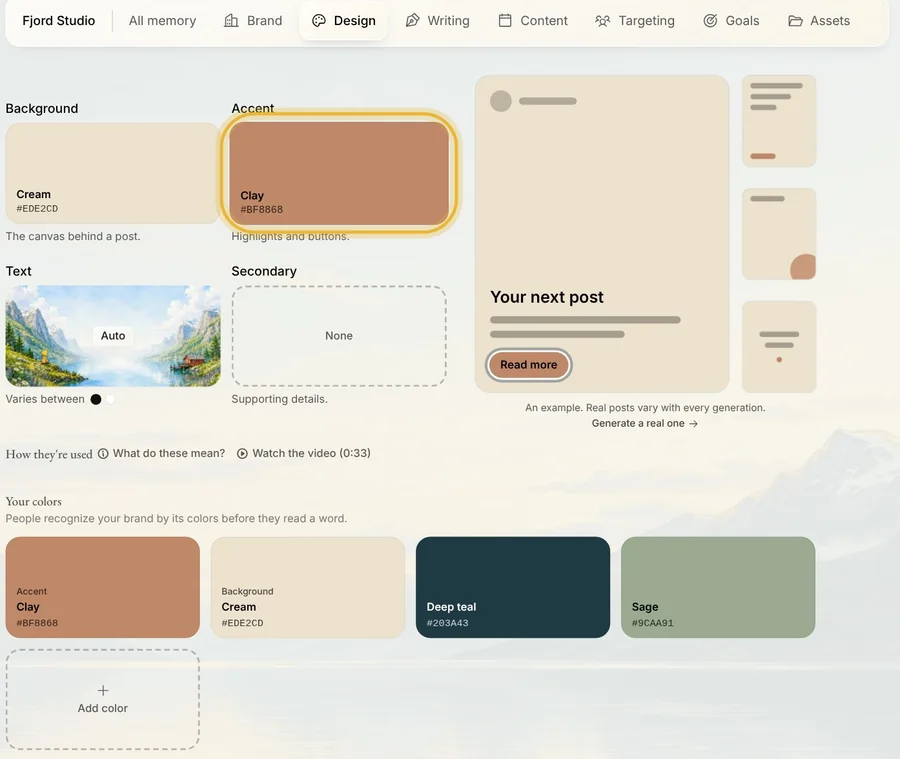
Tip: Leave Text on Auto, and Nativean picks black or white for the best contrast. Your colors, further down, are the ones Nativean can use. Press Add color to add another.
Step 4: Choose your fonts
Back in Design, open Fonts. Heading is for headlines and titles, and Body is for running copy and captions. Click either one to pick from your fonts, or choose or upload a new one under Your fonts.
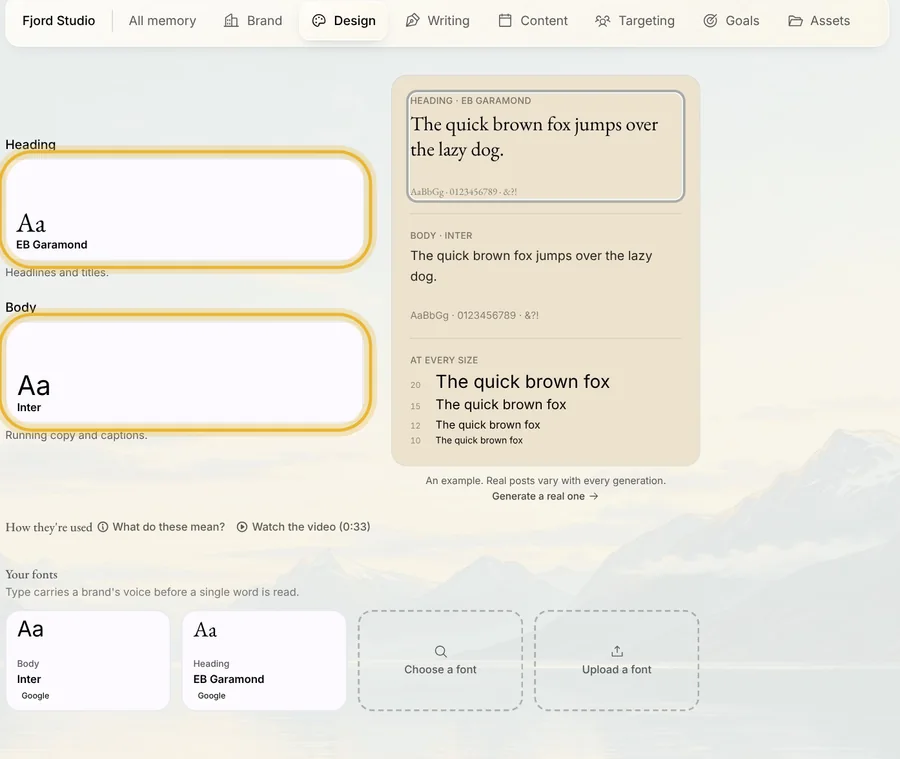
Step 5: Place your logo
In Logo, under How often, choose Always, Once in a while or Never. Under Placement, press a spot on the small post to pin your logo there, or press Auto and Nativean finds the best spot for each picture.
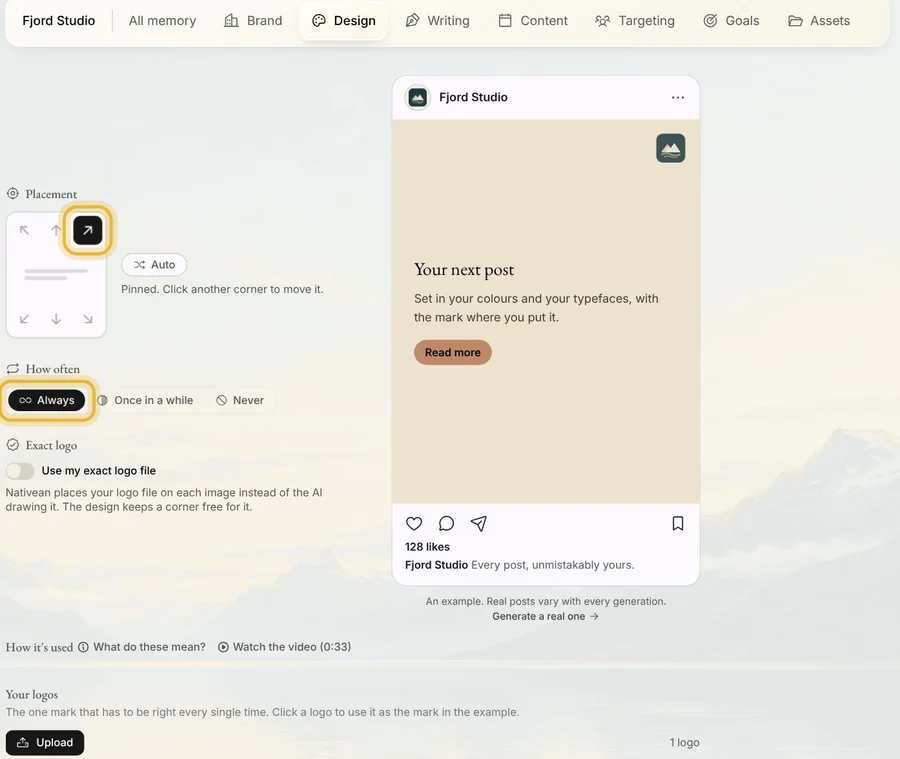
Tip: Your logo comes from Your logos, further down the page. Add it there if it is missing.
Tips from Elin
- Each page has an example post that shows your change at once. Real posts vary with every generation.
- Once in a while often looks more confident than a logo on every picture.
- Posts you have already approved, scheduled or published keep the look they were made with.
- Look & feel, in Design, sets the style of your pictures.
- Some brands still have the earlier Design pages, without an example post. There, your assistant can add colors, but can't give them jobs, set your fonts or set how often your logo shows: add colors with Add color, and fonts with Choose fonts or Upload own fonts.
Try it in Native
New to Native? Start with your website, and see your first posts today.