
Workspaces and brands
Invite your team
 Elin Kristina AnderssonFounding GTM0:29Recorded 21 de novembro de 2026

Work on Nativean together. Ask your assistant, and it opens People for you. Invite a colleague by email, choose their role and the brands they work in, and they join from the email.
In this video
Step by step
Step 1: Ask your assistant
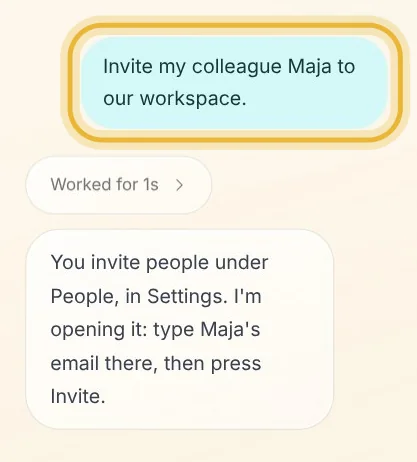
Tell your assistant who you'd like to invite, like “Invite my colleague Maja to our workspace”. It opens People, where everyone in your workspace is listed. Invite in your menu opens it too.
Tip: Only the workspace's owners and admins can invite people.
Step 2: Add their email
Type your colleague's email address under Invite people, and press Enter. Add more addresses the same way to invite several people at once.

Step 3: Choose their role
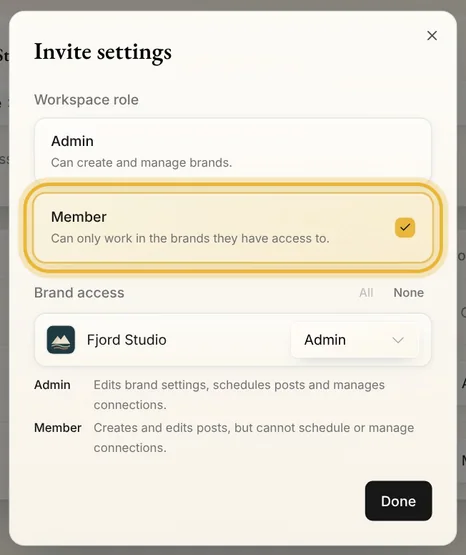
Press the line that starts Inviting as. Under Workspace role, Admin can create and manage brands, and Member can only work in the brands they have access to. An invite starts as Admin, with Admin on every brand. Under Brand access, set each brand to Admin, Member or No access. Press Done.
Step 4: Send the invite
Press Invite. Your colleague gets an email to join, and the invite waits under Pending invitations until they accept it. It works for 30 days.

Tip: From a pending invite you can copy its link or revoke it.
Tips from Elin
- Rather share a link? Press Link next to Invite. Check what it gives under Access, choose who can use it, and press Create link. Send it any way you like. It works for 30 days.
- Give each person the least access they need. You can change their workspace role in People, and their brand access under Team access in each brand's settings.
- Working with an agency or a freelancer? Invite them as a Member, and under Brand access give them only the brands they work on.
Try it in Native
New to Native? Start with your website, and see your first posts today.