
Innboks og analyse
Answer comments and messages
 Elin Kristina AnderssonFounding GTM0:36Spilt inn 21. november 2026

People write to you in many places: a direct message on Instagram, a comment under a Facebook post, a review. Inbox brings them together. Your assistant tells you who's waiting and answers messages for you, and you answer comments and reviews right there.
I denne videoen
Steg for steg
Steg 1: Open Inbox
Press Inbox in the bar on the left. It is under More, unless you keep it in sight with Edit sidebar. Messages opens first, with your conversations newest first and new messages marked. The number on the bell counts your unread messages and comments, and your new notifications.
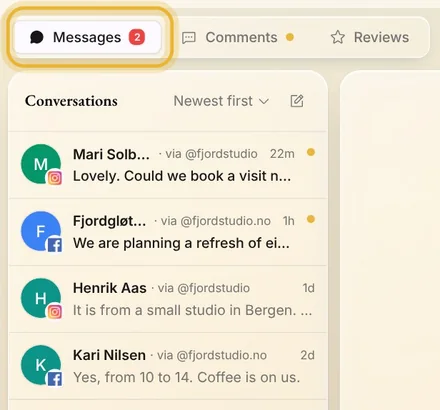
Tips: Untick channels under Channels to see only the ones you want, or press Newest first and choose Unanswered first.
Steg 2: Ask your assistant
Ask your assistant who's waiting for an answer. It reads your messages and tells you who wrote, where, and what they asked.
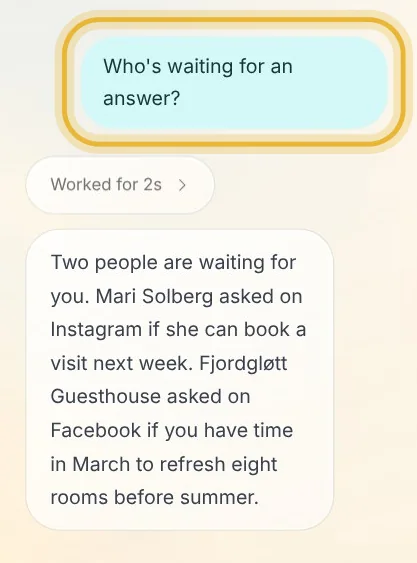
Steg 3: Answer a message
Tell your assistant what to answer, like “Tell Mari yes, Tuesday at 10 works”. It writes the answer and shows it to you first, with who it goes to: press Approve to send it. It goes out from the account the message came in on.
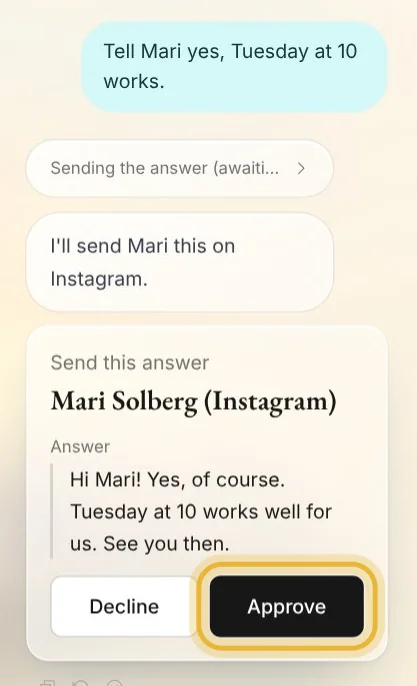
Tips: Rather write it yourself? Open the conversation, write in Type a message, and press Enter. Shift and Enter starts a new line.
Steg 4: Answer a comment
Under Comments, pick a post to see its comments. Press Reply under a comment, write your answer, and press Send. To comment on the post itself, use the box at the bottom.
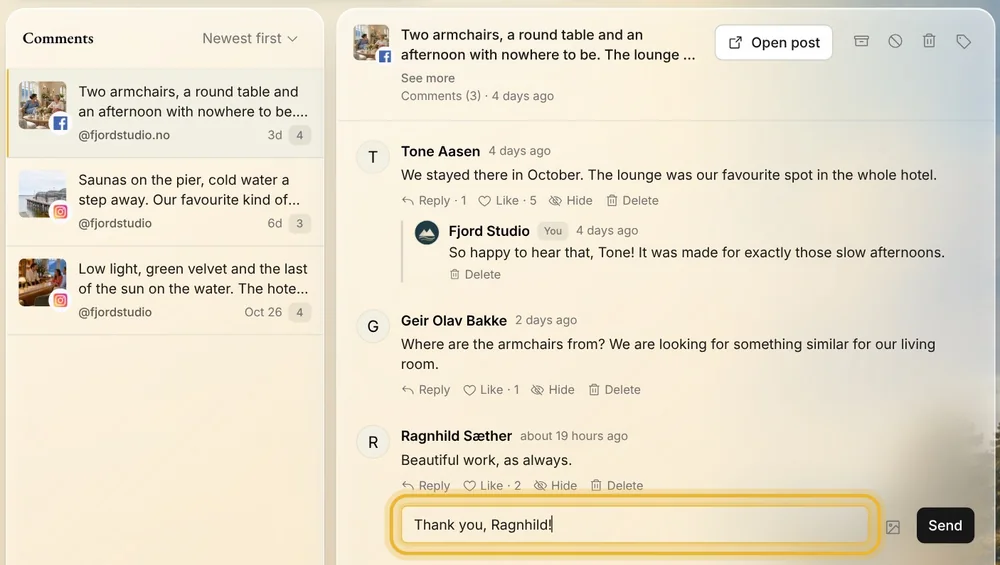
Tips: Where the channel allows it, Hide hides a comment without deleting it, and Unhide brings it back.
Steg 5: Thank a review
Reviews come from your Facebook Page and your Google Business Profile. Under Reviews, open a review, write your reply, and press Enter. Reviews you have answered are marked Replied.
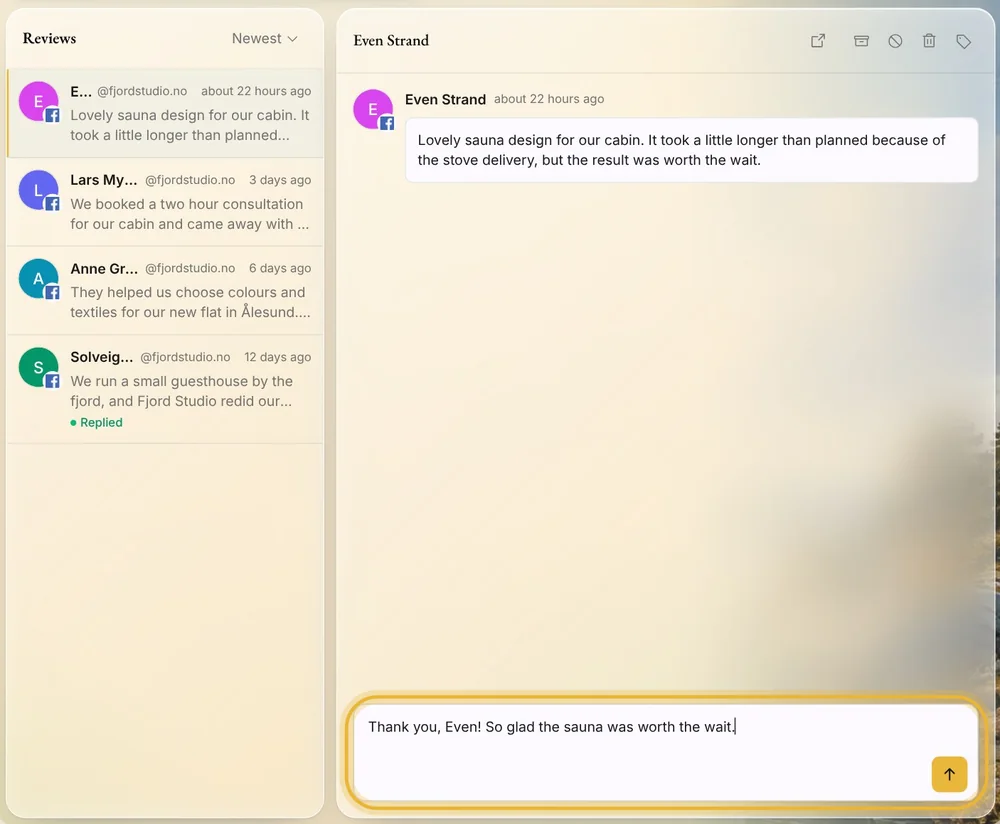
Tips: Facebook doesn't let you change or delete a reply later, so read it once more before you press Enter.
Tips fra Elin
- Answer within a day when you can. People notice when a business replies.
- Keep replies short and warm. Use the person's name, and answer their question first.
- WhatsApp and TikTok take replies only for a while after the person's last message, and Nativean says so above the box when that time is up.
- A question you get often belongs in a post. Ask your assistant to make one, or make it from your own idea in Creations.
Prøv det i Native
Ny i Native? Start med nettsiden din, og se de første innleggene dine i dag.