Start her
Connect your social channels
 Elin Kristina AnderssonFounding GTM0:34Spilt inn 24. oktober 2026
Native posts on the channels you connect to your brand. It takes a minute, and you only do it once.
I denne videoen
Steg for steg
Steg 1: Open your brand's connections
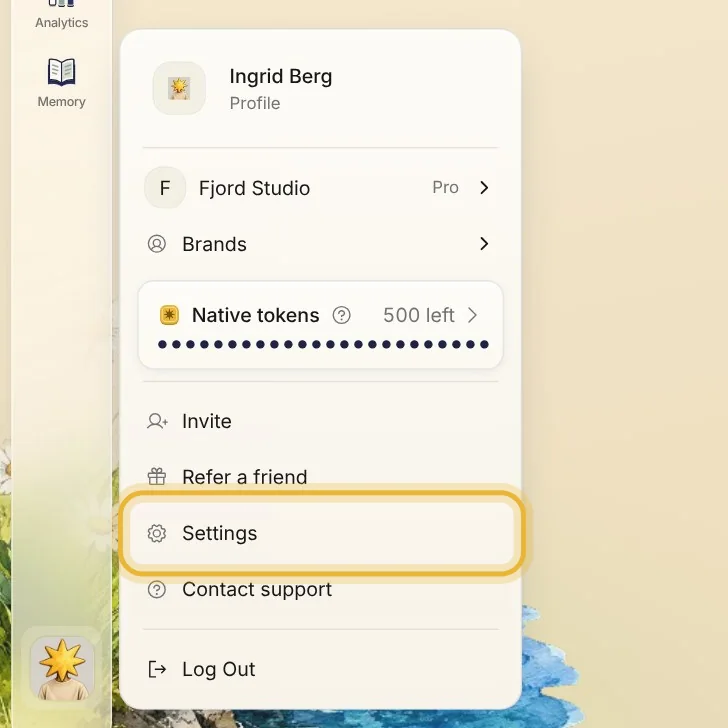
Open the menu at the bottom left of Native and choose Settings. Under Brands, pick your brand, then open Connections.
Steg 2: See what is connected
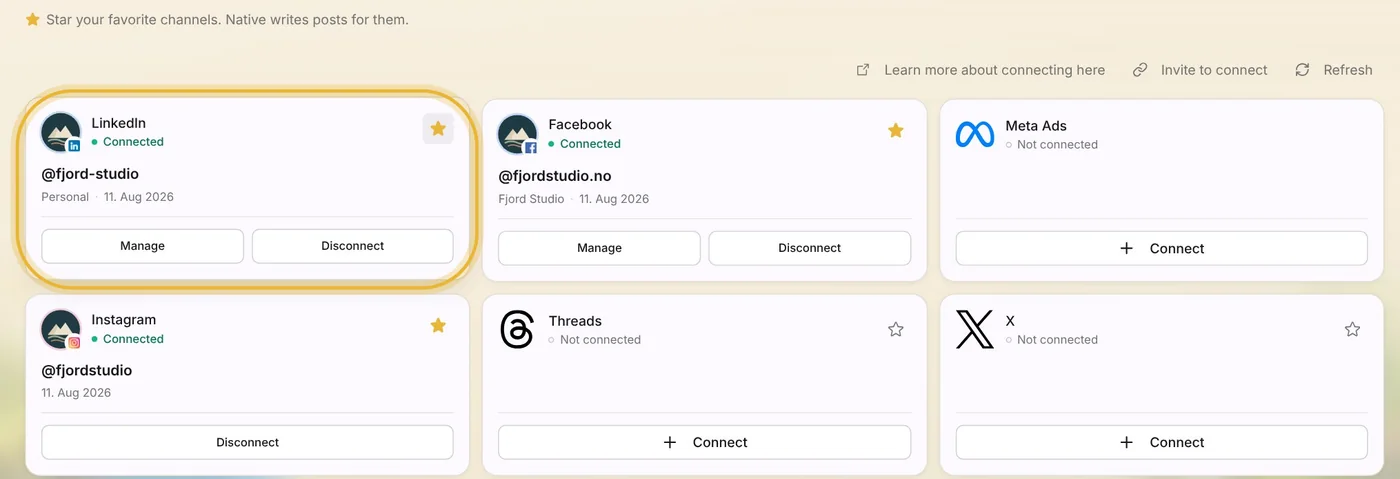
A channel Native can post to shows Connected in green. A star means Native writes posts for that channel, so star the ones you use most.
Steg 3: Connect a channel
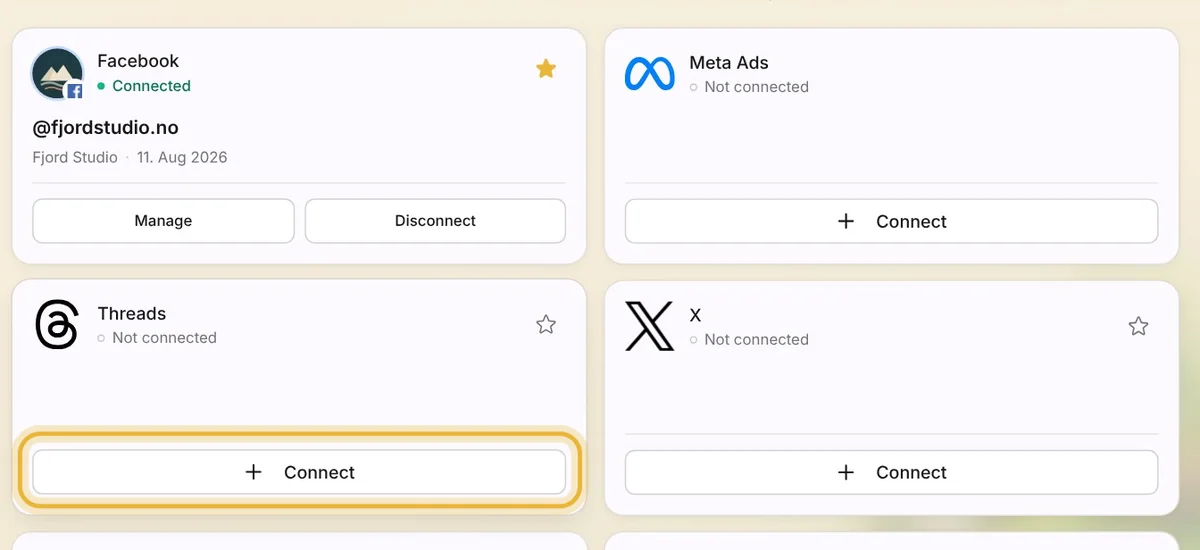
Press Connect on a channel and sign in to that account in the window that opens. Once you are signed in, it shows Connected.
Tips: Connecting here only changes this brand. Each brand has its own channels.
Steg 4: Invite someone to connect
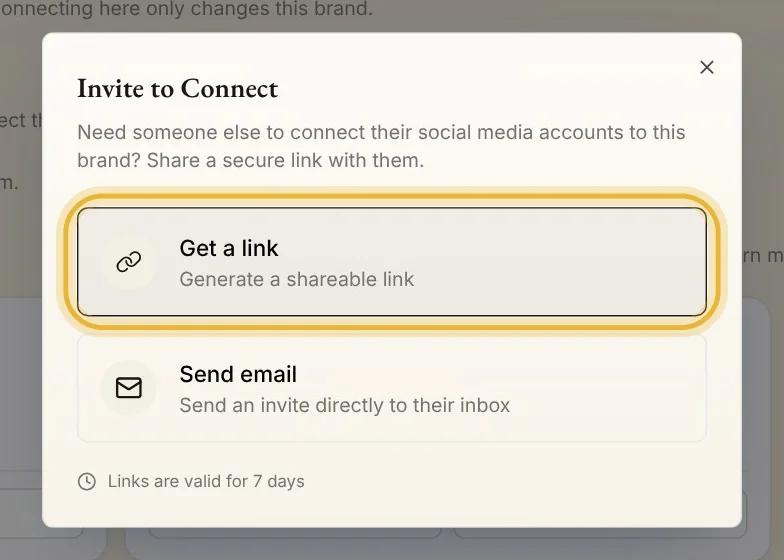
If someone else has the login, press Invite to connect. Get a link to send them, or send them an email from Native. The link works for 7 days.
Tips fra Elin
- Connect your channels before you approve posts, so they go out on their own at the planned time.
- Meta Ads in the same list is for running ads. Connect it when you are ready to advertise.
- Under Connectors further down, Canva and Google Drive bring your designs and files into Native.
Prøv det i Native
Ny i Native? Start med nettsiden din, og se de første innleggene dine i dag.