Annonser
Make your first ad
 Trond HaugåCOO og medgründer0:31Spilt inn 20. november 2026

Your assistant makes ads from what Nativean knows about your brand: your look, what you offer, your photos and what is in Memory. You say what the ad is about, and it writes the words and builds the picture. Nothing goes to Meta until you publish it.
I denne videoen
Steg for steg
Steg 1: Ask your assistant
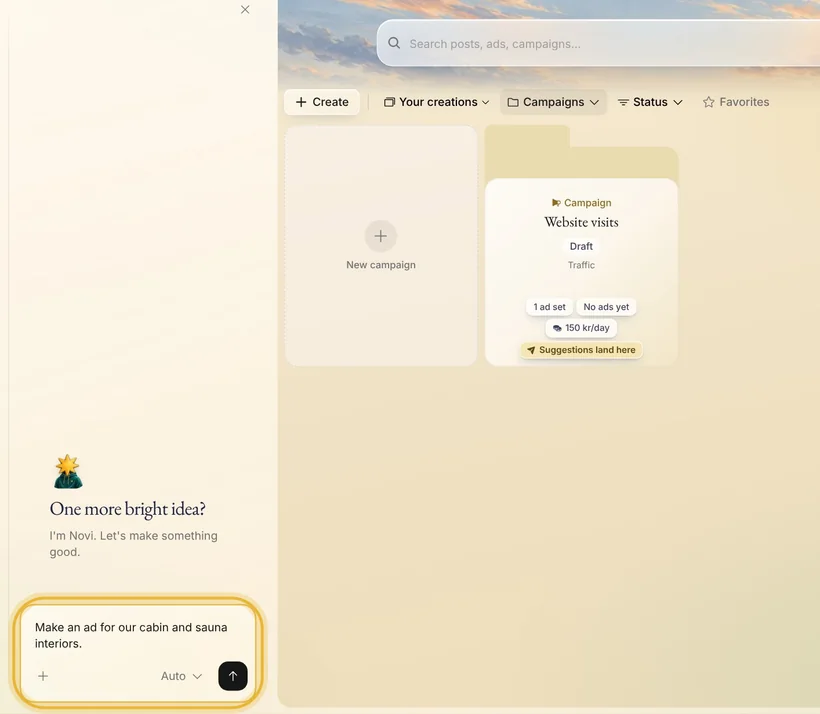
In the chat beside the page, ask for an ad and say what it's about, like “Make an ad for our cabin and sauna interiors.” The offer, the angle or who it's for all help.
Steg 2: It starts right away
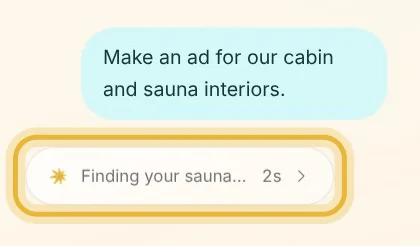
When the chat box says Auto, your assistant starts right away: it looks through what it knows about your brand and finds your photos. On Manual, or if you didn't say what the ad is about, it tells you in a line what it will make and waits. Say yes, or tell it what to change.
Tips: An ad costs 10 tokens. If making it fails, you get them back.
Steg 3: Watch it build
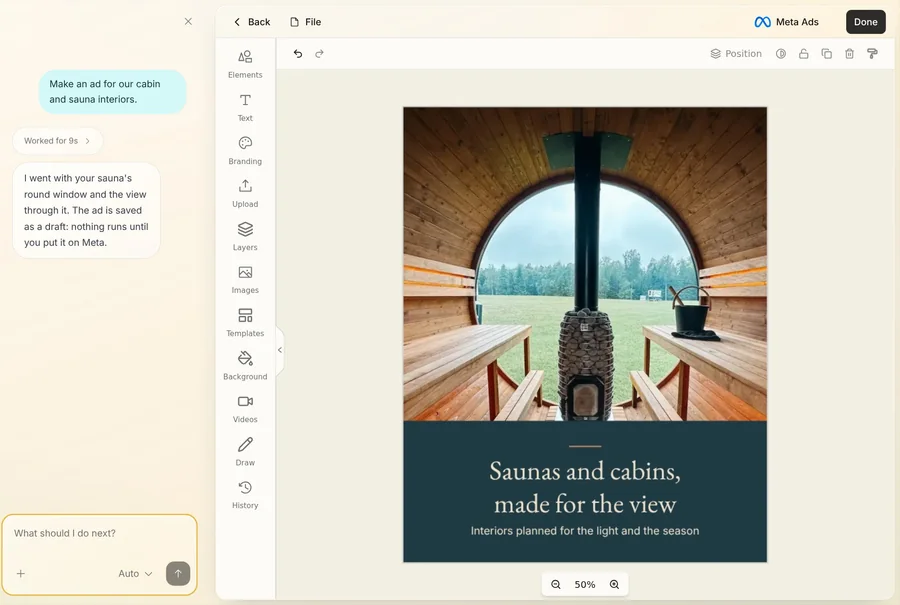
Your assistant writes the words, then builds the ad in the ad designer beside the chat: your photo, your colors and fonts, and the headline.
Steg 4: Change what you like
Press Done to see the ad as people will, in Facebook's and Instagram's previews. Change any word in the fields, or ask your assistant. Nothing goes to Meta until you publish it.
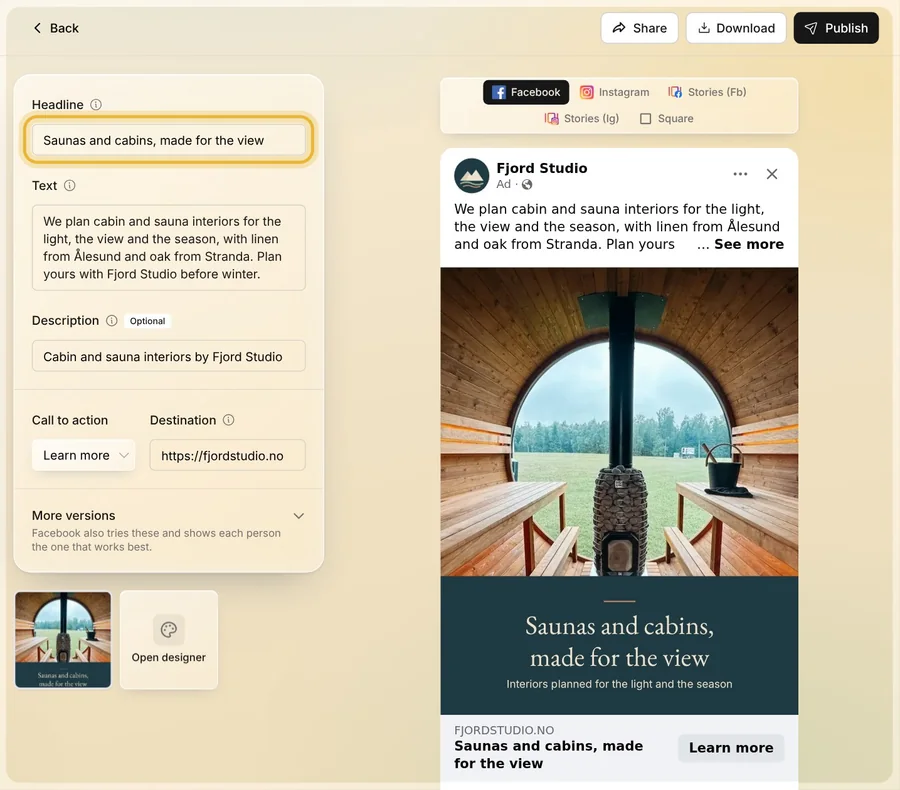
Tips: Open designer takes you back to the picture.
Prøv det i Native
Ny i Native? Start med nettsiden din, og se de første innleggene dine i dag.