
Inbox and Analytics
See what works
 Elin Kristina AnderssonFounding GTM0:35Recorded 21 de novembro de 2026

Analytics answers three questions at a glance: how often your posts were seen, how people reacted, and which posts did best. Ask your assistant, or pick a period and a channel yourself and find the posts worth building on.
In this video
Step by step
Step 1: Ask your assistant
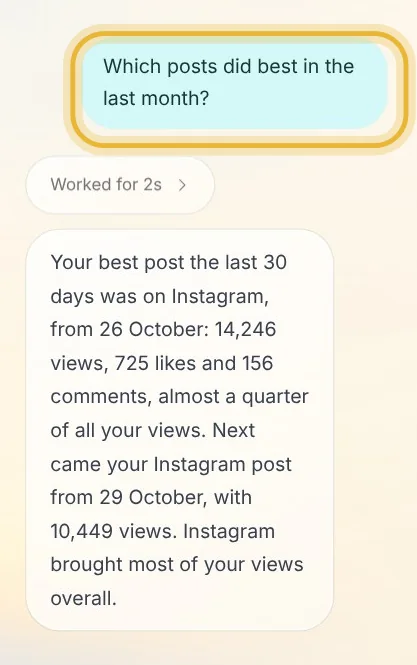
Ask your assistant which posts did best, like “Which posts did best in the last month?”. It reads how your posts did and names the best ones, with their views, likes and comments.
Step 2: Pick a period
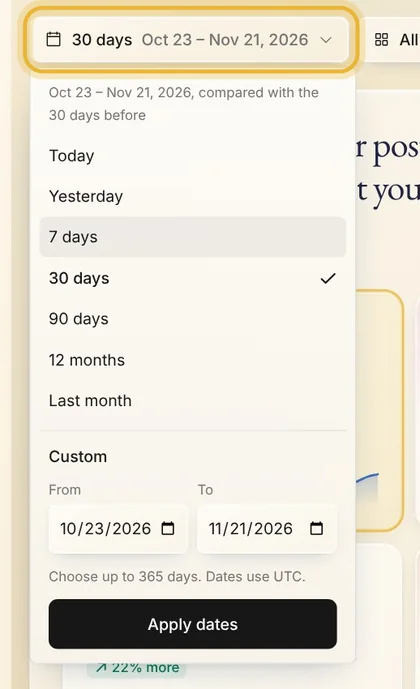
Analytics opens on the last 30 days. Press the date button at the top for another period: Today, Yesterday, 7 days, 90 days, 12 months, Last month, or Custom for your own dates.
Step 3: Look at one channel
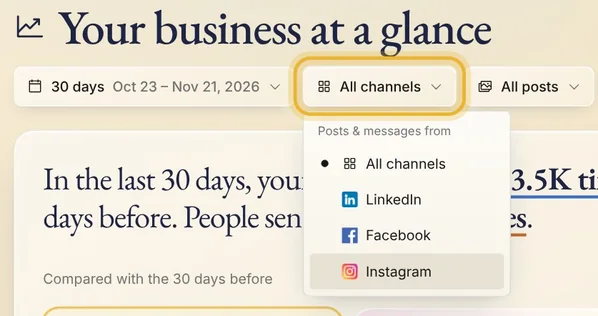
If you have more than one channel, press All channels, and pick one under Posts & messages from to see its posts and messages on their own. Choose All channels to see them together again.
Tip: Under All posts, Posts shown can list only the posts made with Nativean. The totals still count every post.
Step 4: Find your best posts
Further down, Posts people noticed ranks the posts from the period, the most viewed first. Use Sort by to rank them by likes or comments instead, and See more posts to see more of them.

Step 5: See every post
Open See every post and its numbers for every post from the period, with its views, likes, comments and engagement. Sort by puts them in another order, like Most views or Newest first, and Search posts finds a post by its words. See more posts shows the next ones, and then See older posts shows the ones from before the period.

Tip: On a wide screen, press a column's name to sort by it, and press it again to turn the order around.
Tips from Elin
- Look at the same period each week. A trend tells you more than a single day.
- When a post does well, make more like it: the same kind of picture, the same kind of message.
Try it in Native
New to Native? Start with your website, and see your first posts today.