
Annonseproblemer
When Meta won't accept ads for your Page
 Trond HaugåCOO og medgründer0:52Spilt inn 20. november 2026

Sometimes Meta refuses new ads for your Facebook Page and doesn't say why. Your assistant tells you when it tries to put an ad live, and Nativean shows the steps to fix it, in order.
I denne videoen
Steg for steg
Steg 1: The notice
When Meta refuses the ad your assistant puts live, Nativean says Meta won't accept ads for your Page, at the top of Creations and Suggestions. Ads that are already running keep going. Press Show me how to fix it for the steps, in order.
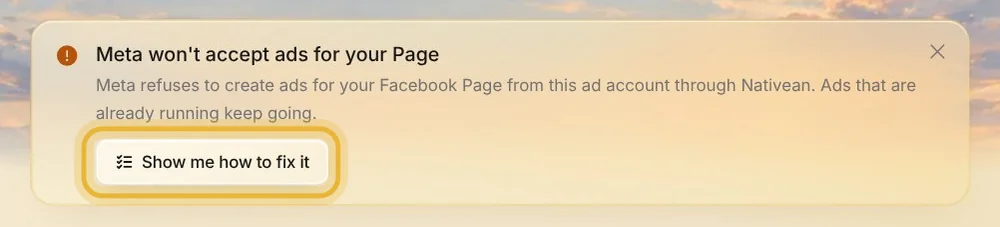
Tips: If Nativean can't tell whether the Page or the ad account is the problem, the notice says Meta is refusing your ads instead, with the same Show me how to fix it and the same steps.
Steg 2: A test ad first
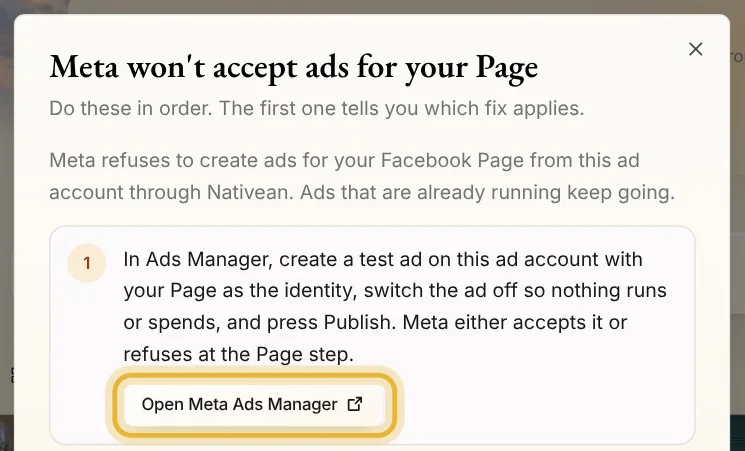
In Meta Ads Manager, create a test ad on the same ad account, with your Page as its identity. Switch the ad off, so nothing runs or spends, and press Publish. Meta either takes it, or refuses it at the Page.
Steg 3: If Meta refuses it too
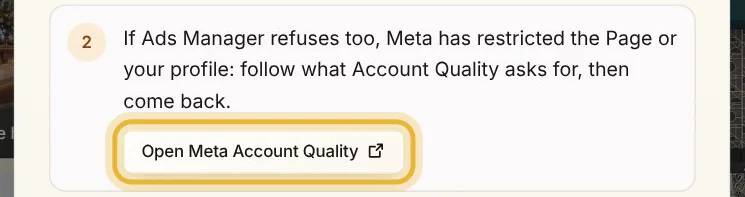
Then Meta has restricted your Page or your profile. Open Account Quality, and do what Meta asks for there, then come back.
Steg 4: If the test ad went through
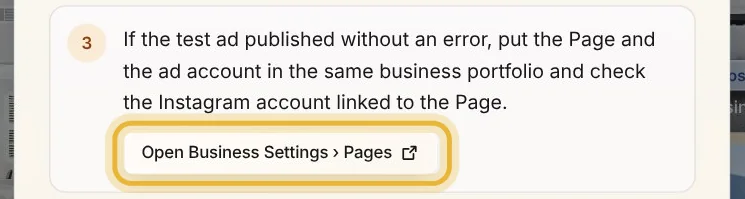
Put the Page and the ad account in the same business portfolio, and check the Instagram account linked to the Page. The step's Open Business Settings › Pages takes you to Meta's Business Settings.
Steg 5: Reconnect, then ask again
Reconnect Meta in Nativean, and ask your assistant to put your ad live again. Use a private window, and log in as the Page's admin: a browser that is signed in to another Facebook profile reconnects as that profile.
Prøv det i Native
Ny i Native? Start med nettsiden din, og se de første innleggene dine i dag.