Start here
Connect your social channels
 Elin Kristina AnderssonFounding GTM0:34Recorded October 24, 2026
Native posts on the channels you connect to your brand. It takes a minute, and you only do it once.
In this video
Step by step
Step 1: Open your brand's connections
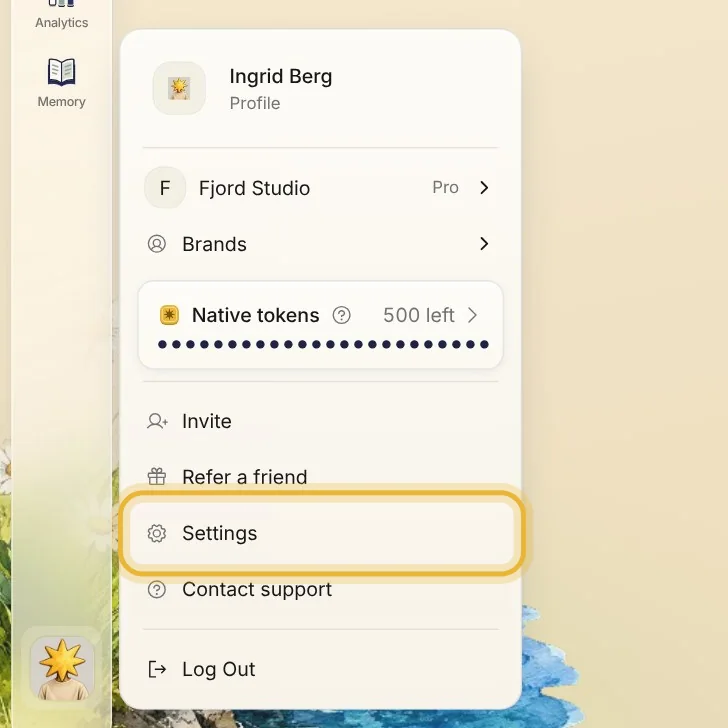
Open the menu at the bottom left of Native and choose Settings. Under Brands, pick your brand, then open Connections.
Step 2: See what is connected
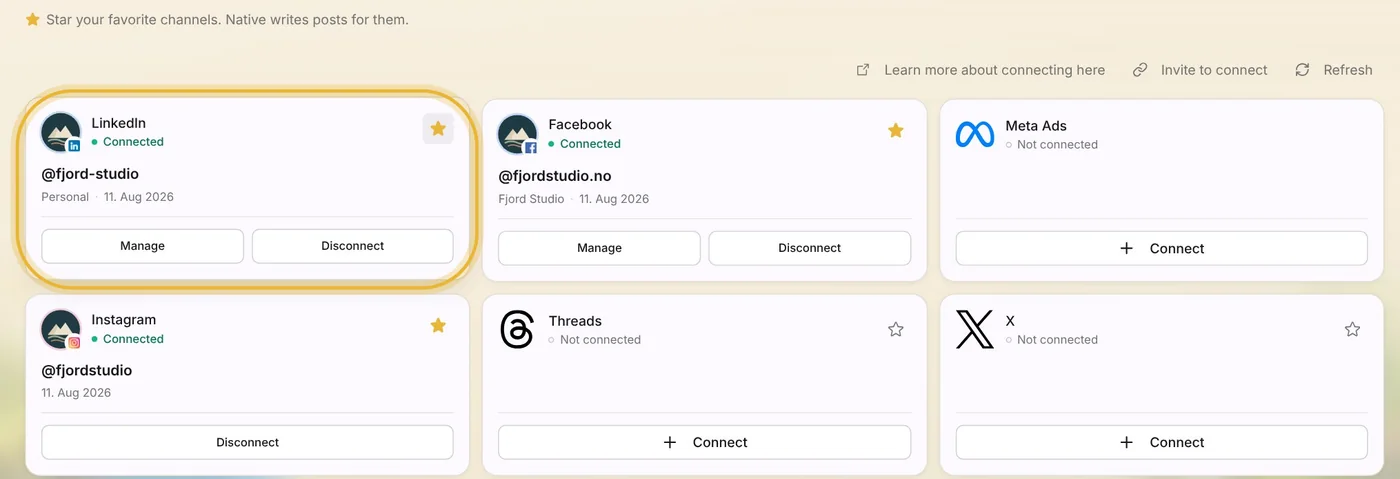
A channel Native can post to shows Connected in green. A star means Native writes posts for that channel, so star the ones you use most.
Step 3: Connect a channel
Press Connect on a channel and sign in to that account in the window that opens. Once you are signed in, it shows Connected.
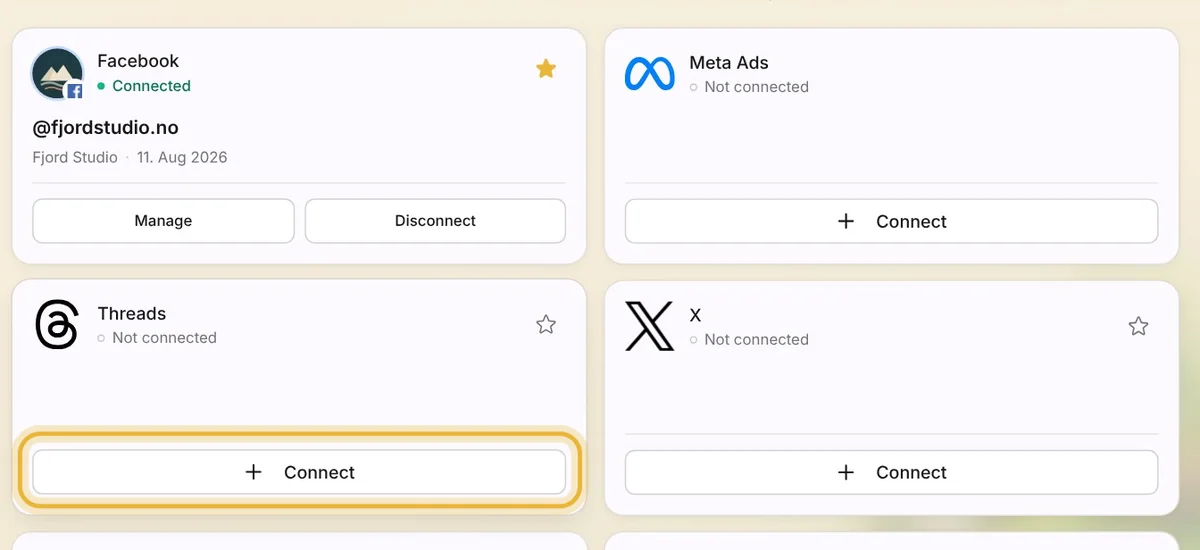
Tip: Connecting here only changes this brand. Each brand has its own channels.
Step 4: Invite someone to connect
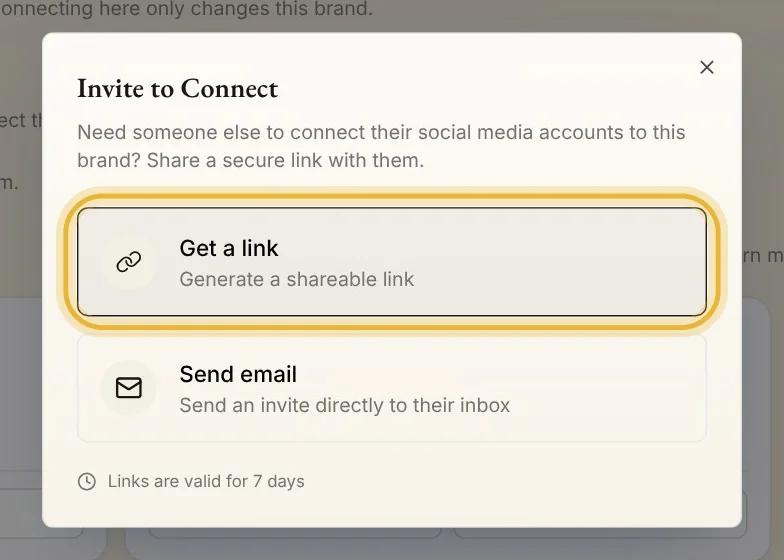
If someone else has the login, press Invite to connect. Get a link to send them, or send them an email from Native. The link works for 7 days.
Tips from Elin
- Connect your channels before you approve posts, so they go out on their own at the planned time.
- Meta Ads in the same list is for running ads. Connect it when you are ready to advertise.
- Under Connectors further down, Canva and Google Drive bring your designs and files into Native.
Try it in Native
New to Native? Start with your website, and see your first posts today.