Keep one clean vertical video and make a draft for each platform. Use the same demonstration in all three versions. Change what viewers see and read first, check the audio rights and publishing settings, then open each live post to see what actually went out.
Start with one video that shows the work
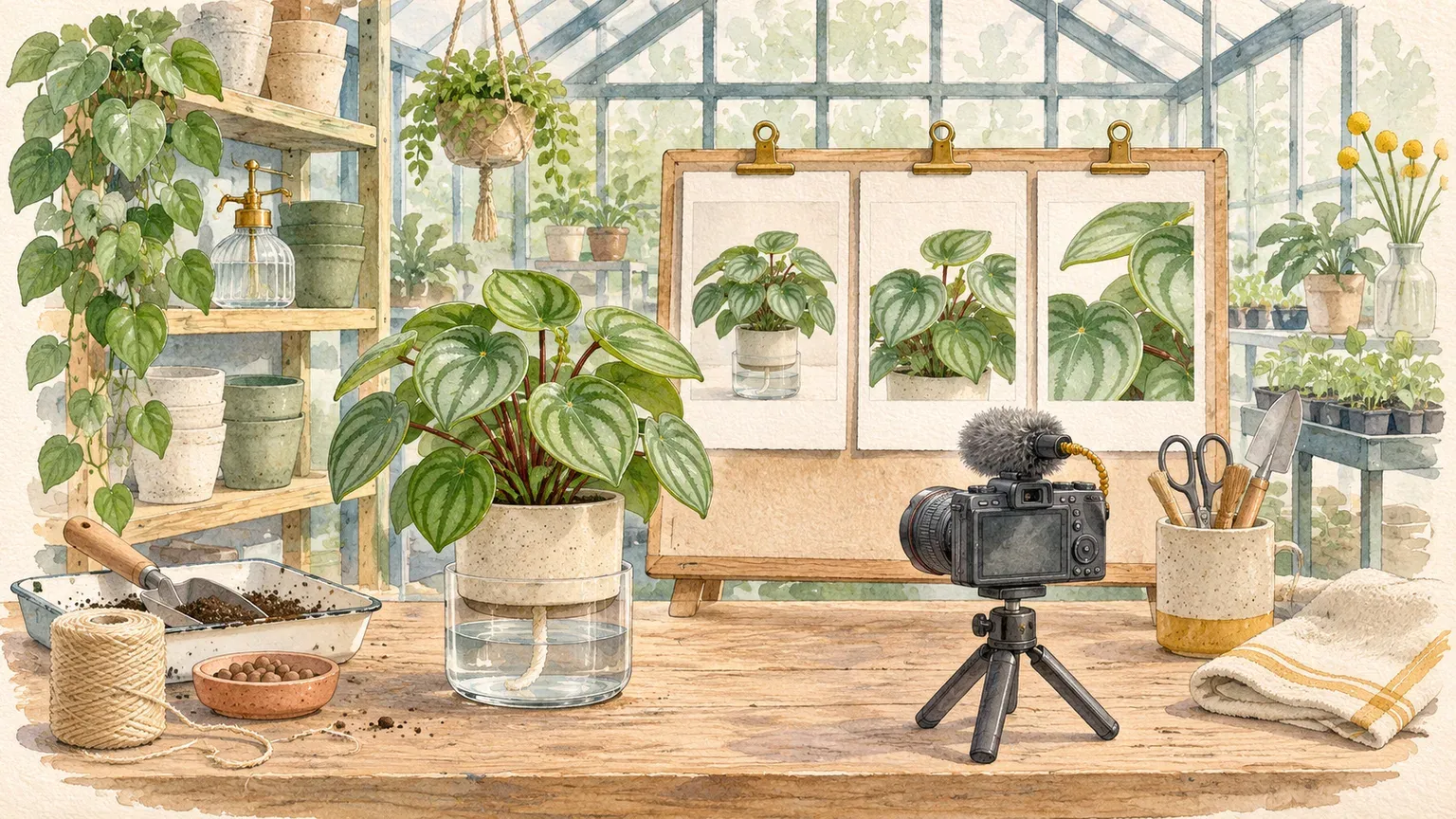
In this fictional example, a plant shop films a 22-second setup for a wick planter. It records the finished pot, the parts laid out on a workbench, and two close-ups showing the wick and fill line. The shop records an original voiceover and exports a 9:16 version with captions on screen. It keeps a copy without a platform logo or added song.
The wick reaches the reservoir in every version. Change the first shot and the words around it to fit the question each post answers.
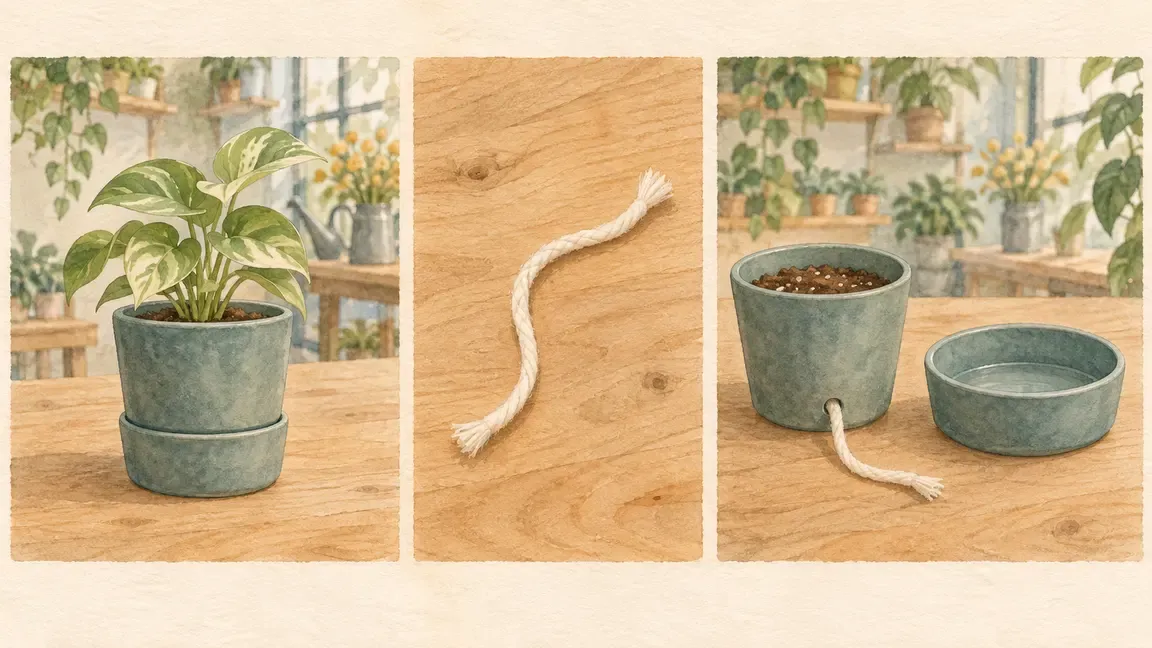
- Instagram Reels. Start with the finished pot. Add “Setting up this wick planter.” In the caption, ask viewers to save it for repotting day and check their own fill line.
- TikTok. Open overhead on the loose wick and ask “Where does this wick go?” Tell viewers to check where it sits before the inner pot goes in.
- YouTube Shorts. Put the pot and reservoir side by side. Show the wick as soon as you name it. Use “How to set up a wick planter” as the title and mention the fill line in the description.
Frame the hands and important text away from the edges. Watch the previews with the sound off and make sure someone can follow the steps. YouTube categorizes eligible square or vertical videos up to three minutes as Shorts. The 22-second portrait clip fits that format. YouTube’s Shorts eligibility guide
Sort out audio rights and disclosures before scheduling
Keep the voiceover in the master. If you add music, check that the license covers the accounts and platforms where you plan to publish. If you pick music inside one platform, keep it in that version until you can confirm reuse rights. TikTok directs businesses to its Commercial Music Library for commercial activity on TikTok. YouTube describes its Shorts and Audio Library options separately. TikTok’s Commercial Music Library · YouTube’s music guidance for Shorts
TikTok requires a commercial content disclosure for posts that promote a brand, product, or service. Check the setting before scheduling. If you finish the disclosure or visibility in the TikTok app, clear any scheduled copy for TikTok. Native supports a TikTok draft option for choosing visibility in the app. TikTok’s disclosure steps · Native’s TikTok publishing options
Check all three versions before and after publishing
| Destination | Before it goes out | After it goes out |
|---|---|---|
| Instagram Reels | Check the intended profile, cover, and readable first frame. Preview the framing and caption. | Open it from the profile’s Reels tab. Check the crop, on-screen text, and audio. |
| TikTok | Check the selected account, visibility, caption, and required disclosure. | Open it on the intended profile. Confirm the visibility, disclosure, and first spoken line. |
| YouTube Shorts | Check the destination channel, title, vertical export, and visibility. | Open it from the channel’s Shorts tab and check the title, captions, and audio. |
Write the live link next to each planned post. Give any versions still processing time to finish. Retry a destination only after you confirm it failed or withdraw its original booking. How to check a scheduled post that failed · How to finish a partly published post in Native
Native can publish Instagram Reels, TikTok videos, and YouTube Shorts to channels you connect. Upload your own clip in the post wizard, check the destination preview, and put the approved drafts on the calendar. Start with one video and open each live link when it goes out. Native’s live publishing channels · How to upload your own video · How to plan your week in Native