
To turn job photos into social posts, collect two approved photos and a short note about the work. Use the pictures to show the result, then explain the problem, one decision the crew made, and how someone with the same problem can get help.
The person taking the photos needs a simple handoff. The person writing the post needs enough detail to explain the job correctly.
Give the crew a photo brief they can finish on site
Choose one person to collect the material. Ask for the same few things every time.
- A wide photo. Show the area where the work happened, with enough context to understand it.
- A detail photo. Show the part you repaired, replaced, built, or restored. Capture the detail before it is covered up or cleaned away.
- One job note. Say what the customer asked for, what you changed, and one reason for that choice.
- Permission. Record whether you can show the work publicly and whether names, faces, addresses, or identifying details need to be left out.
Before-and-after photos are easier to follow when the crew takes both from the same angle. If the before photo is missing, use a wide finished image and a close-up. A useful detail can explain the change on its own.
Ask the crew to send the source images alongside the note. Keep the approved images in one folder or asset library with the job date and permission. Save a separate copy when you crop or blur an image for publication.
If the customer approves a quote and a fuller account of the job, turn that story into posts for different channels.
Tell the customer what the photo shows
Start with the question someone would have if they saw the picture on its own.
For a patio repair, a finished surface can look like any other patio. A useful caption says what was failing and what the crew did beneath the surface. If the work involved a specific material or test, have the person who did the job check the wording.
Use this structure in your draft:
- Problem. What did the customer notice?
- Work. What change can you point to in the pictures?
- Reason. Why did the crew choose that approach?
- Next step. What should a customer do if they want your help?
Keep the claim as specific as the evidence. For example, explain where the water was pooling and how the crew redirected it on this job. Save broader service claims for wording your business has approved.
Example from a fictional flooring business
The crew’s notes explain how it matched the finish. Use two approved shots to show the work.
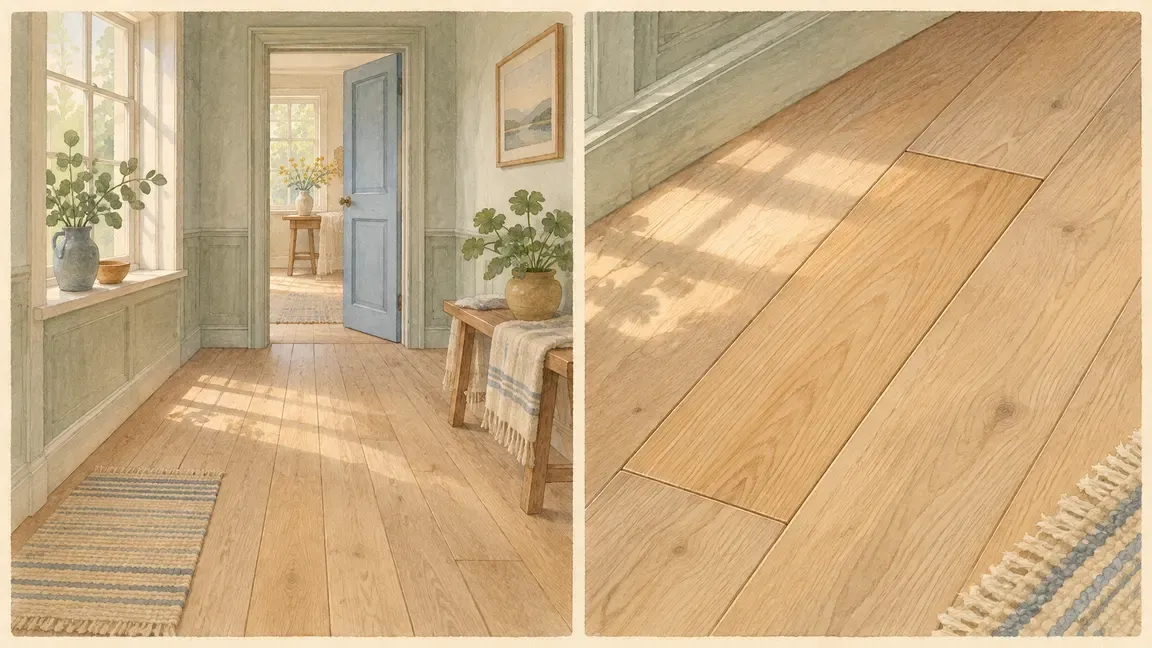
One caption for Facebook
A damaged board in the hallway was catching underfoot. We repaired the affected spot and matched the finish to the boards around it. Swipe to see the area the crew worked on. If you have a similar spot you want us to look at, send two photos through our estimate form.
Use the real service link and company name when adapting the caption. Keep the estimate request specific. For this job, a wide photo and a close-up give the business something to review before a call.
A short Instagram carousel
- Set the scene. Show the hallway and name the problem.
- Show the work. Move in on the repaired board. Point out how its finish matches.
- Give a next step. Show the wider finish and direct customers to the estimate link to send their own photos.
Preview the crop in both placements. A detail near the edge of a wide photo can disappear in a vertical crop. Keep the useful part of the image near the center or use the original file with more space around it.
Review the draft with the person who did the work
Ask the crew lead to check the job facts and the person responsible for marketing to check permission, links, and the format. One person may do both jobs in a small team.
- Check for house numbers, name labels, invoices, license plates, and customer faces.
- Confirm the post uses the current service area, available service, and working estimate link.
- Make sure an old offer, a superseded price, or a caption from another job did not carry over.
- Add useful alt text where the channel supports it. Describe the photo and the detail the reader needs.
Send the exact draft to the person giving approval. If the facts or images change, ask them to check the new version before it goes out. A practical approval workflow
Turn the photo handoff into a weekly routine
Save two or three approved jobs as a small queue. Alternate a finished job, a question that came up during an estimate, and a practical tip the crew can stand behind. Check every link from the live post and record any estimate requests with an identifiable source.
If you test paid advertising for the same service, agree on what makes an estimate request worth pursuing before you put money behind a post. Compare Meta ads and Google Local Services Ads for contractors
Native can turn your business website, job photos, and crew notes into captions and visuals for the channels you connect. Upload the approved photos, add one sentence about the work, and review how the draft looks on each channel before you decide when it goes out. See how Native helps contractors