

Social media approval workflow
Share a draft, collect a decision, and schedule the approved version. Clients can review a Native link without signing in.
How to approve social media posts in four steps
- Step 1
Prepare one draft
Put the caption, media, channels, links and proposed time in one place. Flag prices, dates or permissions the reviewer should check.
- Step 2
Name the approver
Give one person the decision, name a backup, and set a deadline that leaves room for changes.
- Step 3
Review that version
Share the channel previews. Ask for approval or changes, and send any material revision back for review.
- Step 4
Schedule the post
Record the approved version, then confirm the account, publishing time and timezone. If approval is late, agree on a new time.
Send a client a review link in Native
In a draft, choose Share → Copy review link. The reviewer can switch channels, approve, or request changes with a comment.
Anyone with the link can open it. Send it only to your intended reviewers.
Watch the post approval tutorial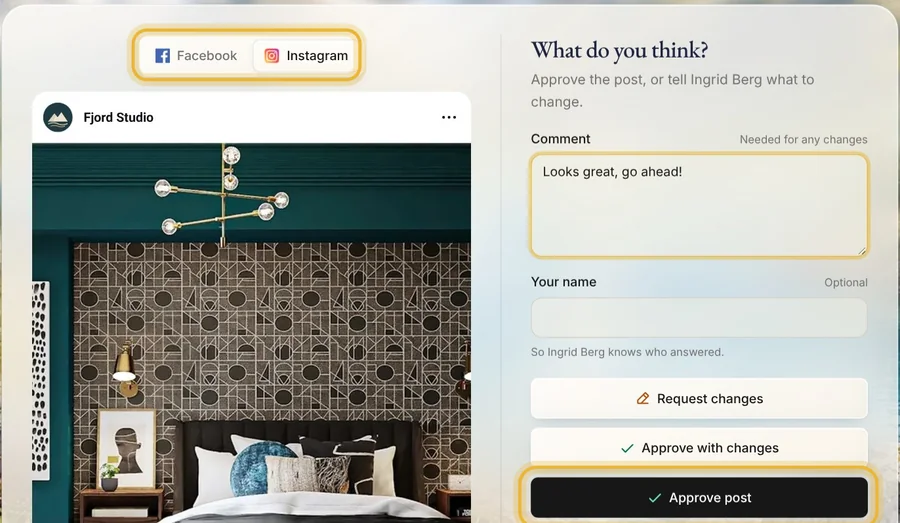
- Feedback only
- Replies appear in Share → Feedback. An already scheduled post keeps its publishing time.
- Required client sign-off
- If your agency requires client sign-off, keep the post in Draft until the client approves the current version. Native refuses a client’s change request while any booking remains. Ask the sender to unschedule every booked channel, then reopen the review link and request changes.
Free social media approval template
Track one post per row. The CSV includes a blank row and the example below.
- Example post
- Bakery weekend pickup
- Reviewer
- Store manager
- Review deadline
- Thursday, noon ET
- Latest decision
- V2 approved after price correction
What to test in a social media approval tool
Guest review
Ask a guest to open a draft and respond. Check what they can see and where their reply appears.
Publishing controls
Test whether a change request affects the schedule and who can withdraw a scheduled post.
Sign-off after edits
Change a price or image after approval. Check whether the new version asks for a fresh decision.
Test one routine post and one that needs client or legal review. Use the 30-day content calendar to plan what goes into review.
Start with your first draft
Add your website to draft a post for your business.