Create
Share a post for approval
 Elin Kristina AnderssonFounding GTM0:38Recorded October 30, 2026
Anyone can check a post before it goes out. Send them a link: they don't need an account.
In this video
Step by step
Step 1: Share
Open the post and press Share at the top. Write a message if you like, and press Copy review link.
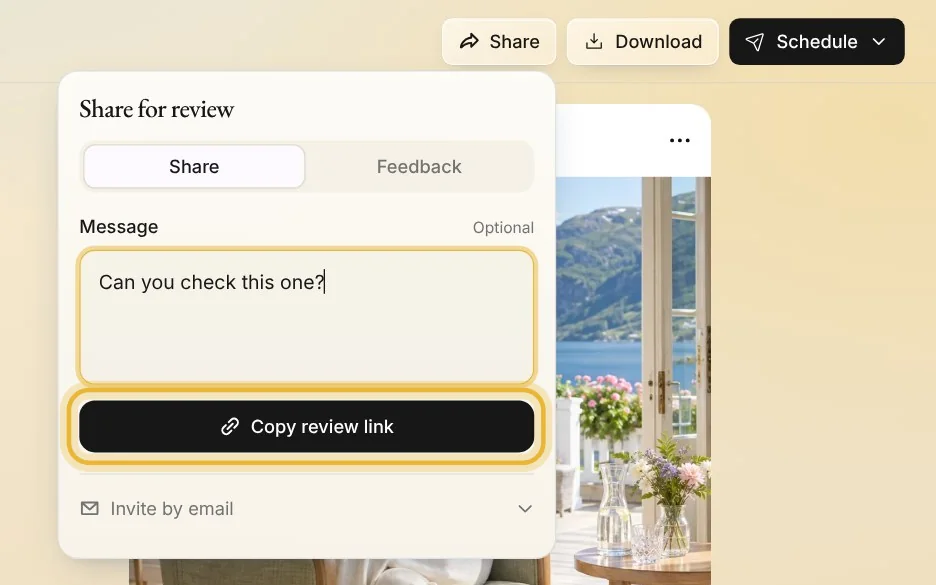
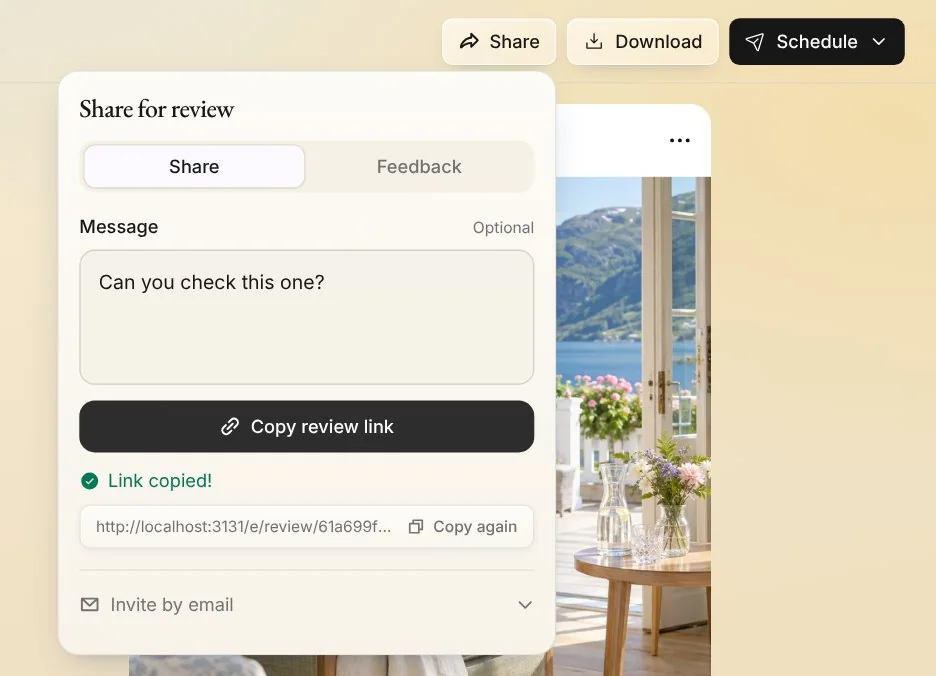
Tip: Each press makes a new link. Under Invite by email, Native can send it for you.
Step 2: Send the link
Send the link however you like: in a message, an email or a chat. Whoever has it can open it, with no account and no sign-in, so send it only to people you want an answer from.
Step 3: Approve or ask for changes
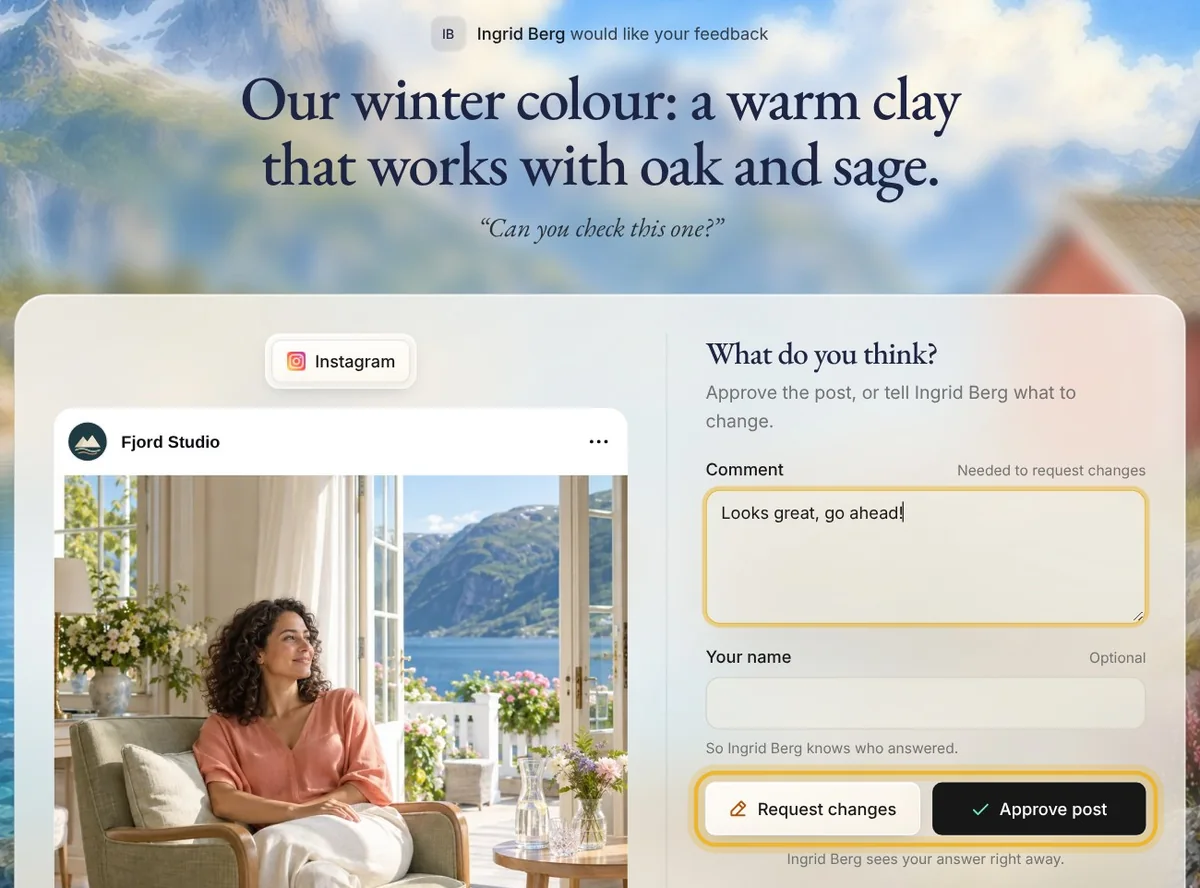
They see the post the way each channel shows it, with its words and pictures. They press Approve post, or Request changes with a comment saying what to change.
Step 4: Feedback
Their answer shows under Share, in Feedback: Approved, or Rejected when they asked for changes, with their comment. Once there's an answer, Share opens on Feedback.
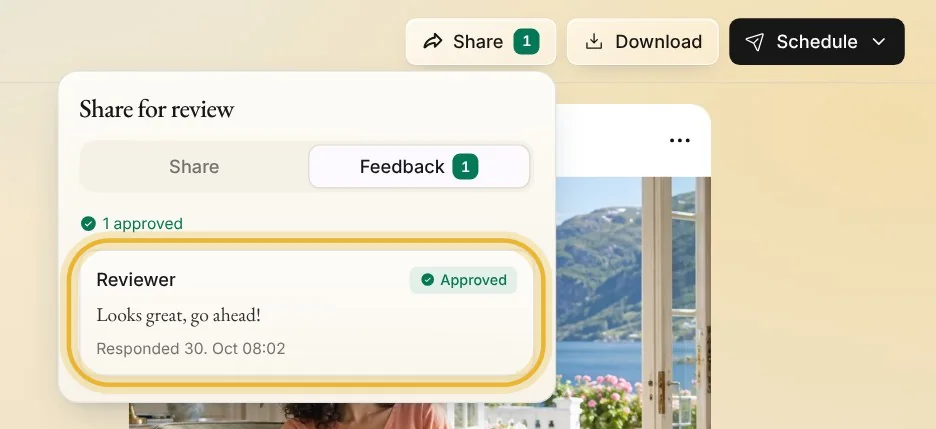
Tip: The page doesn't update by itself: open Share again to see new answers.
Tips from Elin
- An answer changes nothing by itself. A scheduled post still goes out on time, so schedule it after they approve.
Try it in Native
New to Native? Start with your website, and see your first posts today.