Autopilot
Turn on Autopilot
 Elin Kristina AnderssonFounding GTM0:47Recorded October 30, 2026
Autopilot makes posts for you, on a rhythm you set. Answer a few questions once, and it keeps going until you turn it off.
In this video
Step by step
Step 1: Open Autopilot
Open Memory from the menu and press Memory. Then open Content, press Autopilot, and turn on the Autopilot switch at the top. The first time, it asks a few questions.
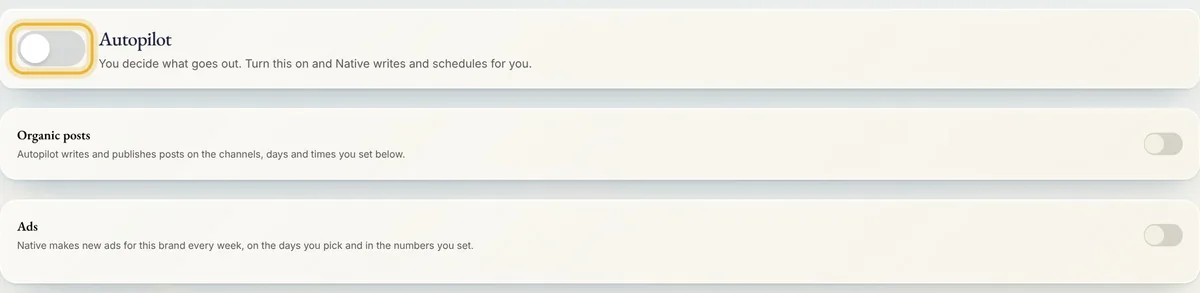
Tip: Only owners and admins can turn Autopilot on.
Step 2: What it runs
Choose Posts, Ads or Everything. With more than one brand, it first asks which brands it's for.
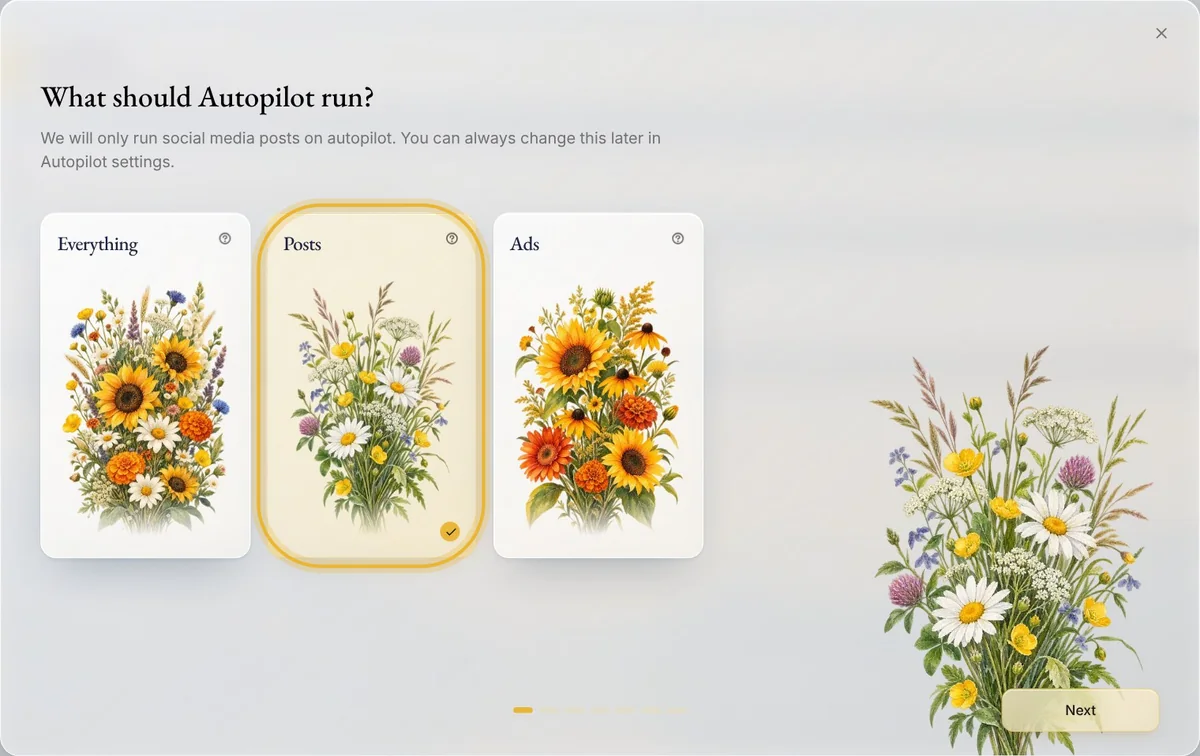
Tip: For ads, see Get new ads every week.
Step 3: How often, where and what
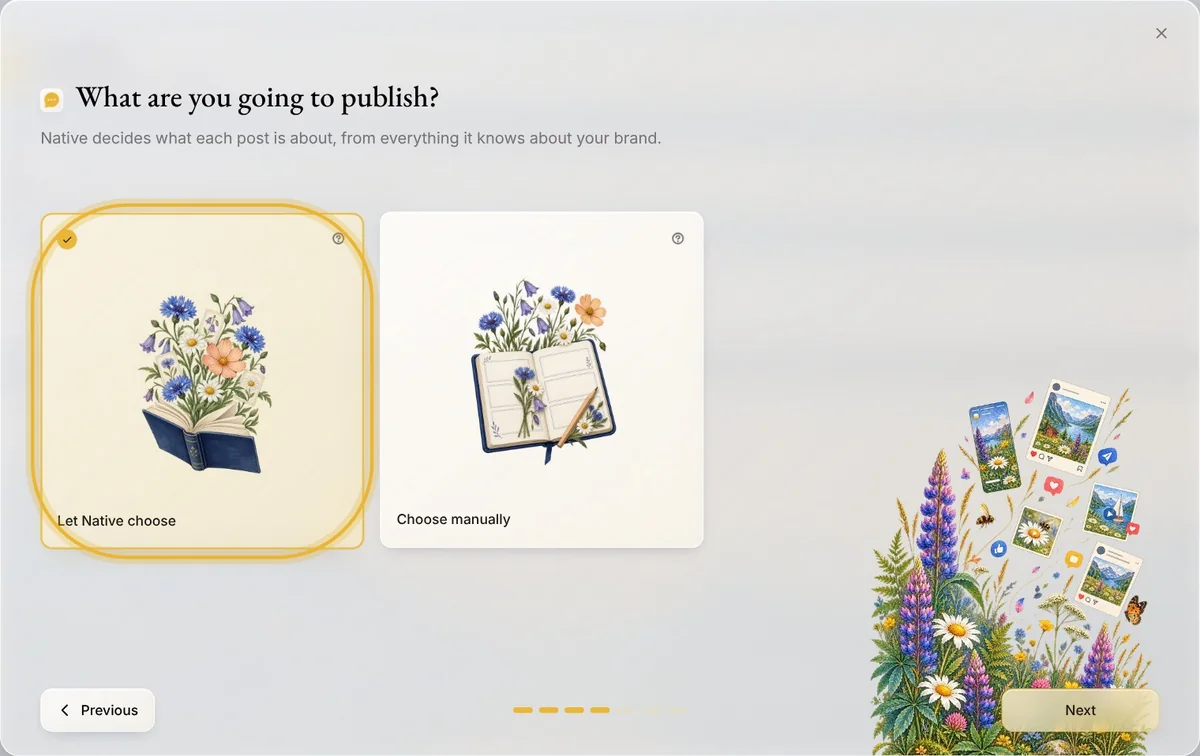
For how often to post, where to publish and what to post about, press Let Native choose, or Choose manually. Each step shows what Native would pick.
Step 4: How much it may use
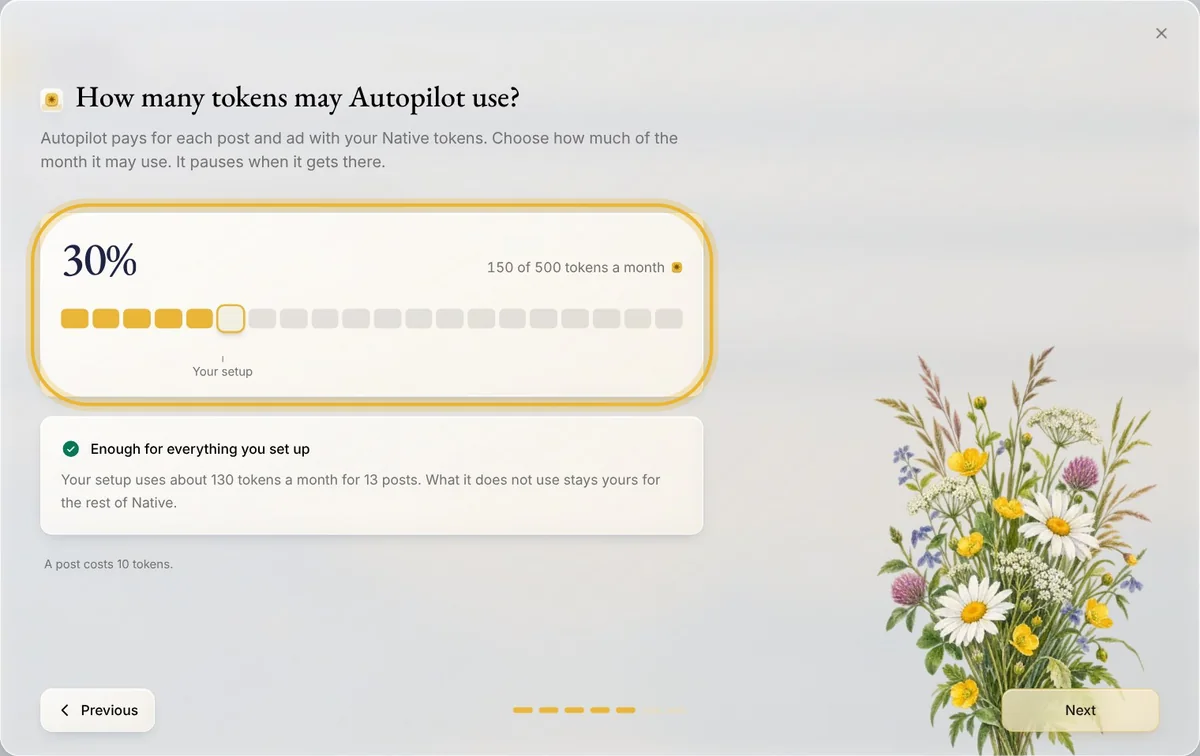
Choose how much of your plan's monthly tokens Autopilot may use. It pauses when it gets there, and it never uses token packs. A post costs 10 tokens. On Enterprise, with no monthly limit, this step doesn't show.
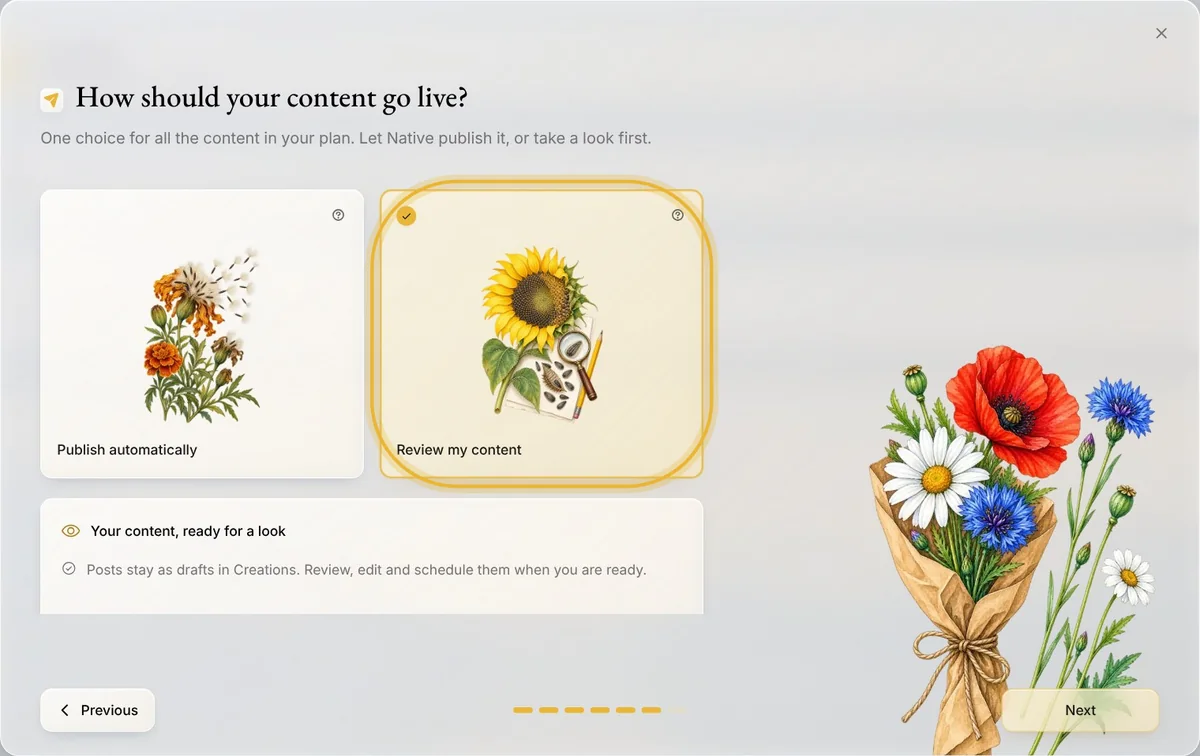
Step 5: Publish or review
Publish automatically schedules new posts to your channels. Review my content keeps them as drafts in Creations, where you check and schedule them yourself.
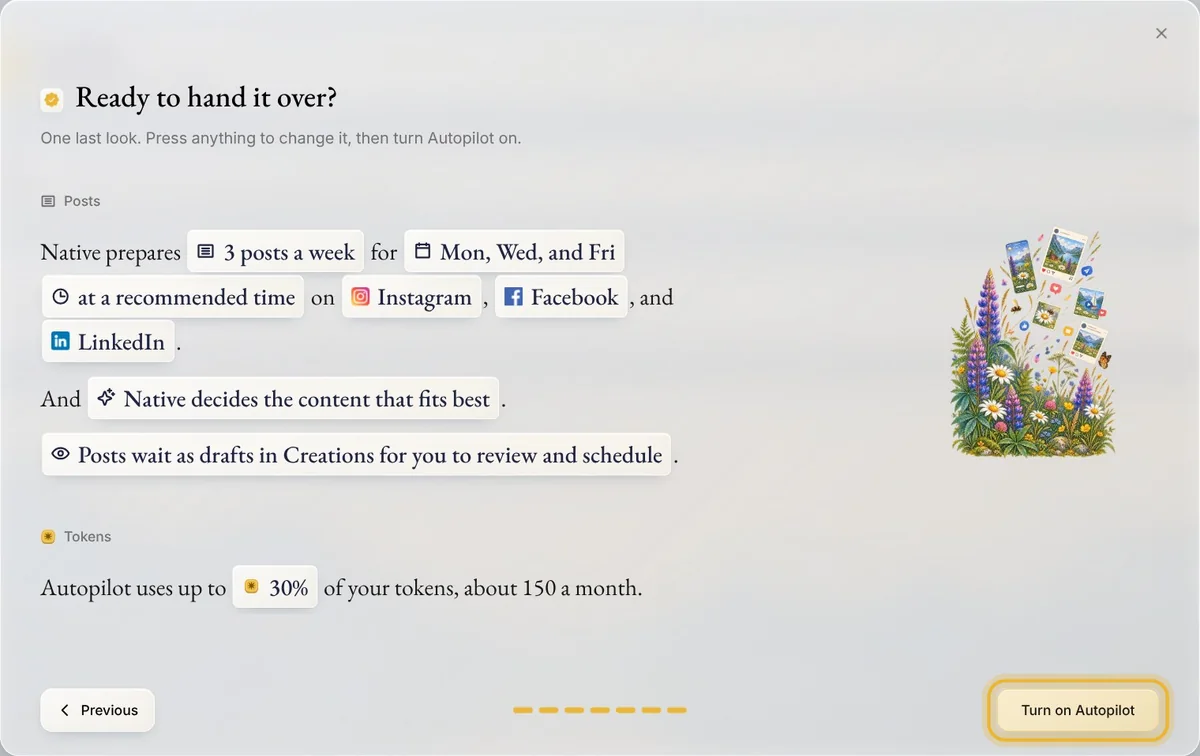
Step 6: Turn on Autopilot
Check the summary, and press any part of it to change it. Then press Turn on Autopilot. The page then shows its days, times and channels, which you can change whenever you like.
Tip: Want posts about something in particular? Describe it under What to talk about, and press Draft the plan.
Tips from Elin
- To stop, turn off the Autopilot switch. Posts Autopilot scheduled go back to drafts; posts you scheduled yourself stay as they are.
Try it in Native
New to Native? Start with your website, and see your first posts today.