Ads
Connect your Meta ad account
 Trond HaugåCOO & Co-founder0:46Recorded October 28, 2026
Native publishes your ads through your Meta ad account, so you connect it once for each brand, before its first ad goes out. Native sends you to Facebook to give it access, then brings you back. Connecting doesn't publish anything.
In this video
Step by step
Step 1: Open Ad settings
Open Memory in the menu, then the Memory card, Content and Ad settings. The first time, Native opens Ads setup on its first step, Connect Meta.
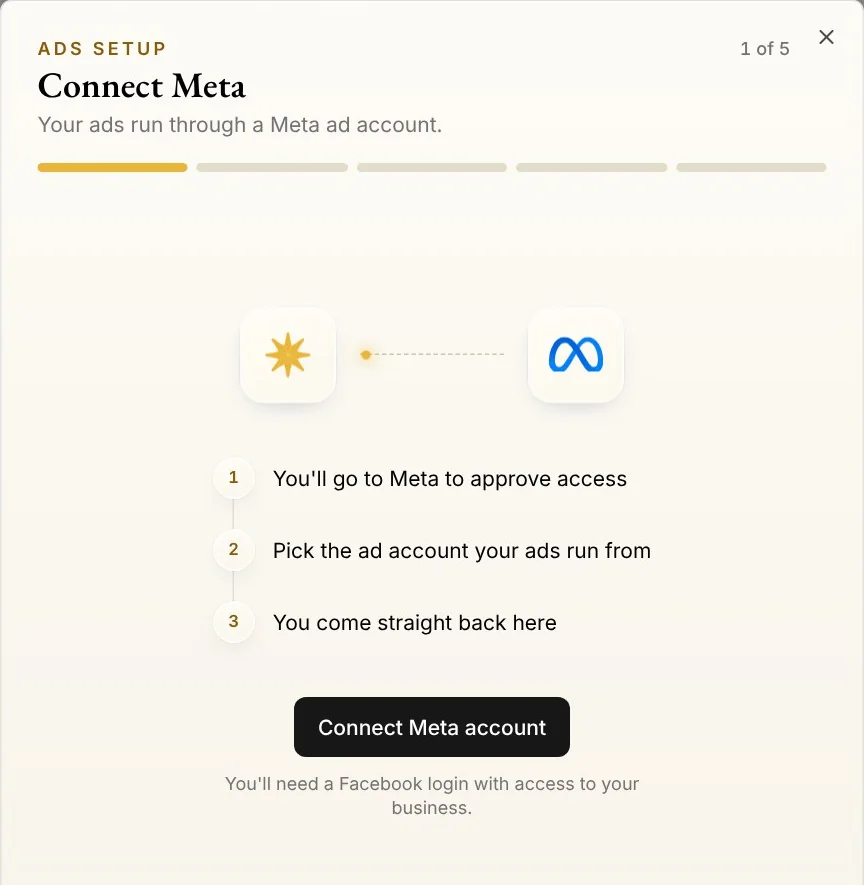
Tip: If Ads setup doesn't open, press Connect on the Meta Ads card on the same page. On some personal brands, Ad settings shows only while your suggestions include ads.
Step 2: Choose how you manage it
Press Connect Meta account. If your ad account is in a Meta business portfolio, keep Business portfolio: access stays with your business when your team changes. If it isn't, choose Personal ad account, which uses a personal Facebook login.
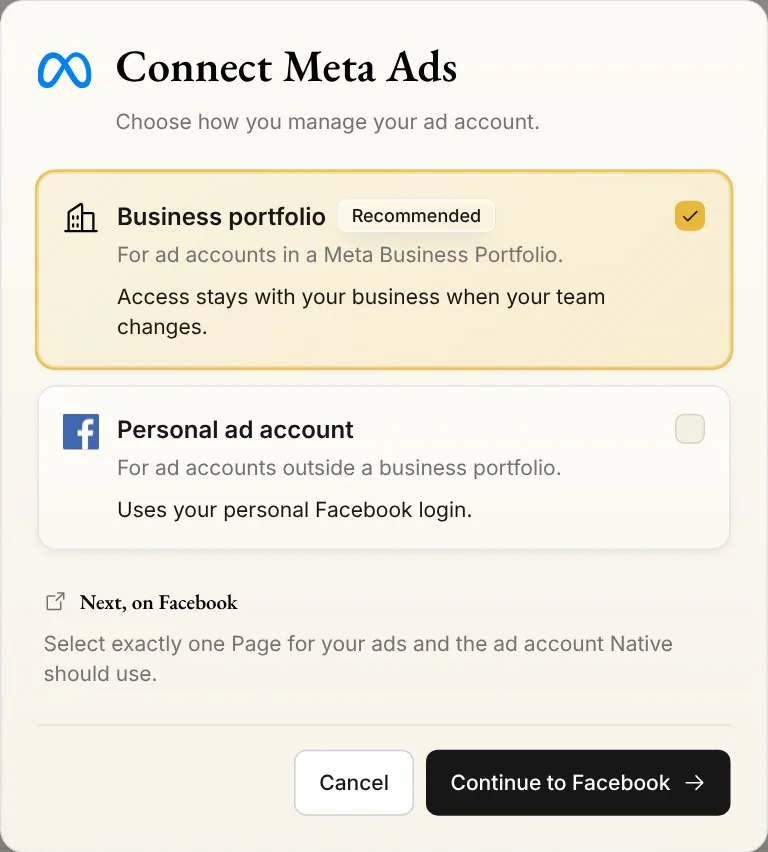
Step 3: On Facebook
With Business portfolio, Native says what to select on Facebook: exactly one Page for your ads, and the ad account Native should use. Press Continue to Facebook and select them there. With Personal ad account, Native uses the Facebook login this brand posts with, or asks you to sign in. Your ads then run as the Page this brand posts to, or as a Page you pick if it posts to none.
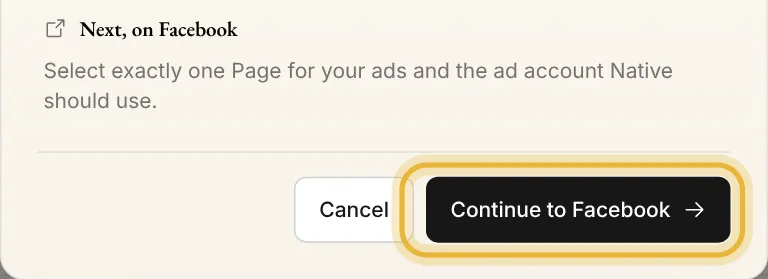
Step 4: Back in Native
Native brings you back. With Personal ad account you confirm the Page first, and with more than one ad account you choose the one Native should use. Then Ads setup carries on with its next step. If it doesn't open, press Finish your ads setup. Press Back to see the ad account you connected.
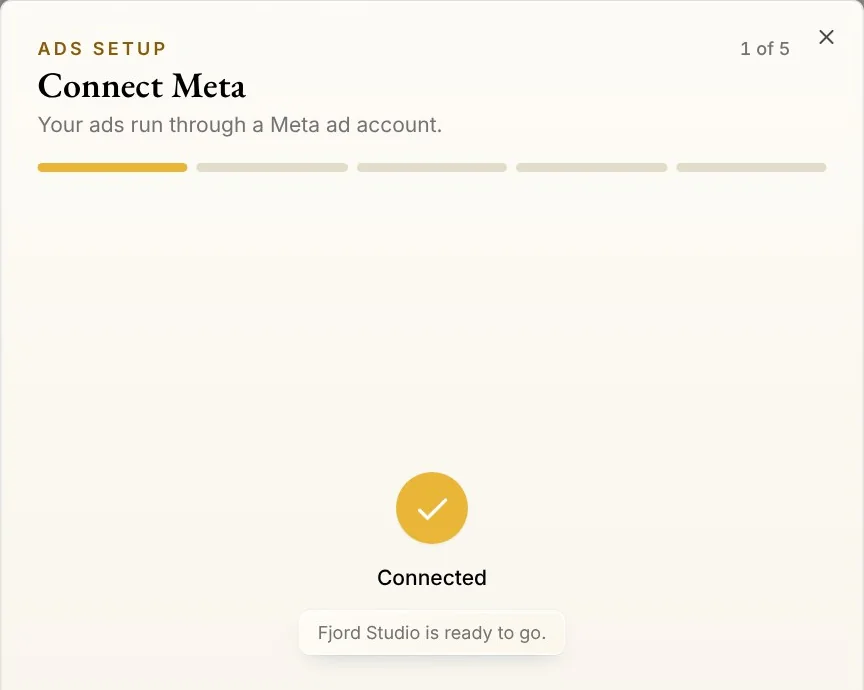
Tips from Trond
- You need a Facebook login with access to the ad account.
- If Native says No ad accounts found for this Meta account, the login you used can't reach an ad account, and nothing is connected.
Try it in Native
New to Native? Start with your website, and see your first posts today.