Ads
Pause your ads or change the budget
 Trond HaugåCOO & Co-founder0:39Recorded October 27, 2026
Every campaign you run from Native has a menu in Create for its budget and its delivery. A change you save there goes straight to Meta.
In this video
Step by step
Step 1: Open your campaign
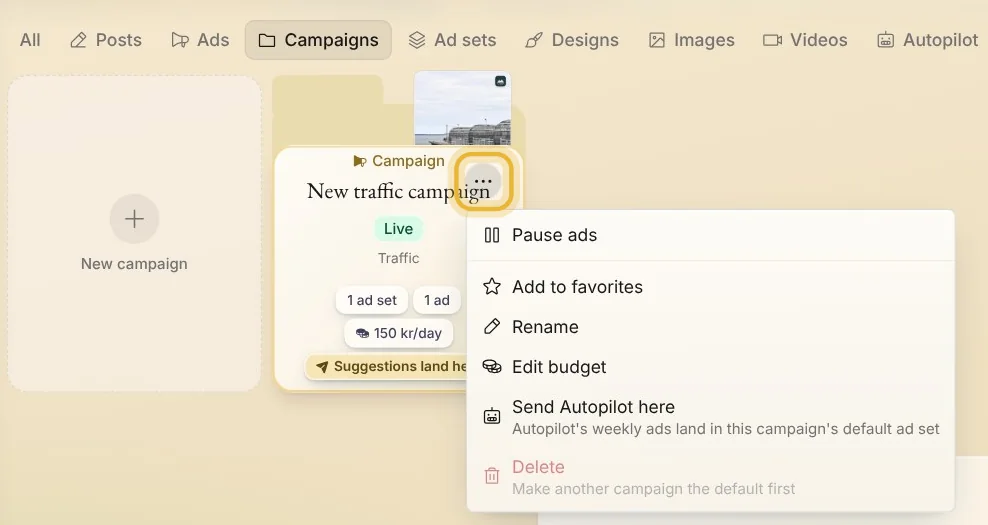
In Create, open Campaigns, and press the three dots on your campaign. If Create shows several brands, pick yours first.
Step 2: Change the budget
Press Edit budget, type what the campaign should spend a day, and press Save. It is an average: Meta spends more on some days and less on others, and never more than seven times that in a week.
If the campaign gives each ad set its own budget, Edit budget says so: change each ad set instead.
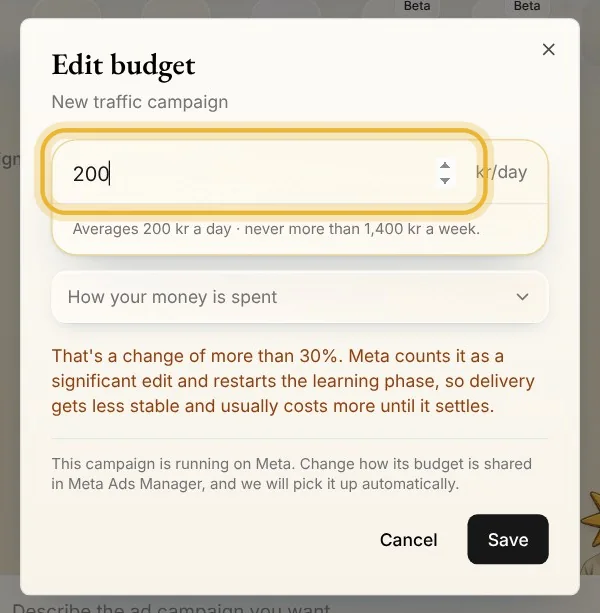
Tip: A change of more than 30 percent makes Meta start learning again, so delivery is less steady and usually costs more until it settles. Native warns you before you save.
Step 3: Pause your ads
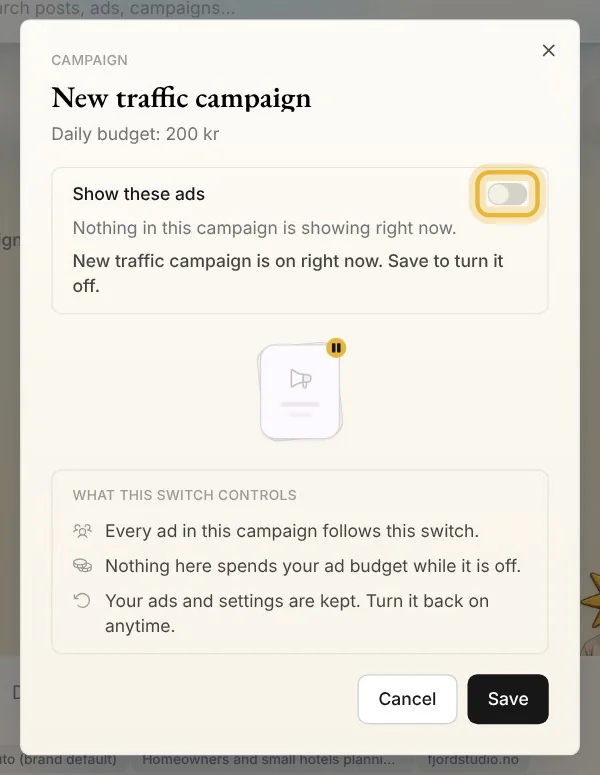
Press Pause ads, then Save. Nothing in the campaign spends while it is off, and your ads and settings are kept.
Step 4: Go live again
When you're ready, press Go live in the same menu, then Save.
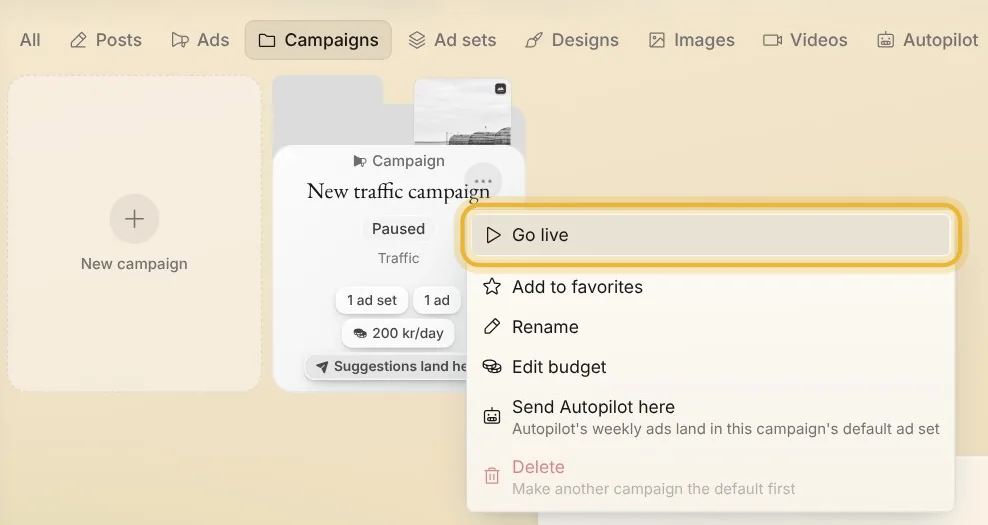
Tip: Go live turns the campaign back on. An ad set or ad you switched off on its own stays off: turn it on from the ad's status card.
Tips from Trond
- Every ad in a campaign follows its switch: pause the campaign, and all of its ads stop.
- Meta reviews new ads first, so ads you turn on can take a little while to start.
Try it in Native
New to Native? Start with your website, and see your first posts today.