Inbox and Analytics
See what works
 Elin Kristina AnderssonFounding GTM0:33Recorded October 26, 2026
Analytics answers three questions at a glance: how often your posts were seen, how people reacted, and which posts did best. Pick a period, look at one channel at a time, and find the posts worth building on.
In this video
Step by step
Step 1: Open Analytics
Press Analytics in the bar on the left. The page opens on the last 30 days, with a card for how you are getting noticed, one for your advertising and one for your conversations.
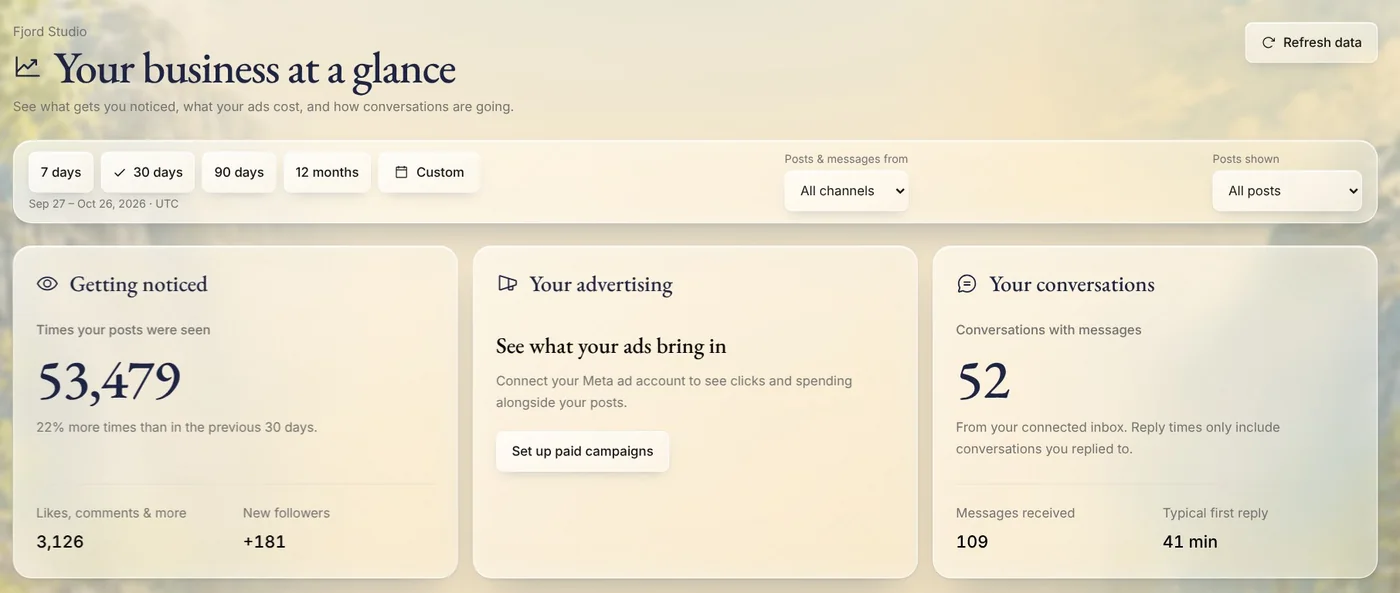
Tip: Not sure what a number means? What do these numbers mean, under the cards, explains each one.
Step 2: Pick a period
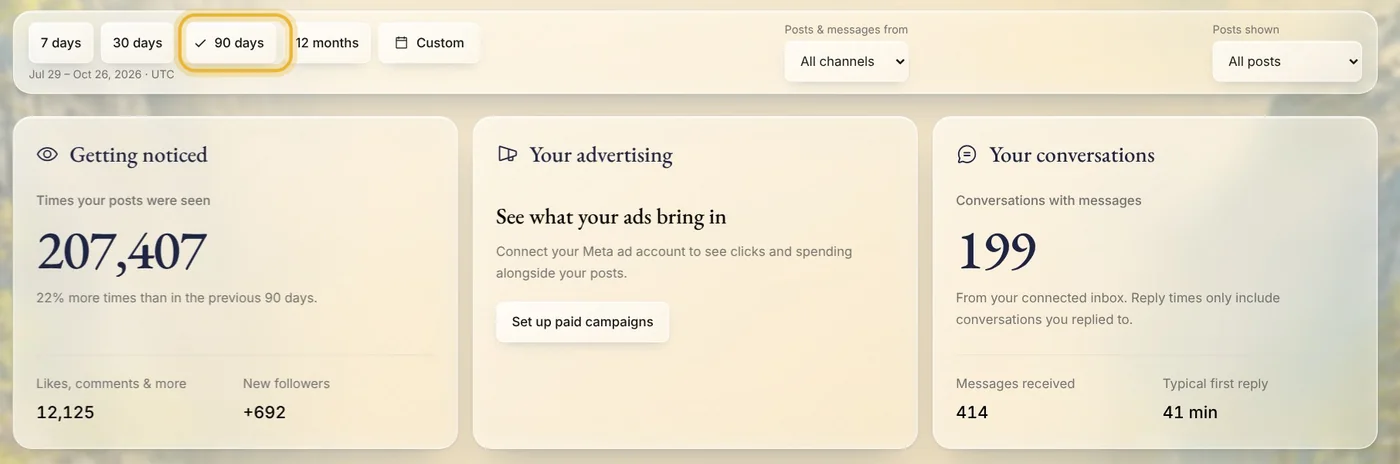
Choose 7 days, 30 days, 90 days or 12 months at the top, or Custom for your own dates. The cards show how that period went. When your channels report both periods, Getting noticed also compares it with the one before.
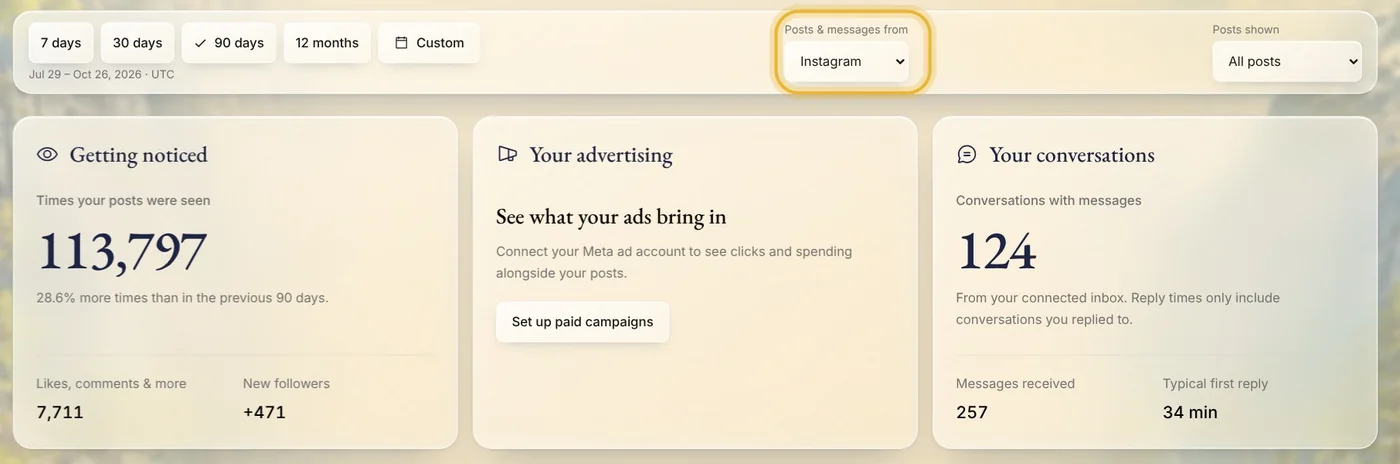
Step 3: Look at one channel
Under Posts & messages from, pick a channel to see its posts and messages on their own. Your advertising always covers your whole ad account. Choose All channels to see them together again.
Tip: Posts shown narrows the posts to the ones made with Native. The totals still count every post on your channels.
Step 4: Find your best posts
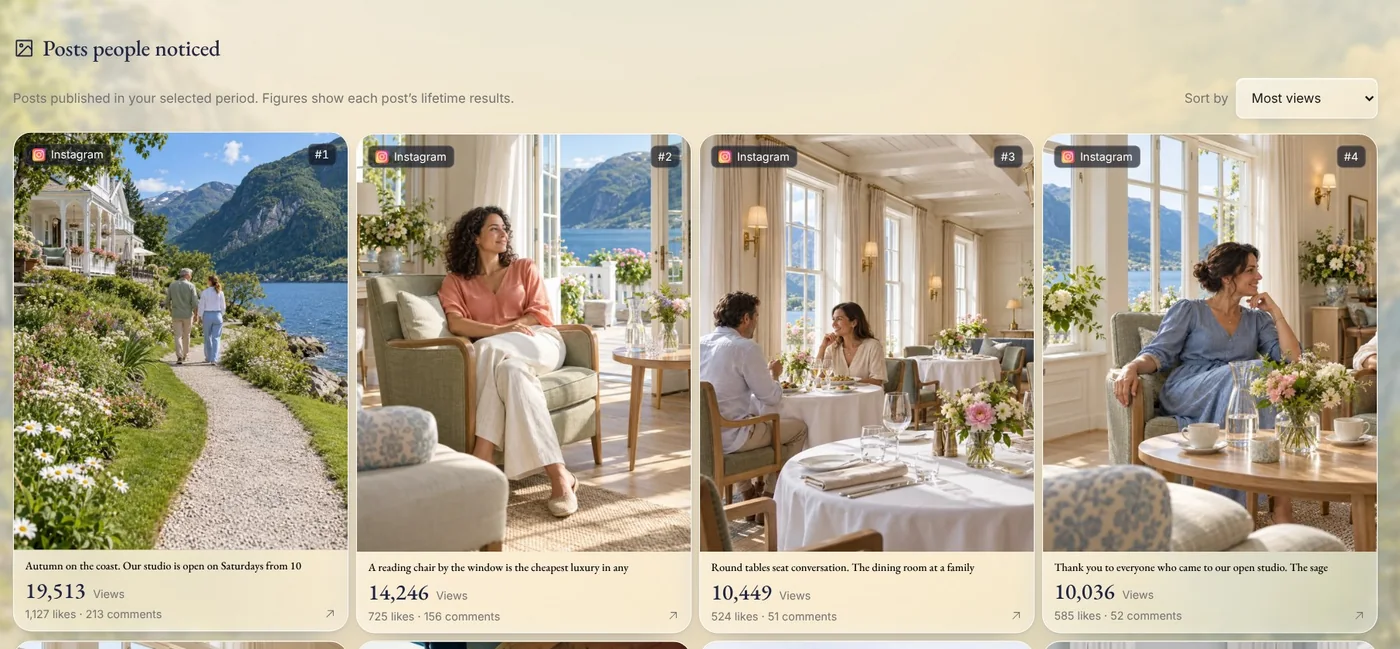
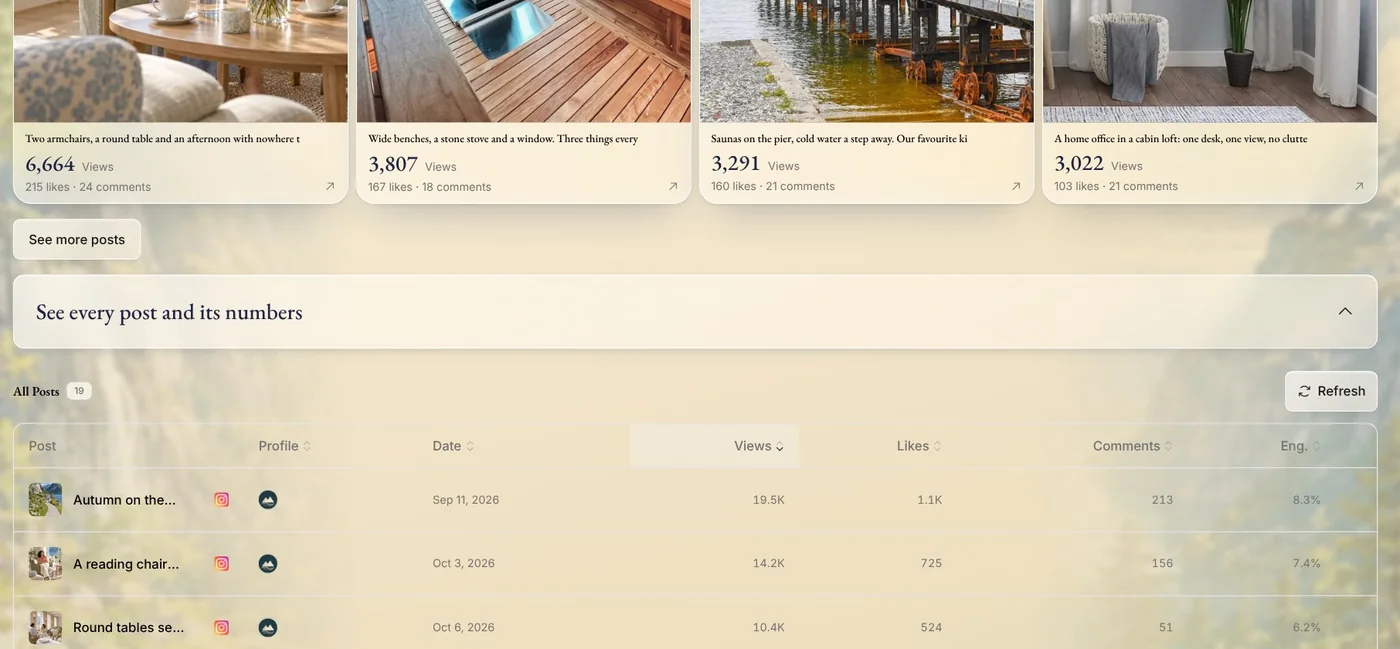
Further down, Posts people noticed ranks the posts from the period, the most viewed first. Use Sort by to rank them by likes or comments instead, and See more posts to see more of them.
Step 5: Sort every post
Open See every post and its numbers for a table of every post from the period. Press a column, like Views or Likes, to sort by it, highest first. Press it again to turn the order around.
Tips from Elin
- Look at the same period each week. A trend tells you more than a single day.
- When a post does well, make more like it: the same kind of picture, the same kind of message.
- A good next step, further down the page, suggests what to do with what the numbers show.
Try it in Native
New to Native? Start with your website, and see your first posts today.