Create
Edit a post and its caption
 Elin Kristina AnderssonFounding GTM0:43Recorded October 26, 2026
Every post you make in Native opens in the editor. Each channel has its own tab and its own words, a preview shows the post the way that channel does, and Schedule sends it on its way.
In this video
Step by step
Step 1: Open the draft
In Create, press a draft, and the post opens in the editor.
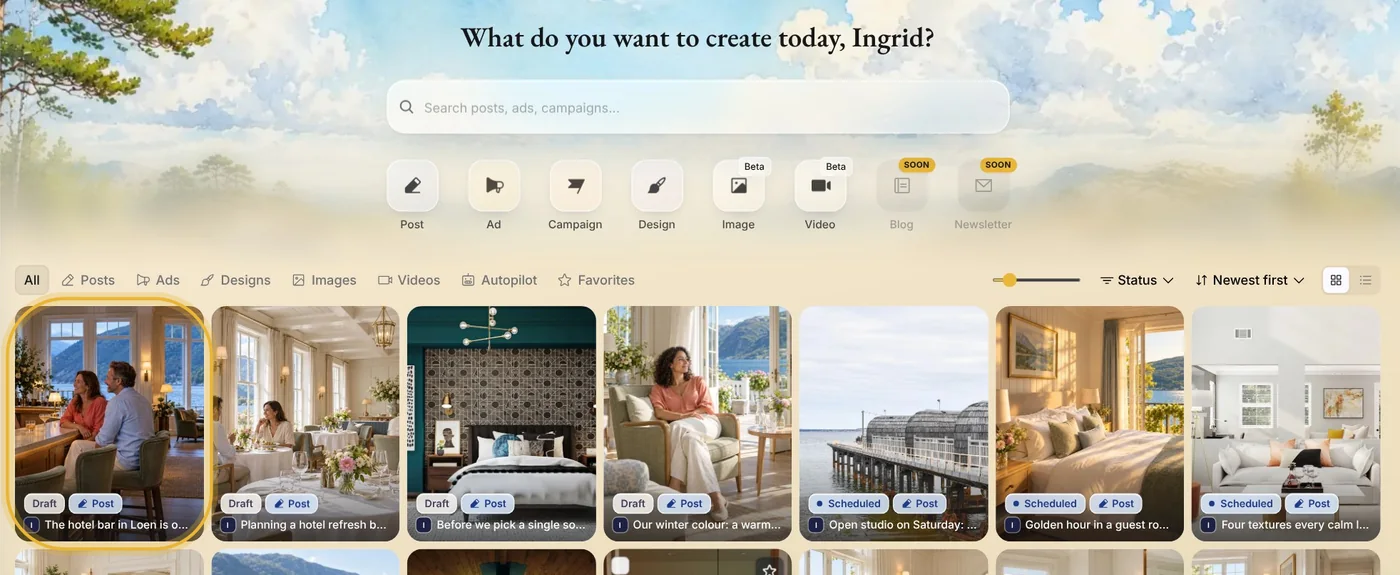
Tip: Looking for one post? Search by its words, or use Status to show only your drafts.
Step 2: Switch between channels
Each channel the post goes out on has a tab at the top, and each tab has words of its own. The preview shows the post the way that channel does.
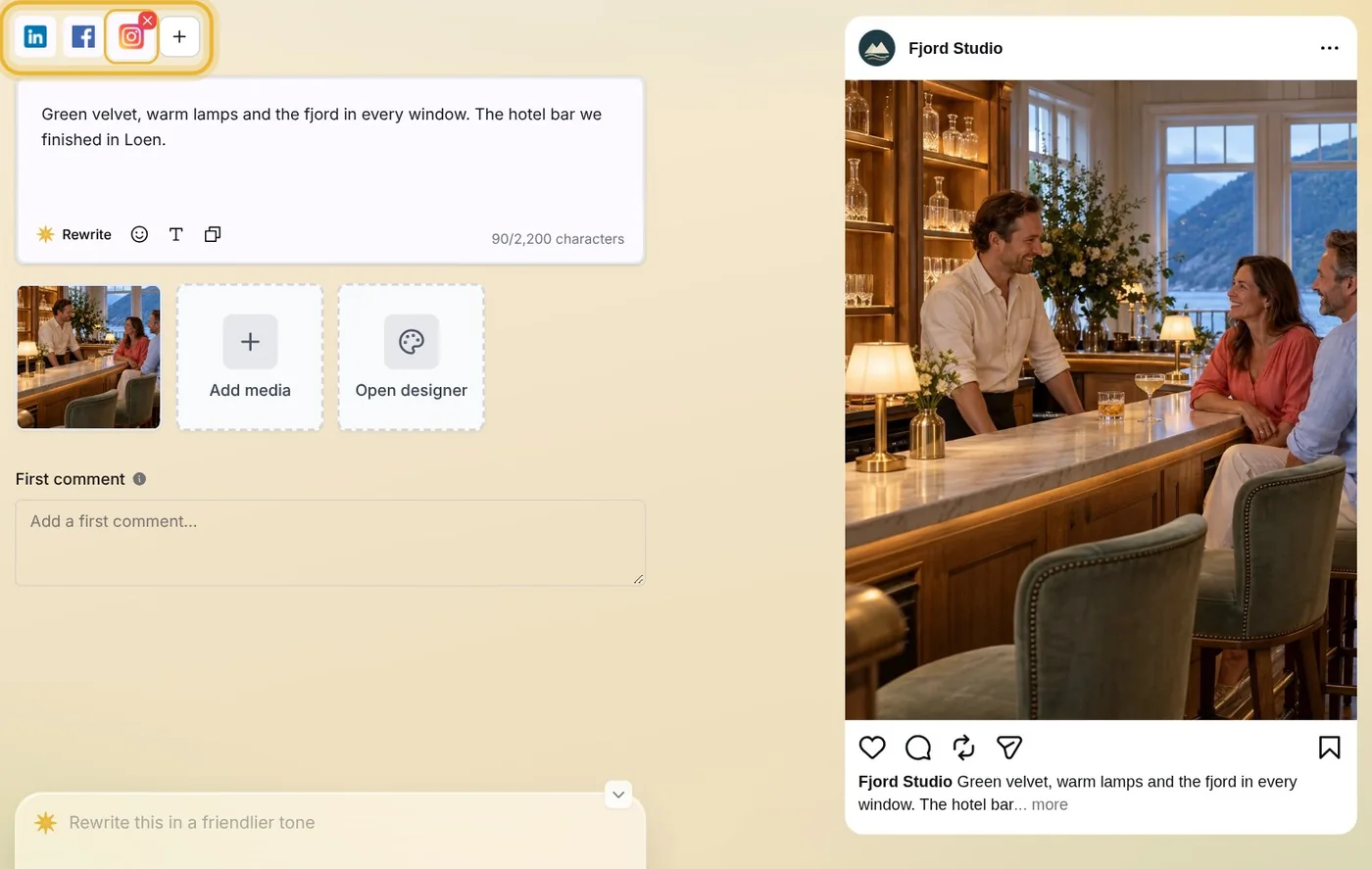
Tip: The + after the tabs adds another channel to the post.
Step 3: Change the words
Click in the caption and type. The preview follows as you write, and the count at the bottom of the box shows how much room the channel gives you.
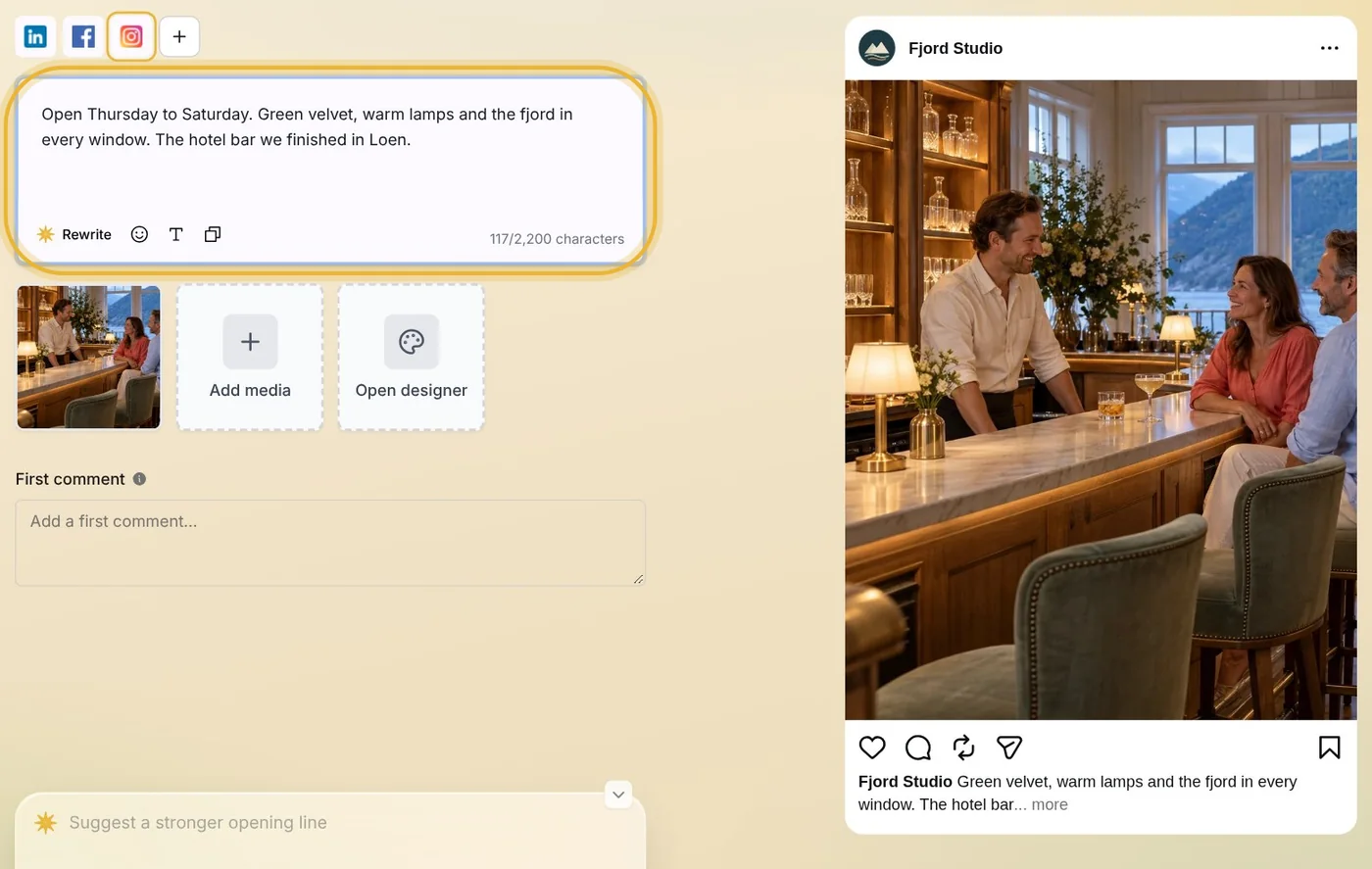
Tip: On a computer, Rewrite has Native change the words: pick Shorter or More casual, or say what to change. You can also ask Native in the chat, for example: make it shorter.
Step 4: Schedule it
Press Schedule, then Publish later. Check the channels, and their options where a channel has some, pick a day, and take the time Native recommends with its Use button, or set your own. On Review, press Schedule.
Until it goes out, each channel shows Edit and Unschedule. Edit takes that channel off the schedule so you can change it, then you schedule it again. Unschedule asks which channels to move back to your drafts.
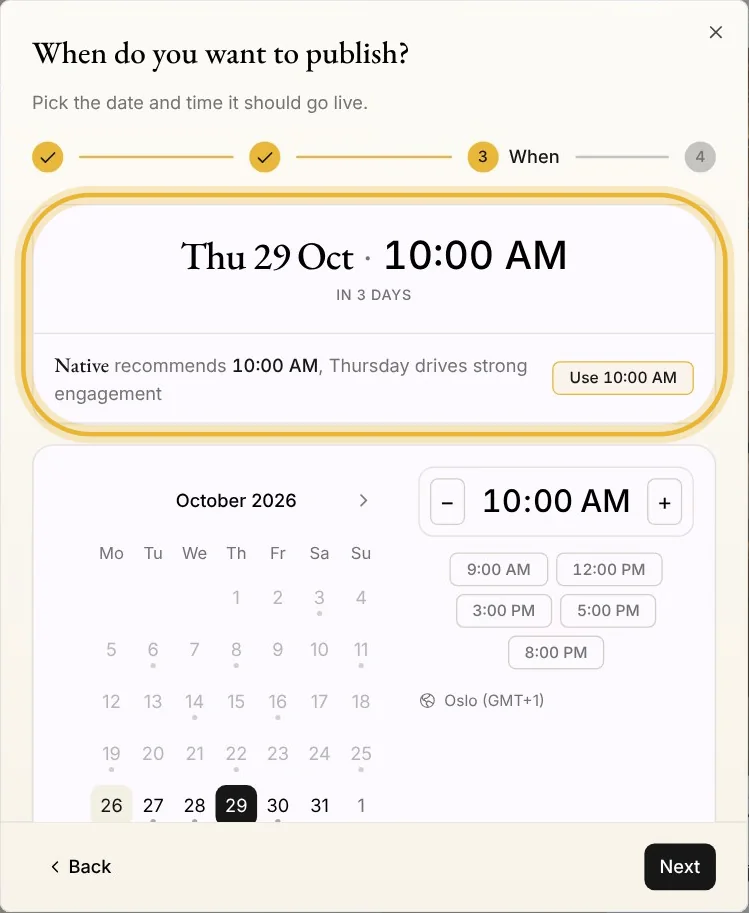
Tip: Publish now sends the post to your channels right away.
Tips from Elin
- Write each channel its own way: a short line for Instagram, a little more for Facebook, the full story for LinkedIn.
- On channels that take one, a first comment goes out by itself when the post goes live. It is a good place for hashtags or a link.
- Want the words written for you? Make a post from your own idea, and Native writes each channel's caption.
Try it in Native
New to Native? Start with your website, and see your first posts today.