Create
Finish a picture in Designer
 Elin Kristina AnderssonFounding GTM0:37Recorded October 26, 2026
Designer opens the picture of the channel you are on as a page you can change yourself. Add a few words, put your logo on it and decide what sits in front, and that channel keeps the result.
In this video
Step by step
Step 1: Open Designer
In the post, press Open designer next to the pictures, then Open designer in the menu. The picture opens as a page, with the tools down the left.
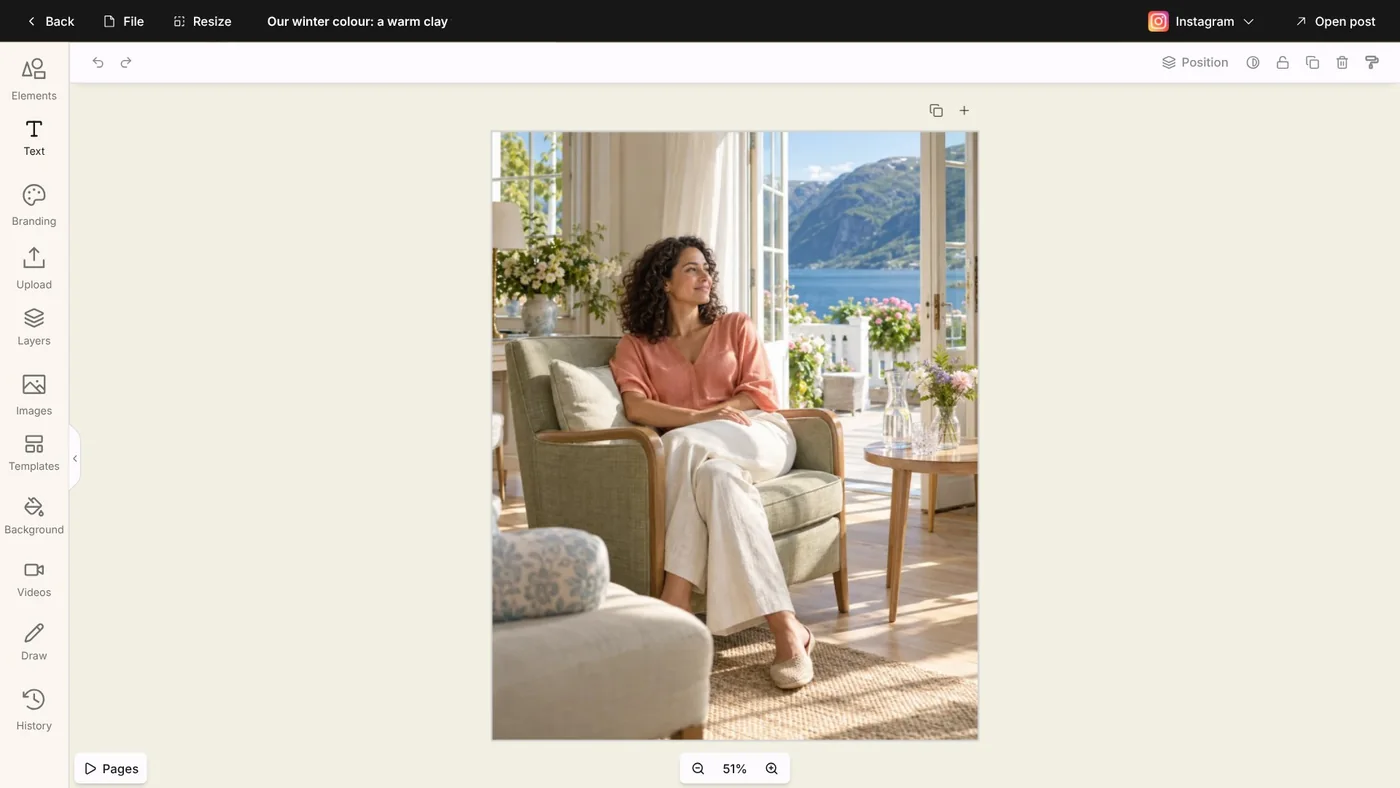
Tip: Designer works on a computer. On a phone, the post has no Open designer.
Step 2: Add your words
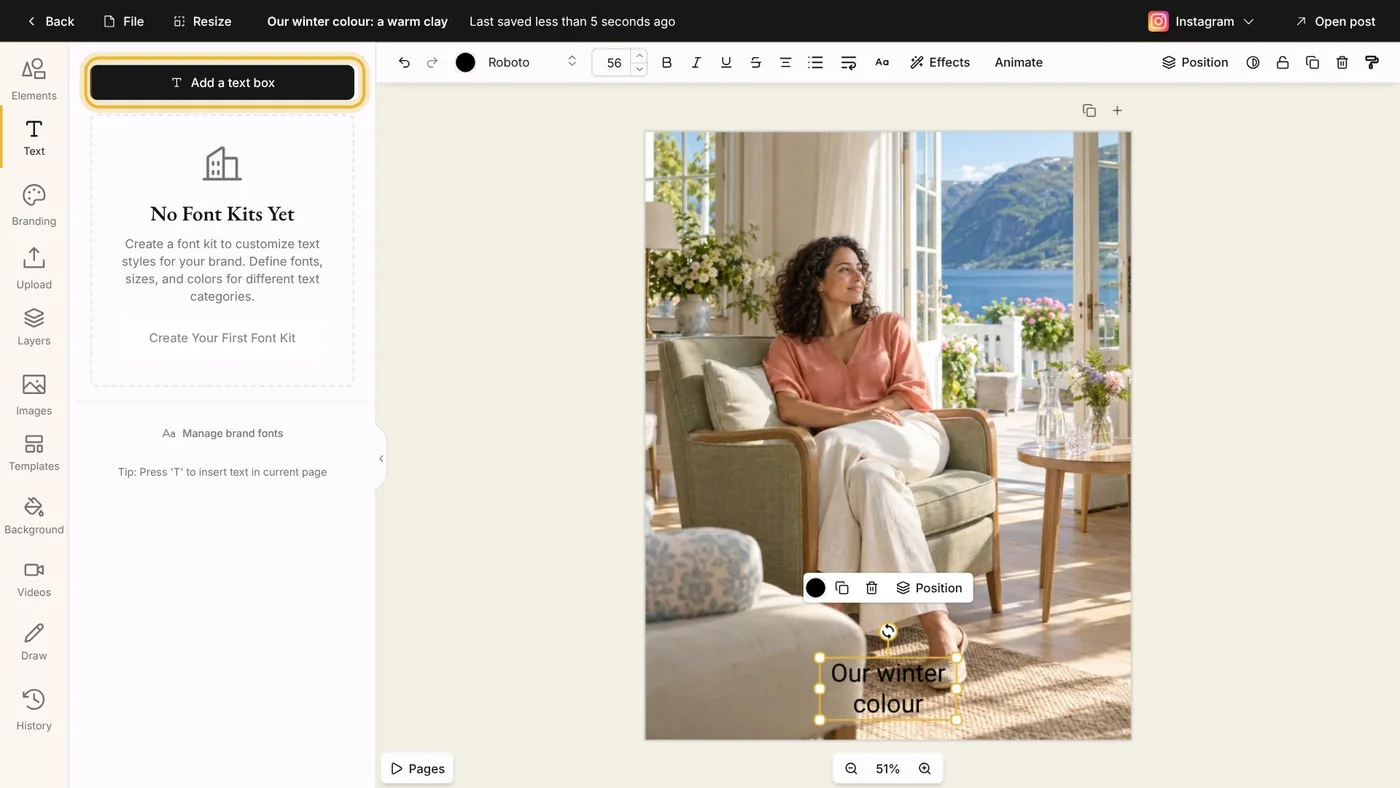
Choose Text, then Add a text box. Double-click the box to write, then press Escape. Drag it where you want it, and use the bar above the picture for the font, the size and the color.
Step 3: Add your logo
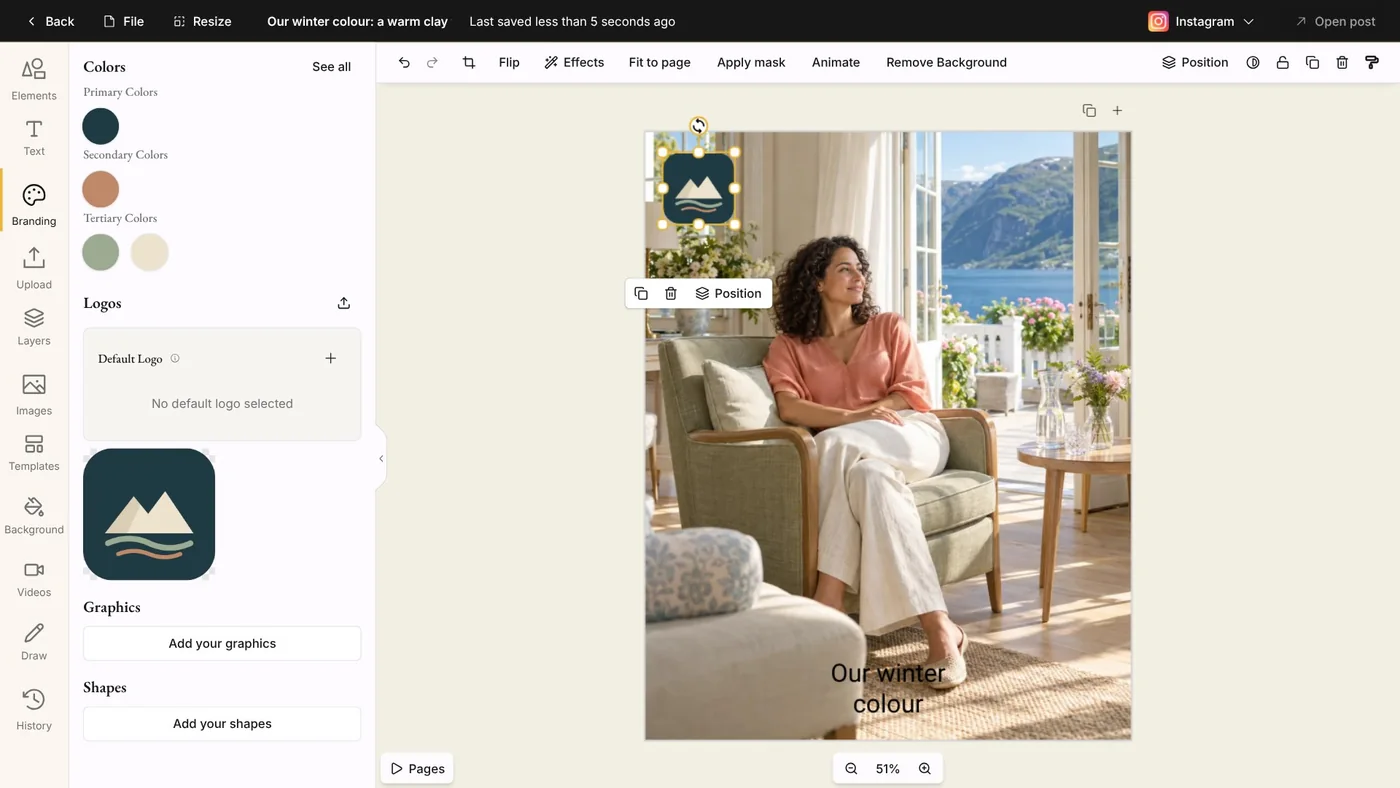
Choose Branding to see your colors and your logos. Click your logo under Logos to put it on the picture, drag a corner to make it smaller, and drag it into place.
Step 4: Use layers
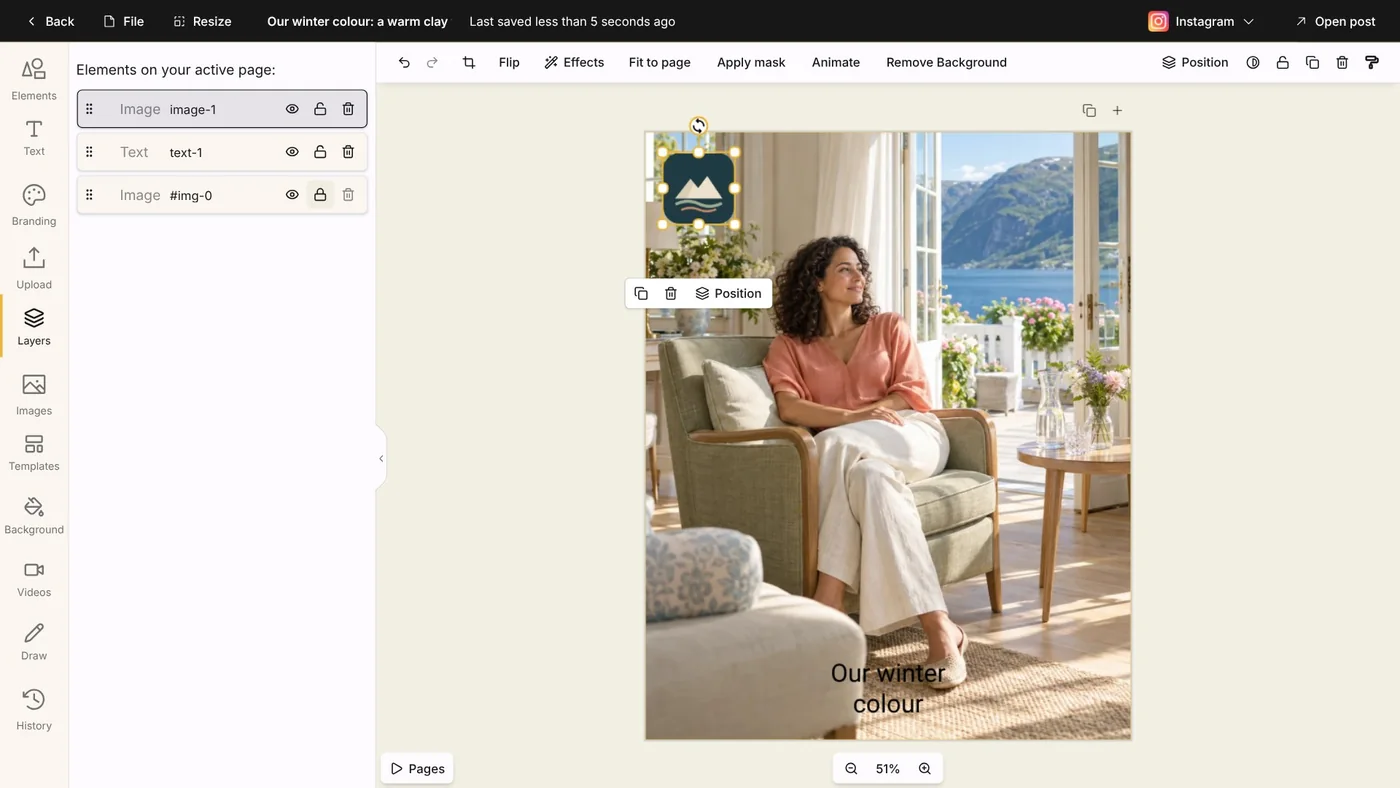
Choose Layers to see everything on the picture, the front one first. Drag a layer up or down to change what sits in front, hide one with the eye, or lock one so it stays where it is.
Step 5: Back to the post
Designer saves as you go. Press Open post, and the channel you designed shows your new picture, ready to schedule. The post's other channels keep their own picture.
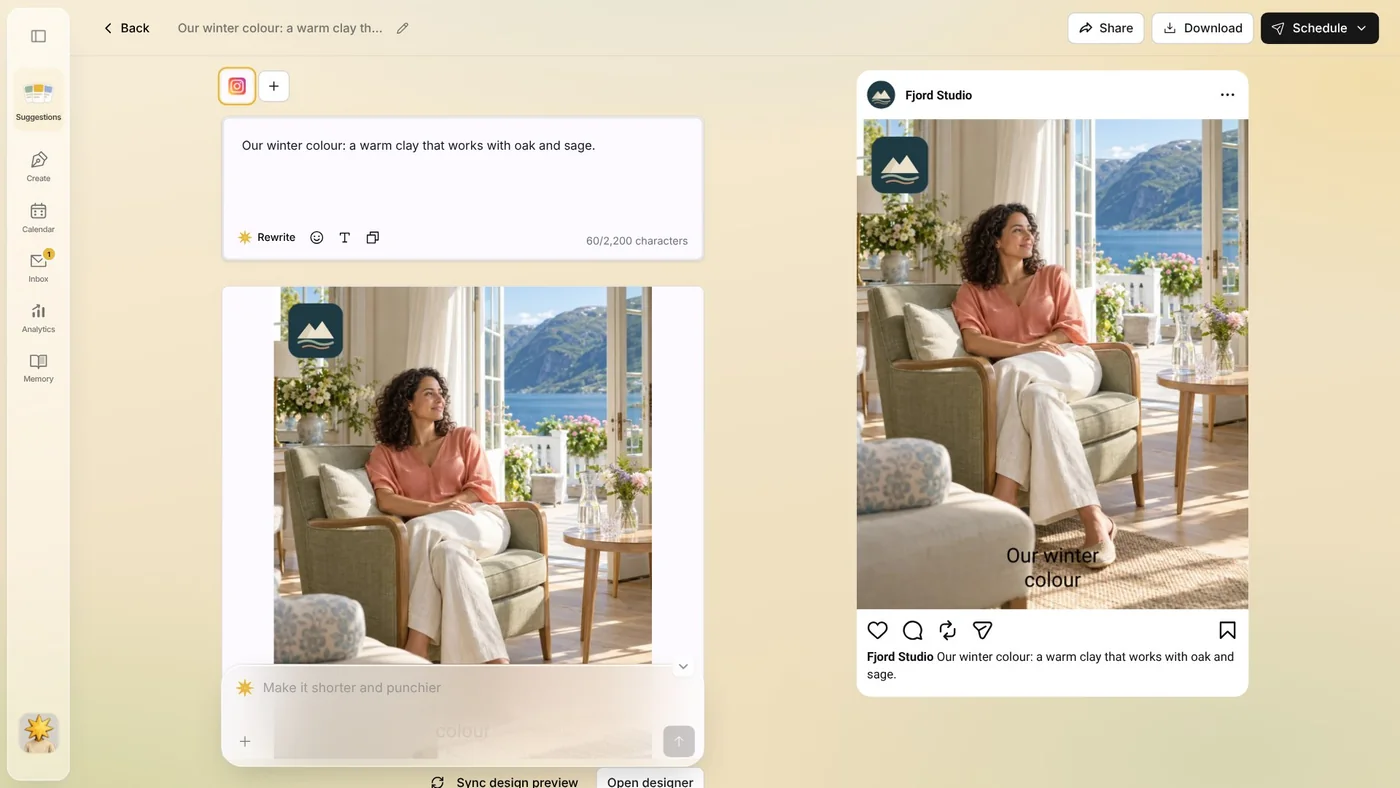
Tip: To keep working on it, press Open designer again on the same channel's tab.
Tips from Elin
- Keep the words on a picture short: a line people read at a glance. The caption tells the rest.
- Put your logo in a corner and keep it small, so the picture still does the talking.
- Each channel can have a design of its own. To change another channel's picture, pick its tab in the post and press Open designer there.
Try it in Native
New to Native? Start with your website, and see your first posts today.