Workspaces and brands
Add a brand
 Elin Kristina AnderssonFounding GTM0:42Recorded October 29, 2026
A brand is who you post as: one business, or one person. Add one in Settings, and Native reads its website to set it up while you carry on.
In this video
Step by step
Step 1: Add brand
Open Settings from your menu. On the overview, under Brands, press Add brand.

Tip: Only a workspace owner or admin can add a brand.
Step 2: Name and type
Give the brand a name, and choose its type: Company for a business, Personal for one person.
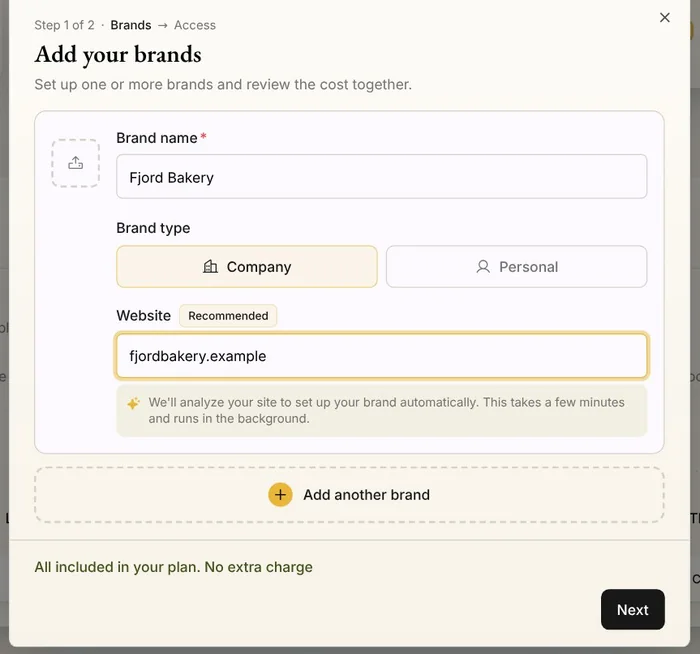
Step 3: Its website
Under Set up from, keep A website and type the address. Native reads the site to set the brand up for you. No website? Choose Existing brand to start from a copy of a brand Native has already set up: its look, pictures, facts and voice. It shows only when you have one. Or leave the website empty and set the brand up yourself: press 1 brand to review in the bar on the left, then Set up manually.
Step 4: What it costs
If your plan has room, the dialog says the brand is included, with no extra charge. If not, the bottom of the dialog shows the extra price, and a last step, Review & confirm, shows the billing before anything is created.
Tip: Pro includes one brand, Max three, and Enterprise all of them. On the free plan, Add brand opens the plans first.
Step 5: Who can work on it
If your workspace has teammates, set each one's role in the new brand: Admin, Member or No access. They start on Admin, and you're its Owner. Then press Add 1 brand for free, or Next if the brand is billed.
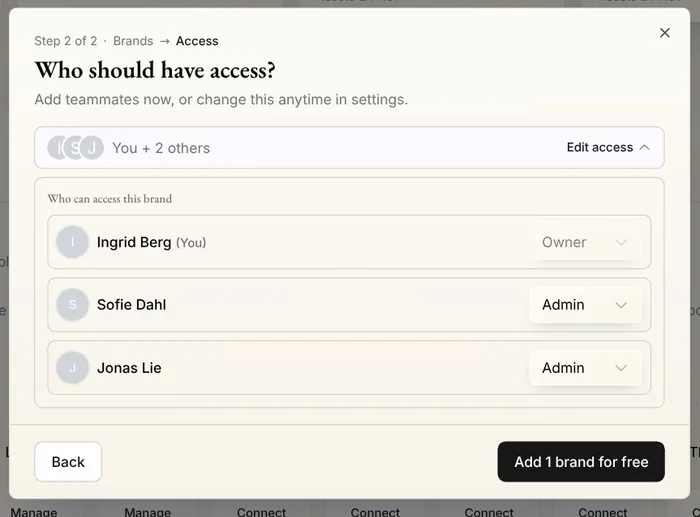
Step 6: Setup
Native opens the new brand and sets it up in the background, in a few minutes. While it works, the bar on the left shows a spinning circle. When it's ready, it shows a checklist, 1 brand to review: press it, then Review this brand to check what Native found.
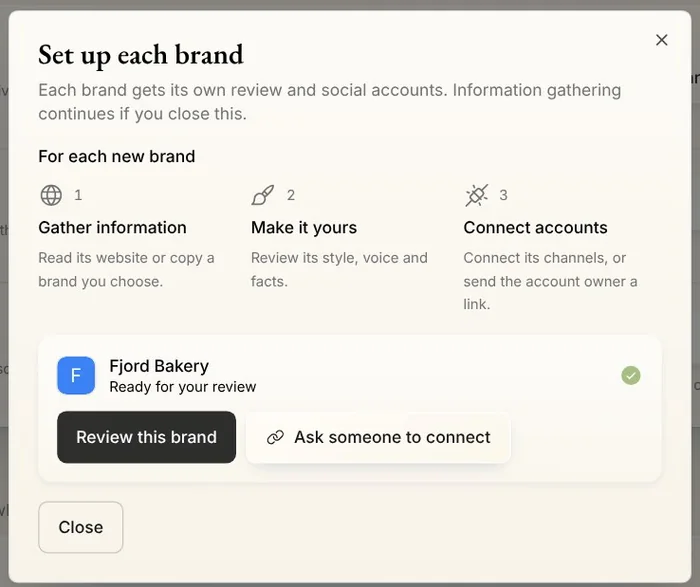
Tips from Elin
- Want a business and its owner? Add a company brand and a personal one to the same workspace.
Try it in Native
New to Native? Start with your website, and see your first posts today.