Start here
Set up your brand with Elin
 Elin Kristina AnderssonFounding GTM0:44Recorded October 29, 2026
Every new brand has a short setup, with Elin as your guide. It shows what Native found about the brand, and lets you fix it before the first posts.
In this video
Step by step
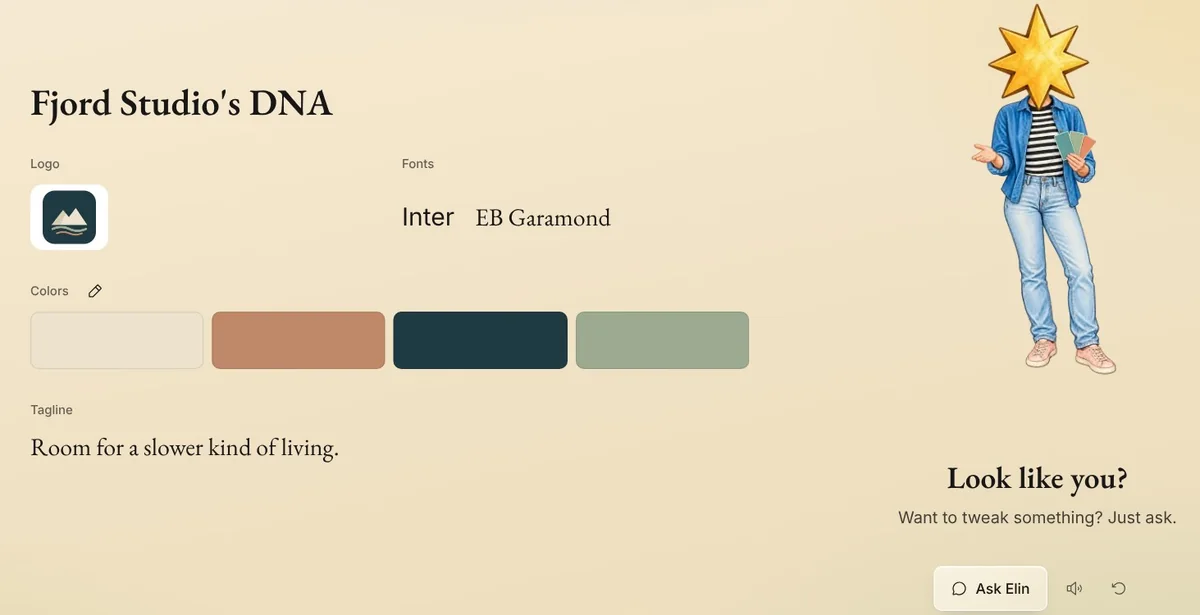
Step 1: Your look
The brand's DNA: the logo, fonts, colors and tagline Native found. Hover a part and press its pen to change it, or press Ask Elin and say what to change.
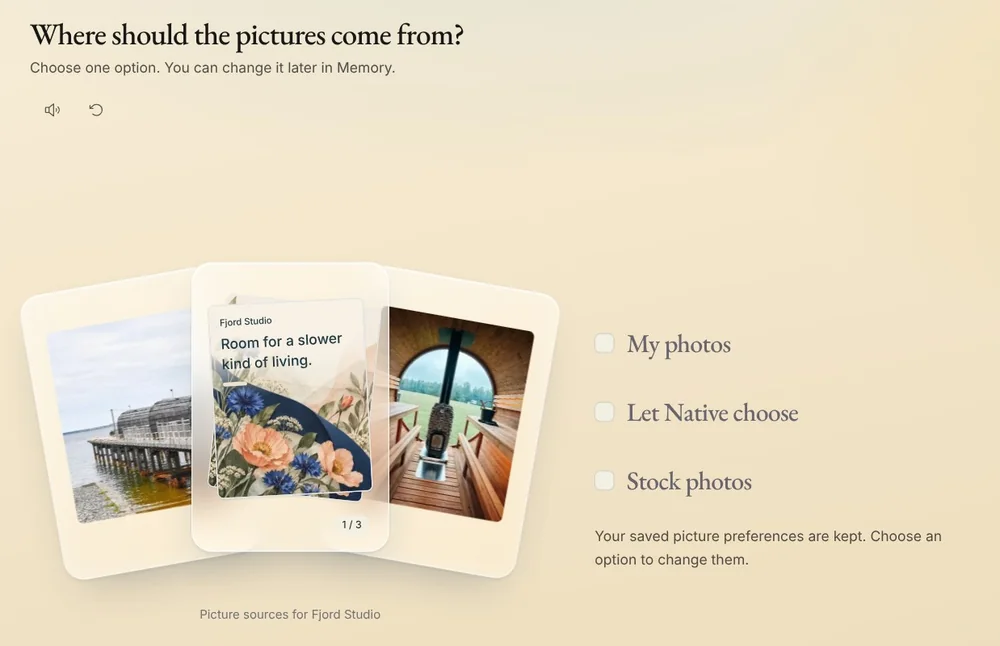
Step 2: Your pictures
Add your own photos and videos, then choose where post pictures come from: your photos, stock photos, or let Native choose.
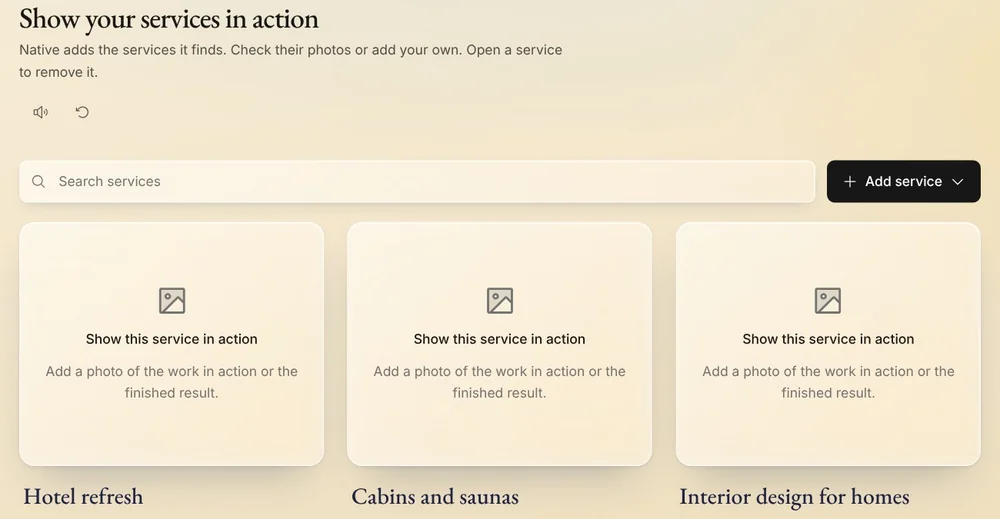
Step 3: What you offer
Check the services Native found, and add photos of the work in action or the finished result. A shop checks its products instead.
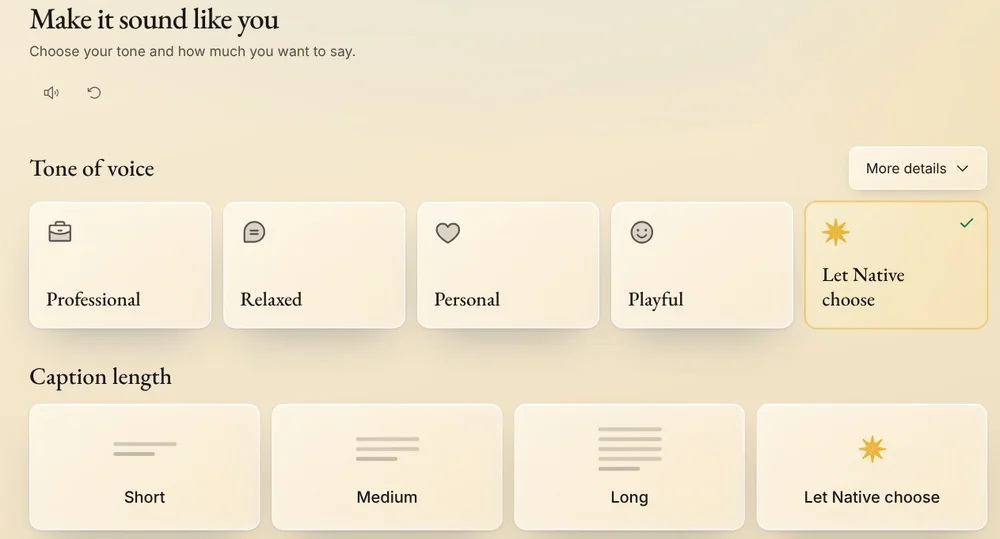
Step 4: How you sound
Pick the language you write in, the tone, how long captions are, and how many emojis to use. Not sure? Let Native choose.
Step 5: Your information
Check what Native knows about your business: what you do, your industry and what matters to you. Fix anything that's off.
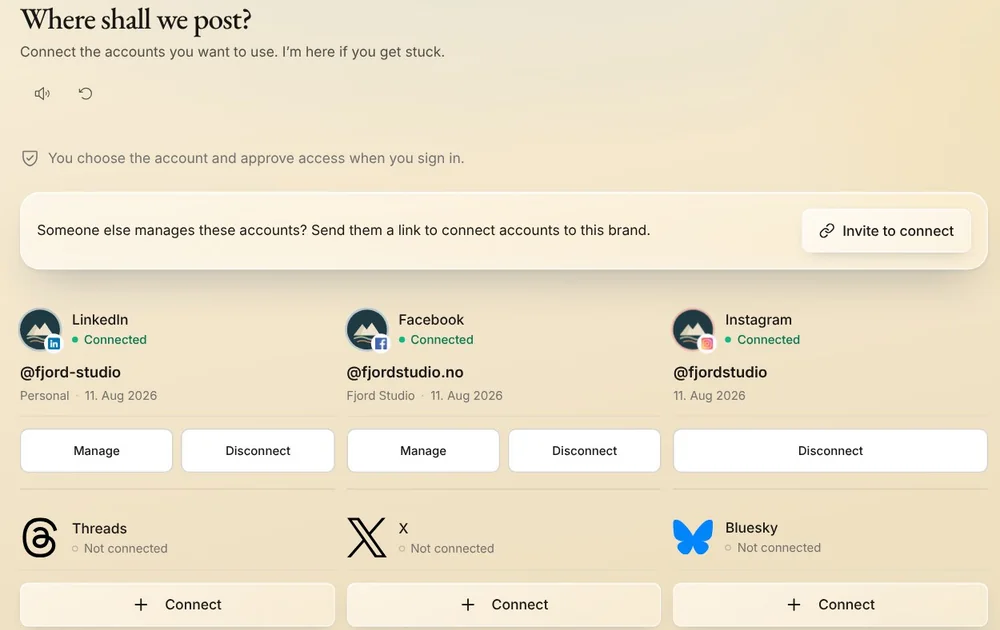
Step 6: Where you post
Connect the social accounts the brand posts to. Someone else holds the passwords? Press Invite to connect and send them a link.
Step 7: All set
That's it. Press See my posts to see the first ones. You can change all of it later, in Memory and Settings.
Tips from Elin
- Press Previous to go back a step. Your setup journey, on the left or in the menu at the top, shows how far you've come.
Try it in Native
New to Native? Start with your website, and see your first posts today.