Ad problems
When Meta won't accept ads for your Page
 Trond HaugåCOO & Co-founder0:47Recorded October 28, 2026
Sometimes Meta refuses to create ads for your Facebook Page from your ad account through Native, with a message that names neither. Native tests which of the two Meta is refusing, and lays out the fix, step by step. When the test can't tell, it says so.
In this video
Step by step
Step 1: The notice
Native says Meta won't accept ads for your Page, at the top of Create and Suggestions. Ads that are already running keep going. Press Show me how to fix it for the steps, in order.
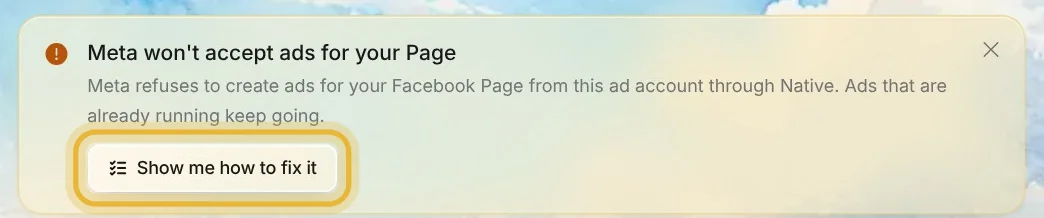
Tip: If it says Meta is blocking new ads on this ad account, the block is on the ad account: its steps start in Account Quality, with the profile that owns the ad account. If it says Meta is refusing your ads, Native couldn't tell which, and the steps are the same as here.
Step 2: A test ad first
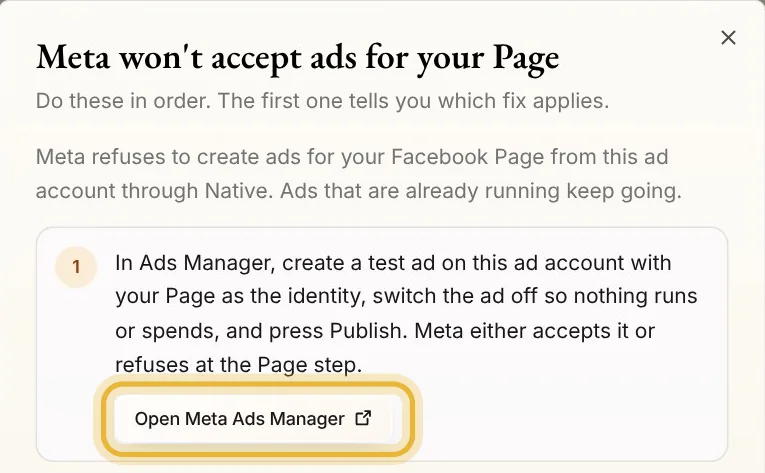
In Meta Ads Manager, create a test ad on the same ad account, with your Page as its identity. Switch the ad off, so nothing runs or spends, and press Publish. Meta either takes it, or refuses it at the Page.
Step 3: If Meta refuses it too
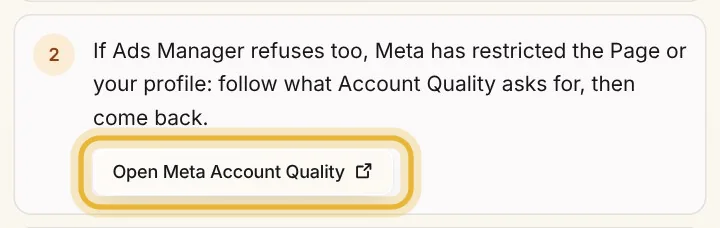
Then Meta has restricted your Page or your profile. Open Account Quality, and do what Meta asks for there, then come back.
Step 4: If the test ad went through
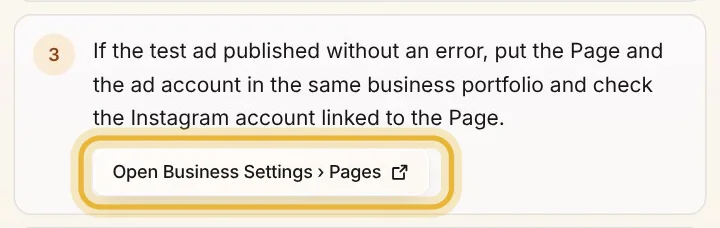
Put the Page and the ad account in the same business portfolio, in Meta's Business Settings under Accounts, and check the Instagram account linked to the Page.
Step 5: Reconnect, then publish
Reconnect Meta in Native, and publish again. Use a private window, and log in as the Page's admin: a browser that is signed in to another Facebook profile reconnects as that profile.
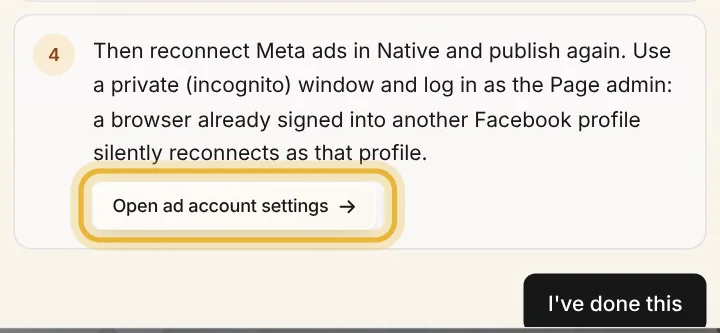
Tip: Open ad account settings, on this step, takes you to the page in Native where Meta is connected.
Tips from Trond
- Done the steps? A brand admin presses I've done this in the dialog. Native asks Meta again. If Meta still refuses, Native says so, and the notice stays.
- Each step has a button to the page it needs, in Meta or in Native.
Try it in Native
New to Native? Start with your website, and see your first posts today.