Ad problems
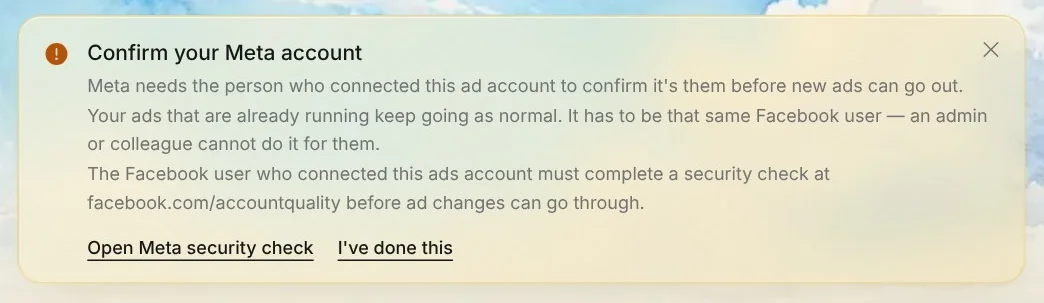
Confirm your Meta account
 Trond HaugåCOO & Co-founder0:36Recorded October 28, 2026
Now and then, Meta stops new ads from an ad account until the Facebook user who connected it to Native completes a security check. Ads that are already running keep going. When Meta refuses an ad for this, Native tells you, and where to go.
In this video
Step by step
Step 1: The notice
Native says Confirm your Meta account at the top of Create and Suggestions, and in the Publish dialog when you open it. Meta's own sentence often follows, with the address of the check.
Step 2: Who confirms
It has to be the Facebook user who connected the ad account to Native. Meta asks that person, so an admin or a colleague can't do it for them.
Step 3: Open Meta security check
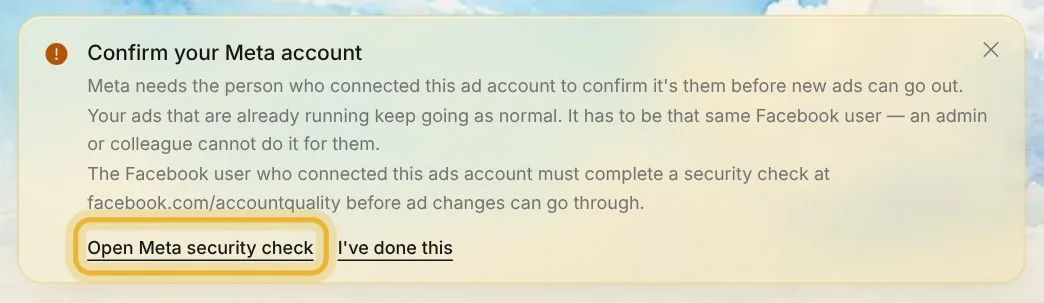
That person presses Open Meta security check. It opens Meta's Account Quality page, facebook.com/accountquality, where they follow Meta's steps.
Step 4: I've done this
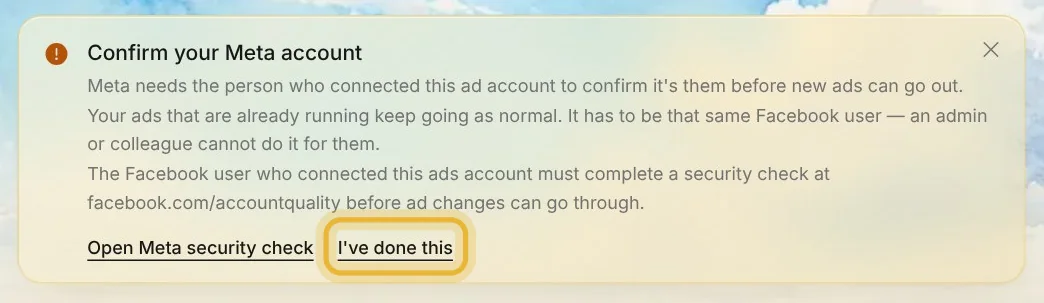
Back in Native, a brand admin presses I've done this. The notice goes away, and you can publish your ad again. If Meta still stops the next ad, the notice comes back.
Tip: Everyone with access to the brand sees the notice. Only its owners and admins see I've done this.
Tips from Trond
- While the check waits, ads that are already running keep going. Only new ads and changes wait.
- Native can't see when the check is done on Meta's side. I've done this tells it, and the next ad you publish shows whether Meta agrees.
Try it in Native
New to Native? Start with your website, and see your first posts today.